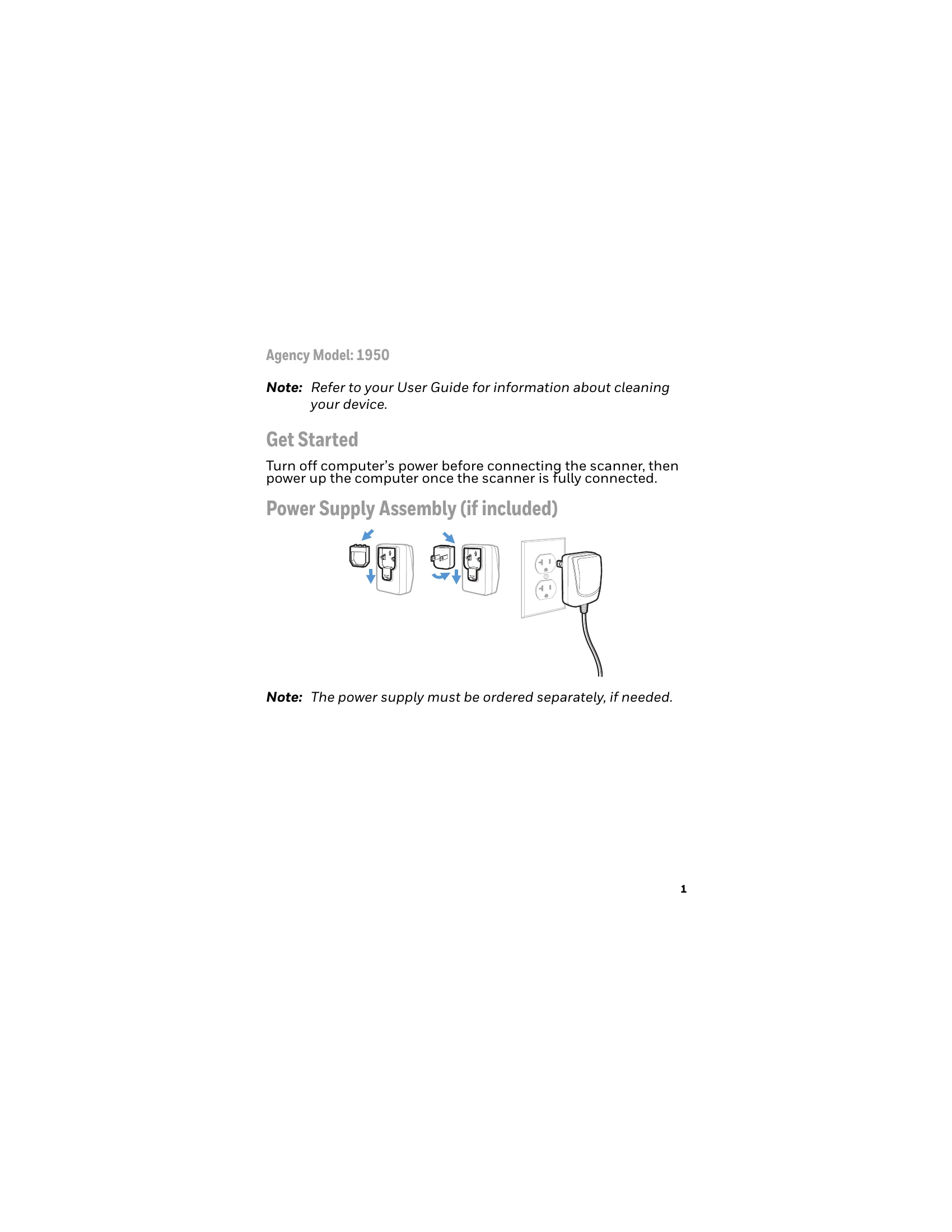
Get Started
Turn off computer's power before connecting the scanner, then power up the computer once the scanner is fully connected.
Connect the Scanner
Follow the diagrams to connect the scanner via USB, Keyboard Wedge, RS232 Serial Port, or RS485.
Reading Techniques
Use the view finder's aiming beam, centered over the barcode, for good reads.
Standard Product Defaults
Scan the barcode to reset to standard product defaults.
RS485 Interface
Configure RS485 interface for IBM POS terminals if needed, by scanning the appropriate code and power cycling.
USB Serial
Scan to program the scanner to emulate an RS232 COM Port. Download drivers for Windows if necessary.
USB PC Keyboard
Scan to program the scanner for USB PC Keyboard.
Keyboard Country
Scan the appropriate country code to program the keyboard layout.
Trigger
Scan barcodes to set the scanner to Manual Trigger - Normal Mode or Presentation mode.
Streaming Presentation™
Enables continuous illumination and searching for barcodes.
Suffix
Scan barcodes to add carriage return or tab suffixes, or to remove suffixes.
Add Code ID Prefix to all Symbologies
Scan to add a Code ID prefix to all symbologies.
Function Code Transmit
Enable or disable transmission of function codes to the terminal.
EZConfig-Scanning
Use the online software tool for additional scanner features.
Support
Visit www.hsmcontactsupport.com for knowledge base and technical support.
Product Documentation
Available at www.honeywellaidc.com.
Limited Warranty
Information available at www.honeywellaidc.com.