Manual for D2600/D2700

Manual for D2600/D2700

Brand: HP

Category: Computer

Document Type: Manual

Language: EN
Uploaded: Nov. 21, 2025, 6:52 p.m.

Manual Publish Date: 2009-09-01

Warranty Information

Warranty statements for HP products and services are set forth in the express warranty statements accompanying such products and services.

  • Powering on: Press and hold the on/standby button for a few seconds until LEDs illuminate.
  • Entering standby: Press and hold the on/standby button for a few seconds until the LED changes to amber. Note: This does not completely shut down power.
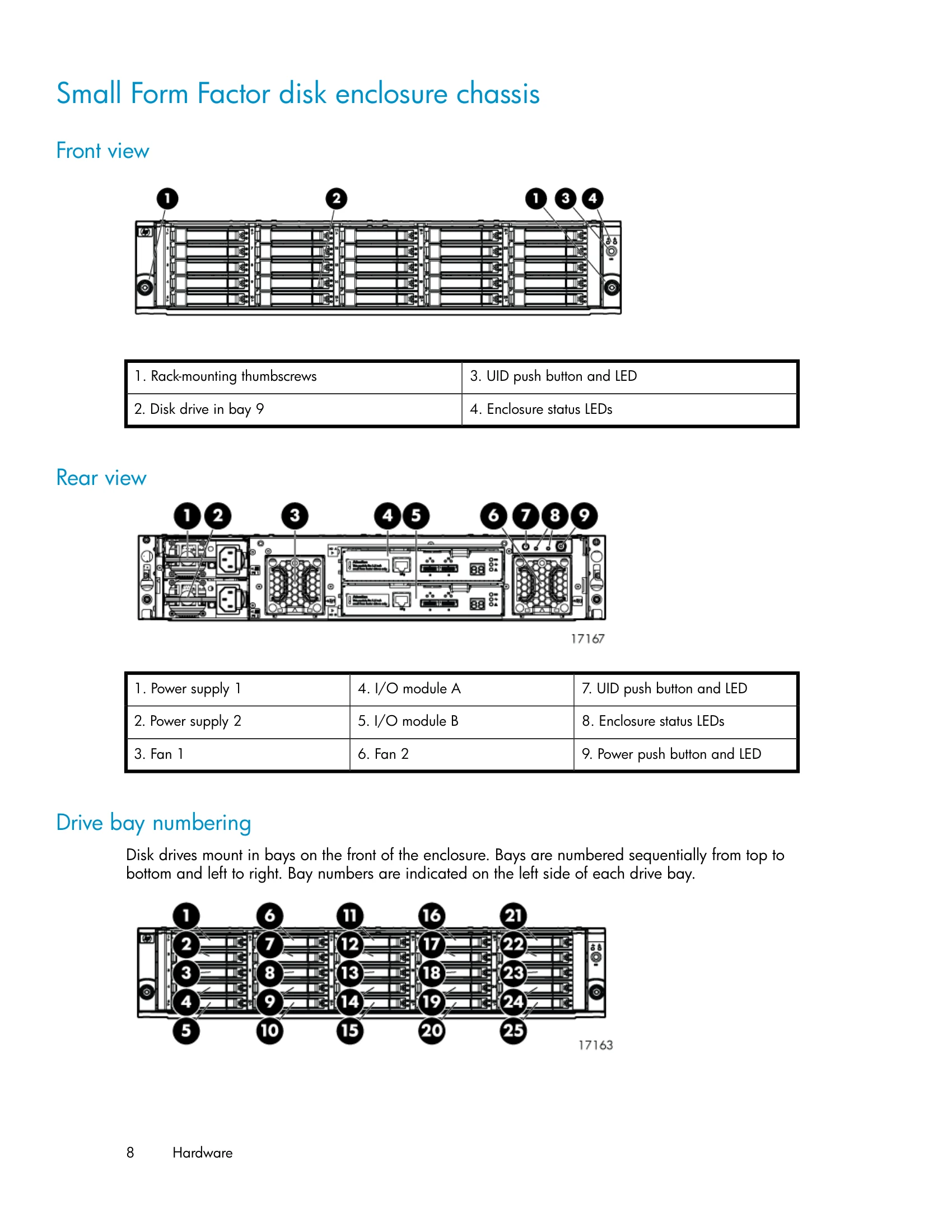
  • Locating enclosure/components: Press the UID button to illuminate the UID light on the front and rear.
  • Disk Drive Status: LEDs on the drives indicate locate/fault (Blue/Amber) and status (Green) for activity or readiness.
  • Enclosure Status: Front status LEDs indicate Health (Green), Fault (Amber), and UID (Blue).
  • Power Supply Status: Green LED indicates normal operation; Off indicates no power.
  • Fan Module Status: Bi-color LED indicates status: Off (No power), Green (Identifying, Normal), Amber (Fault detected, Problems detecting).
  • I/O Module LEDs: Indicate SAS Port Link, SAS Port Error, 7-segment display, UID, Health, and Fault status.
  • Rear Power and UID Module: LEDs indicate UID, Health, Fault, and On/Standby status.

Troubleshooting and error codes

Issue Diagnostic Steps
Enclosure does not initialize
  • Is the enclosure front fault LED amber?
  • Is the enclosure rear fault LED amber?
  • Is the power on/standby button LED amber?
  • Is the power supply LED amber?
  • Is the I/O module fault LED amber?
  • Is the fan LED amber?
Disk drive failure
  • Recognizing disk drive failure (effects, fault tolerance, factors to consider before replacing).
  • Automatic data recovery (rebuild) time.
  • Failure of another drive during rebuild.
  • Handling disk drive failures.
Privacy Policy