Manual for Pocket Camera

Manual for Pocket Camera

Brand: HP

Category: Digital Camera

Document Type: Manual

Language: EN
Uploaded: Nov. 21, 2025, 6:47 p.m.

Warranty Information

Hewlett-Packard Company makes no warranty of any kind with regard to this manual.

Welcome

Congratulations on purchasing the HP pocket camera for HP Jornada Pocket PC. Take it with you wherever you go. It's easy to snap pictures and share them with your friends or colleagues—just plug in the camera, snap a picture, and send it by e-mail!

Here are a few features that make the HP Jornada pocket camera ideal for business or personal use:

  • Enjoy fully automatic, point-and-shoot photography.
  • Easily transfer pictures from your HP Jornada to your desktop PC or to selected infrared-equipped printers (such as the HP DeskJet 990Cxi) that support IrOBEX.
  • JPEG file format can be used in e-mail or on Web sites.
  • Record voice notes along with a picture.
  • Digital effects and manual control of exposure settings let you customize your pictures.
  • Integrated slideshow program lets you view pictures in sequence right on your HP Jornada.

What's in the Box

In addition to the camera itself, your HP Jornada pocket camera comes with the following components:

  • carrying pouch
  • this User's Guide
  • regulatory information and warranty booklet
  • HP CD-ROM

The HP CD-ROM contains two programs: the HP pocket camera software (for your HP Jornada) and a photo imaging program (for your desktop PC). The HP pocket camera software must be installed on your HP Jornada before you can snap pictures. The photo imaging program lets you edit and enhance the pictures you take with your HP Jornada pocket camera.

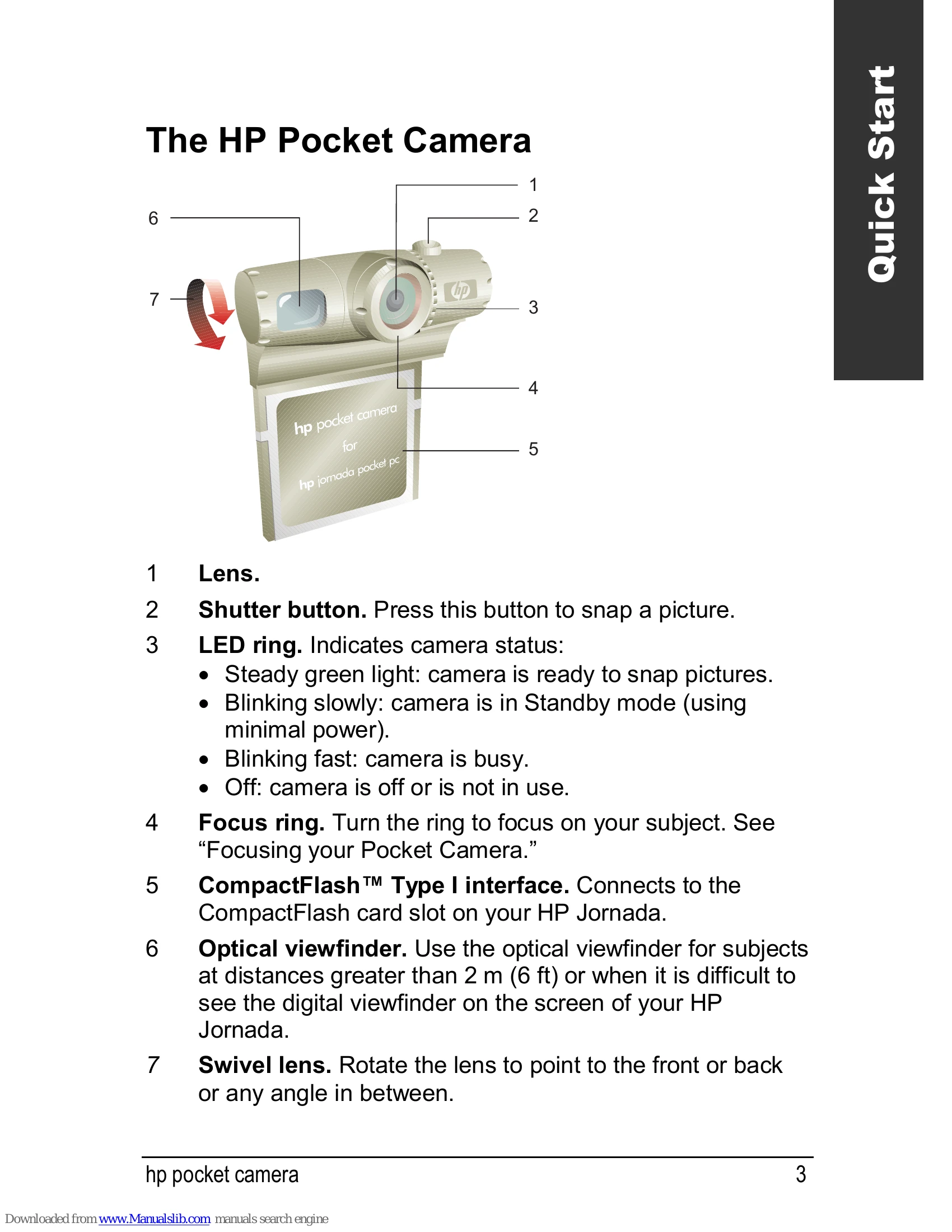
The HP Pocket Camera

  • Lens.
  • Shutter button. Press this button to snap a picture.
  • LED ring. Indicates camera status: Steady green light: camera is ready to snap pictures. Blinking slowly: camera is in Standby mode (using minimal power). Blinking fast: camera is busy. Off: camera is off or is not in use.
  • Focus ring. Turn the ring to focus on your subject.
  • CompactFlash™ Type I interface. Connects to the CompactFlash card slot on your HP Jornada.
  • Optical viewfinder. Use the optical viewfinder for subjects at distances greater than 2 m (6 ft) or when it is difficult to see the digital viewfinder on the screen of your HP Jornada.
  • Swivel lens. Rotate the lens to point to the front or back or any angle in between.

Troubleshooting and error codes

Issue Possible Cause and Solution
No image in digital viewfinder
  • Is the HP pocket camera software running, and is it in Capture mode?
  • Have you installed the HP pocket camera software?
  • Is something blocking the lens?
HP pocket camera software does not start when you insert the camera
  • Is the camera inserted properly?
  • Have you installed the HP pocket camera software?
Camera does not take a picture when you press the shutter button
  • Was the pocket camera in Suspend or Standby mode?
  • Was the pocket camera ready?
  • Is the HP pocket camera software running?
Pictures are black
  • Is something blocking the lens?
  • Did you wait for the camera to set the exposure settings?
Pictures are blurry
  • Is the camera in focus?
  • Did you move the camera?
  • Is the subject moving?
Cannot find pictures
  • Are you looking in the right folder?
Privacy Policy