Manual for t450

Manual for t450

Brand: HP

Category: Digital Camera

Document Type: Manual

Language: EN
Uploaded: Nov. 21, 2025, 7:14 p.m.

Turning the Video Camera On

  • Flip out the LCD panel and the camera will turn on automatically.
  • Or, press the Power Button for one second to turn it on.
  • After idle for 3 minutes, the camera will turn off automatically.

Getting Started

  • To record a video: Press the Video Record Button to start recording video. To stop recording, press it again.
  • To pause recording: Press the Pause Button to pause recording. To continue the recording, press it again.
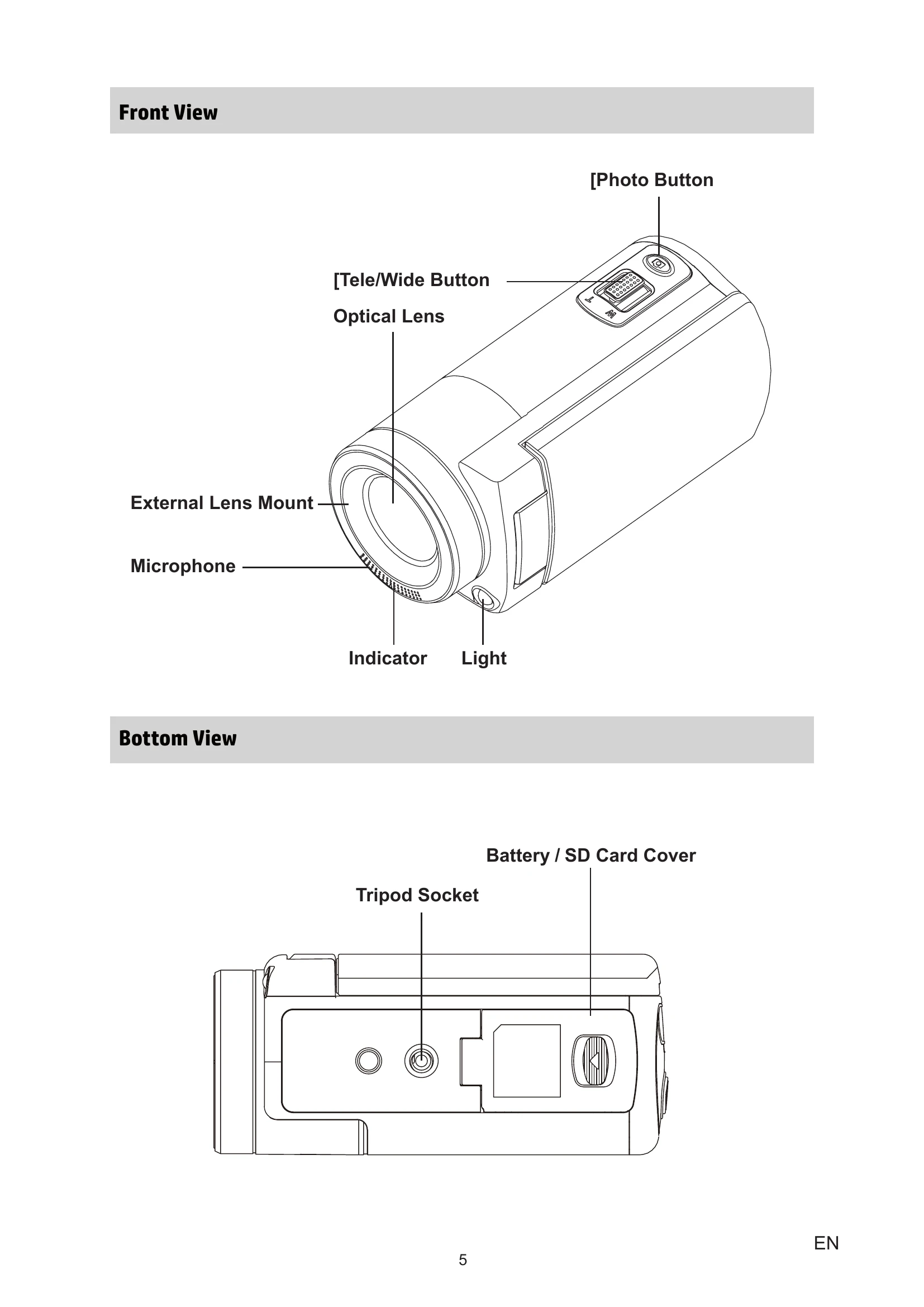
  • To take a photo: Press the Photo shutter Button halfway down until the focusing frame turns from white to green. Then, press it down fully to take your photo.
  • To view stored videos and photos: Touch on the screen to switch to the Playback

Turning the Video Camera Off

  • To turn off the camera: You can either press the Power Button for one second, or you can close the LCD panel.

Troubleshooting and error codes

Problem/Situation Remediation/Solution
Cannot turn on the camera. The power turns off suddenly.
  • Power is off. Press the Power Button to turn on.
  • Battery pack is weak or depleted. Recharge the battery pack.
Camera cannot be turned on after plugging power adapter.
  • Please make sure that you use the supplied power adapter and connect it to the power outlet correctly.
The files on the memory card do not display smoothly when the LCD shows the "!" marking.
  • "!" means the SD card is low speed or contains corrupted files. To solve this, format the SD card using the camera instead of a computer. (Please refer to the formatting instructions in Section 5).
  • The card has some problems and can not be recognized. Change the card with another one.
  • Replace the SD card with a high speed card.
Cannot take video/photo.
  • Memory is full. Delete some unnecessary videos/photos or insert a new SD card.
The camera is frozen.
  • Power is off. Press the Power Button to turn on.
  • Please remove the battery/unplug the adapter. Then, insert the battery/plug the adapter and turn on the camera again.
The date imprinted on photos is incorrect
  • Set the date and time in the Setting menu.
Why do some of my indoor photos look blurry and dark?
  • Poor lighting. Take photos in better lighting.
  • The camera extends photo exposure time under low light/ indoor condition. Keep the camera (and the target subject) steady for several seconds when taking photos.
  • Place the camera on a flat and steady surface, or use a tripod when take photo.
The color of the video/photo is not natural.
  • Select the proper white balance option to match the light source.
When the camera is connected to the PC via USB cable, Autoplay windows may pop up. They indicate the software disk partitions of the camera.
  • DV indicates the internal memory of the camera.
  • Removable Disk indicates the external memory (memory card installed in the camera).
  • The disk named "DVAP" shows that the built-in Internet Direct application is saved at this disk partition. Please DO NOT format this disk or delete the application inside; otherwise, the Internet Direct application may not function.
Language on WiVideo Suite application is not legible.
  • When the language shown on the screen is not legible, please refer to FAQ at websites from each original computer manufacturer.
Privacy Policy