Brand: HTC
Category: Smartphone
Document Type:
Language: EN
Brand: HTC
Category: Smartphone
Document Type:
Language: EN
Uploaded: Aug. 10, 2025, 12:04 a.m.
No specific warranty period or summary information found in the manual.
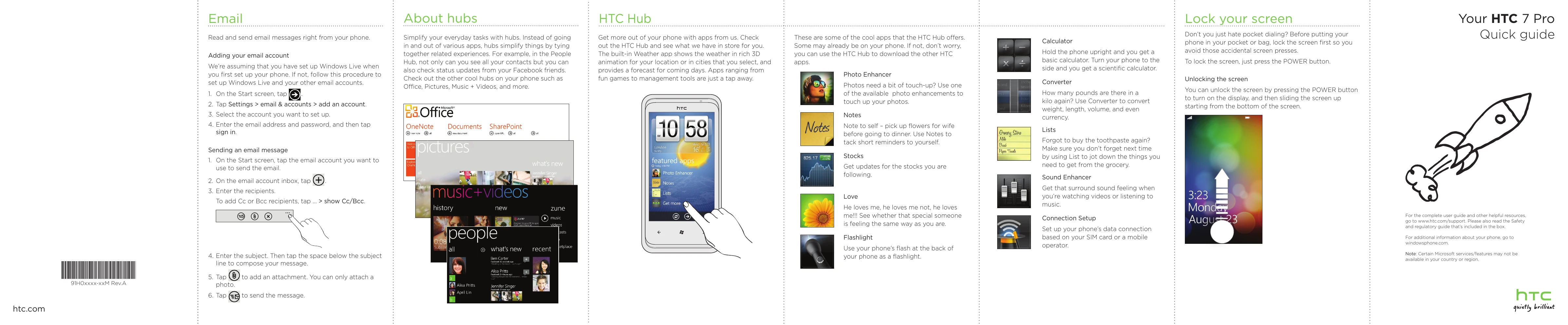
Read and send email messages right from your phone.
Adding your email account: Tap the Email tile, then Settings > email & accounts > add an account. Select your account type, enter your email address and password, then tap sign in.
Sending an email message: Tap the email account you want to use, tap +, enter recipients, subject, and compose your message. Tap to add an attachment (photo only) and then tap to send.
Simplify tasks by tying together related experiences. Hubs include People, Office, Pictures, Music + Videos, and more.
Get more out of your phone with apps from HTC Hub. Features like a 3D weather app and various games are available. Download other HTC apps from here.
Prevent accidental screen presses by pressing the POWER button. To unlock, press the POWER button and slide the screen up from the bottom.
This guide covers basic operations like email, hubs, locking/unlocking the screen, making calls, connecting to the internet, sending texts, and browsing the web.
Charge the battery: Charge the battery fully before first use. Do not remove the battery pack while charging.
Choose a rate plan wisely: Be aware of data charges from your mobile operator.
Know about privacy laws: Be aware of local laws regarding phone conversation recording.
Familiarize yourself with the phone's buttons: VOLUME UP/DOWN, POWER, BACK, SEARCH, START, Microphone, Earpiece, 3.5mm audio jack, and USB.
Installing the battery: Align copper contacts and push the battery into place.
Removing the back cover: Slide the back of the phone to the right.
Inserting your SIM card: Insert the SIM card with gold contacts facing down and the cut-off corner facing out.
Charging the battery: Use the supplied power adapter and USB cable.
Follow onscreen instructions for time zone and Windows Live ID setup. Explore Windows Phone live tiles.
Importing all contacts from your SIM card: Tap People tile, then import SIM contacts, choose sort/display options, and tap import.
Adding a new contact: Tap People tile, tap +, enter information, and tap save.
Facebook sync: Sync with Facebook in the People hub to see friends' updates.
Tap the Phone tile, dial the number, and tap call.
Using data connection: Your phone usually sets this up automatically. Go to Settings > cellular if needed.
Using Wi-Fi: Tap Settings > Wi-Fi, turn it on, select a network, and enter the key if required.
Tap the Messaging tile, tap +, enter recipient, type your message, and tap send.
Tap the Internet Explorer tile to start surfing. Use finger gestures to browse and zoom. Turn phone sideways for full-screen view.
| Header 1 | Header 2 | Header 3 | Header 4 |
|---|---|---|---|
| Data 1A | Data 1B | Data 1C | Data 1D |
| Data 2A | Data 2B | Data 2C | Data 2D |
| Data 3A | Data 3B | Data 3C | Data 3D |