Brand: HUAWEI
Category: display
Document Type: Manual
Language: EN
Brand: HUAWEI
Category: display
Document Type: Manual
Language: EN
Uploaded: Nov. 21, 2025, 8:43 p.m.
Display Real-Time Service Info
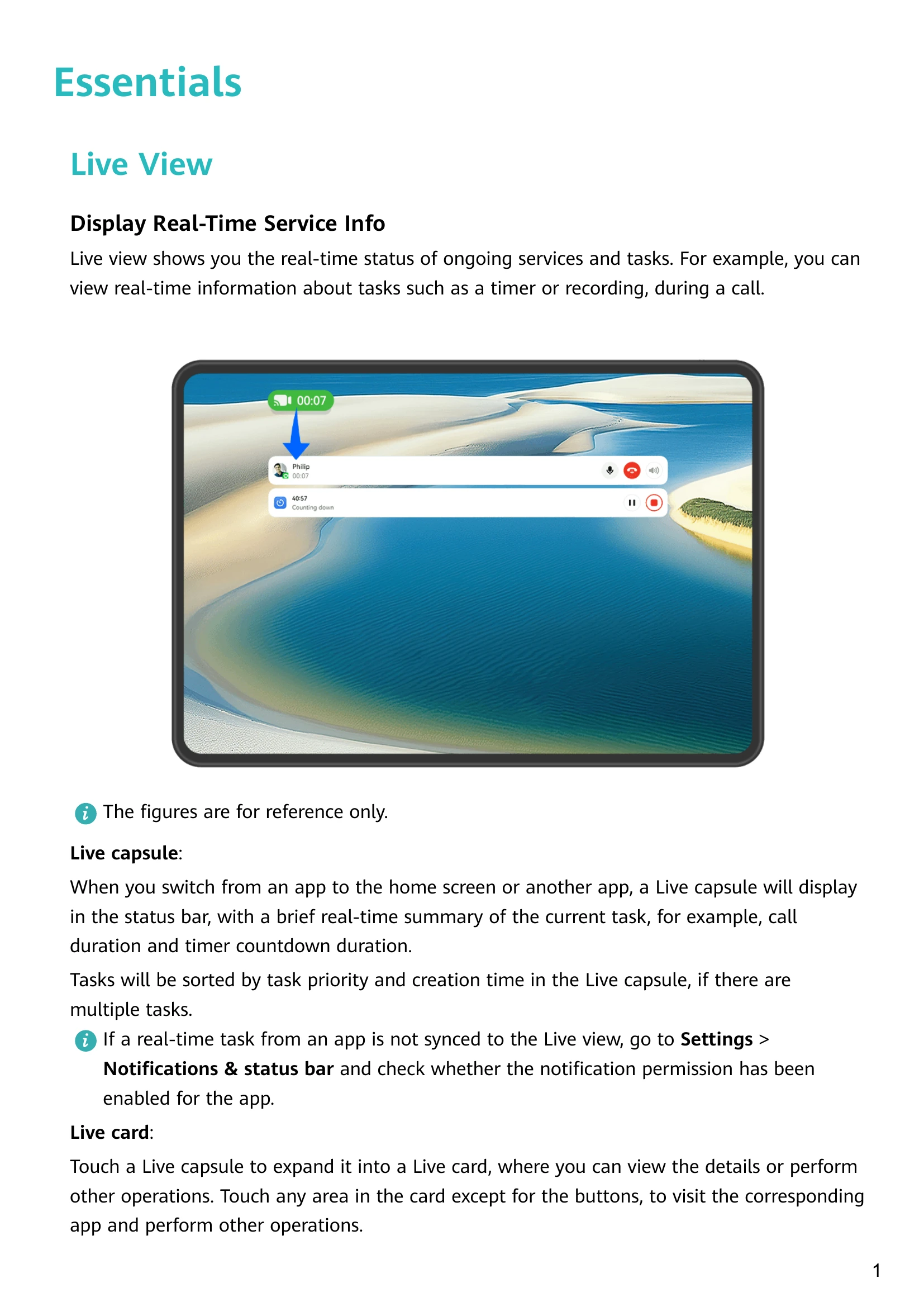
Live view shows you the real-time status of ongoing services and tasks. For example, you can view real-time information about tasks such as a timer or recording, during a call.
Return to the previous screen: Swipe in from the left or right edges to return to the previous screen.
Back to home screen: Swipe up from the bottom to go to the home screen.
Recent tasks: Swipe up from the bottom of the screen and hold to view recent tasks.
Close an app: When viewing recent tasks, swipe up on an app preview to close the app.
Take a screenshot: Knock twice on the screen with a knuckle to take a screenshot.
Take a scrollshot: Knock on the screen with a knuckle and draw an "S" to take a scrolling screenshot.
Capture part of the screen: Knock and draw an enclosed area with a knuckle to capture part of the screen.
Record screen: Knock twice on the screen with two knuckles to start or end a screen recording.
Auto-lock: Your tablet screen will be automatically locked if you haven't performed any operations on it for a period of time.
Manually lock the screen: Press the Power button.
Press the Power button.
Go to Settings > Accessibility features > Shortcuts & gestures > Wake screen, and enable and use Raise to wake and Double-tap to wake.
Password unlock: Swipe up from the middle of the screen to display a panel where you can enter your lock screen password.
Face unlock: Bring your face in front of the screen of your tablet.
Customize your tablet home screen and group important content in easy-to-access locations with service widgets, large folders, and other features.
Preview or access apps, view the weather forecast, or play music.
Select from a range of service widget styles and layouts to customize your home screen.
Stack and combine multiple service widgets to save home screen space.
Swipe up on an app icon to expand its service widget, and touch to add the service widget to the home screen.
Swipe up on an app icon to expand its service widget, touch and hold down on the service widget, touch More service widgets, select your desired style, and touch Add to home screen.
Touch and hold down on an app icon, touch Service widgets, select your desired style, and touch Add to home screen.
Pinch two fingers together on the home screen, touch Service widgets, select your desired service widget, and touch Add to home screen.
Stack same-sized service widgets/widget combos to save home screen space.
Combine service widgets of all sizes, and add frequently-used shortcuts to widget combos.
Categorize app icons on the home screen. Directly open an app by touching the app icon.
Touch and hold an app icon and drag it over another icon to create a new folder.
Touch and hold a folder to switch between display modes. Select Enlarge to create a large folder.
Adjust the folder size by dragging the blue edges or corners.
Enter or exit folders by touching the lower right corner or a blank area.
Add or remove apps using the '+' icon.
Various icons indicate network status, data saver, hotspot, Wi-Fi connection, charging status, etc.
Manage and control audio playback, shortcuts, and Super Device.
Swipe down from the upper right corner to access Super Device, Shortcuts, and Media Controller.
Media Controller: Controls audio playback and allows you to adjust playback progress and switch between media apps and devices.
Shortcuts: Enables, disables, or sets frequently-used features.
Super Device: Collaborates with tablets, laptops, and other devices for seamless Multi-screen Collaboration, wireless projection, etc.
Smart devices: Manage and control devices added in Al Life.
Relocate shortcut switches, hide Super Device, and edit smart scenes and smart devices.
Swipe down from the upper right edge to display Control Panel and touch to expand the shortcut switches panel.
Touch a shortcut switch to enable or disable a feature.
Touch and hold a shortcut switch to access its settings.
Touch to access system settings.
Swipe down from the upper right edge, go to Edit switches, drag shortcut switches to preferred positions, and touch Done.
Manage playback and switch audio and video apps. Transfer streaming audio to other devices.
Quickly manage and switch between audio and video apps in Media Controller.
Connect multiple pairs of Bluetooth earphones to the same tablet to listen to music or watch videos with a friend.
Send audio playing on your tablet to a connected device like a headset, speaker, or Vision product.
Transfer an ongoing call on your tablet to a connected listening device.
Use Super Device for multi-device collaboration, turning smart devices into a cohesive unit.
Enable Bluetooth and Wi-Fi, and log in to your HUAWEI ID.
Ensure other devices' screens are on and configure their settings.