Manual for F202

Manual for F202

Brand: HUAWEI

Category: Other

Document Type: Manual

Language: EN
Uploaded: Nov. 21, 2025, 8:24 p.m.

Warranty Information

Warranty information is not detailed, but product registration and adherence to regulations are mentioned.

Appearance

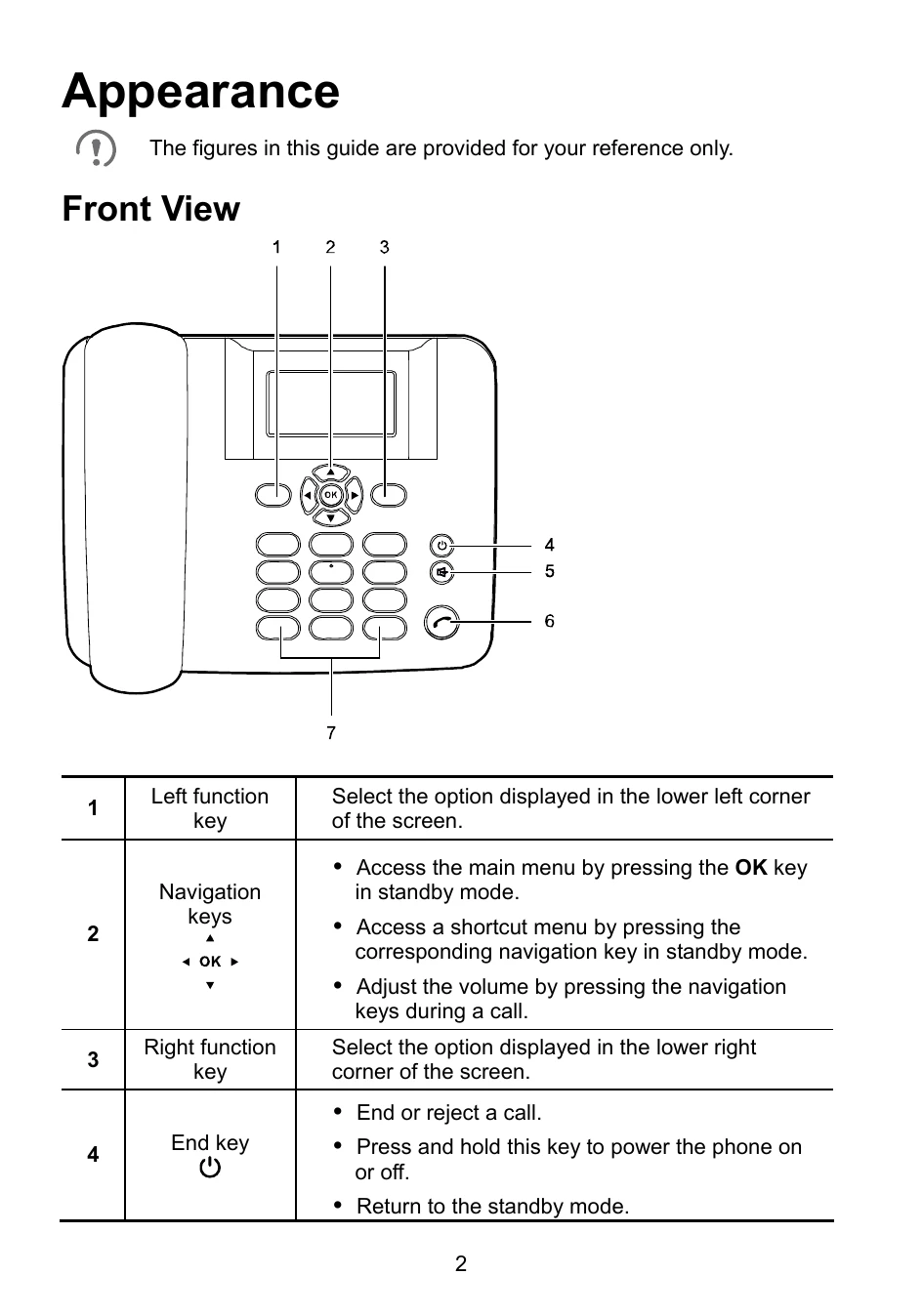
  • Front View: Explains the various keys and their functions (Left function key, Navigation keys, Right function key, End key, Speaker key, Call/Send key, Number and symbol keys).
  • Screen Icons: Lists and explains common icons displayed on the phone screen (Signal strength, Alarm clock, Call in progress, Unread message, Phone powered by the power adapter, Battery level, Hands-free mode, No network available, Unopened voicemail message, Roaming).

Installation

  • Installing a UIM Card: Instructions on how to install a UIM card, emphasizing that the phone should be powered off and disconnected from the power adapter.
  • Installing the Battery: Steps for properly installing the battery, ensuring the phone is powered off and disconnected from the power adapter.
  • Charging the Battery: Notes that new phones have low battery power and recommend charging before first use. Recommends connecting the power adapter when using the phone.

Powering On the Phone

  • Press and hold the end key to power on or off the phone.

Call Functions

  • Making a Call: Steps to dial a number, call from the call log, or call from the phonebook.
  • Answering or Rejecting a Call: Press the call key to answer or the end key to reject an incoming call.

Messages

  • Writing a Message: Steps to compose and send a message, including adding recipients.
  • Reading a Message: Instructions on how to access the inbox and read messages.

Text Input Methods

  • Switching Between Input Methods: Use the # key to switch input methods. Explains how to delete characters and enter spaces.
  • Predictive English Input (eZiEn): How to spell words using predictive text.
  • Traditional English Input (ABC or abc): How to enter letters using number keys.
  • Number Input: How to enter numbers.

Settings

  • Phone Lock: How to set a phone lock using Settings > Security > Phone Lock.
  • Keypad Lock: How to lock and unlock the keypad using the # key.
  • (Optional) PIN and PUK: Information about PIN and PUK codes for UIM card security.

FAQs

  • Troubleshooting for common issues like phone not powering on, screen not displaying information, battery not charging, weak signal, and call volume.

Safety Information

  • Covers general safety precautions, electronic device usage, interference with medical equipment, areas with flammables and explosives, traffic security, operating environment, child safety, accessories, charger safety, battery safety, and cleaning/maintenance.

Emergency Calls

  • Availability of emergency calls depends on network quality and local regulations.

Disposal and Recycling Information

  • Instructions on proper disposal of the device, batteries, and accessories according to WEEE and Battery Directives.

Reduction of Hazardous Substances

  • Compliance with REACH and RoHS regulations.

EU regulatory conformance and FCC Regulatory Compliance

  • Statements regarding compliance with EU directives and FCC rules.

Troubleshooting and error codes

Problem Solution
Phone Cannot Be Powered On 1. Remove the battery cover and check whether the battery is installed properly.
2. If the battery is properly installed, a possible cause for the problem is that the battery power is low. Charge the battery, and then try to power on the phone.
No Information Is Displayed on the Phone Screen If the phone is not used for a long time and the battery runs out of power, the phone may not display any information when it is being charged. This is a normal phenomenon. The phone can be powered on after the battery is charged for a while.
Battery Cannot Be Charged 1. Check that the phone and the power adapter are connected properly.
2. Check that the power adapter and the power socket are connected properly.
3. Replace the power adapter or the battery with a new one of the same model.
Signal Strength Is Weak 1. Check that the UIM card is installed properly.
2. Place the phone at a location where strong signals can be received.
Call Volume Is Too High or Too Low During a call, press navigation keys to adjust the volume.
Privacy Policy