Manual for HUAWEI M-Pencil (2nd generation)

Manual for HUAWEI M-Pencil (2nd generation)

Brand: Huawei

Category: Other

Document Type: Manual

Language: EN
Uploaded: Nov. 21, 2025, 6:48 p.m.

Manual Publish Date: 2022

Warranty Information

Huawei reserves the right to change information without prior notice.

Get to know your computer

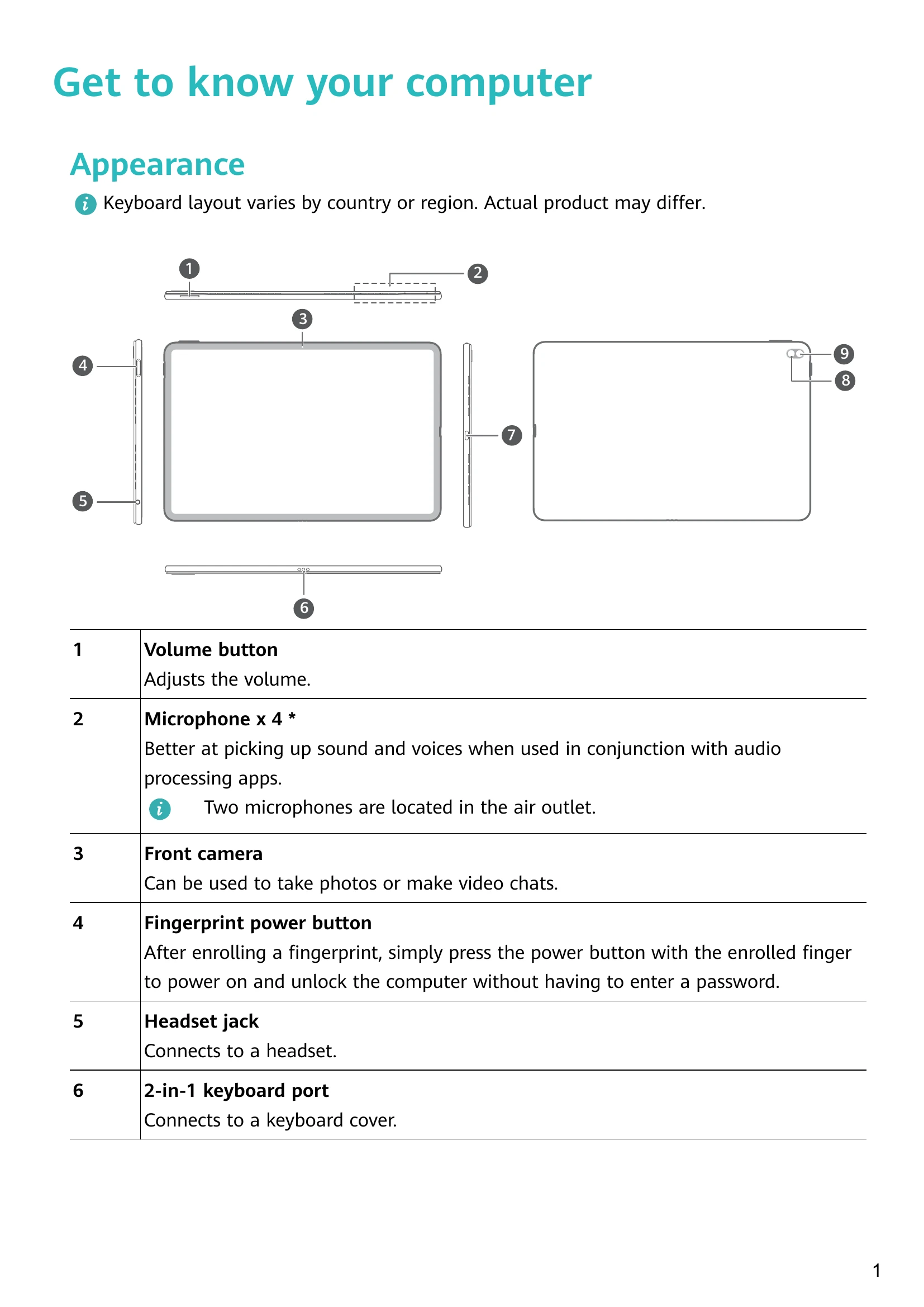
Appearance

  • Volume button: Adjusts the volume.
  • Microphone: Better at picking up sound and voices.
  • Front camera: For photos or video chats.
  • Fingerprint power button: Powers on and unlocks the computer with a fingerprint.
  • Headset jack: Connects to a headset.
  • 2-in-1 keyboard port: Connects to a keyboard cover.
  • Thunderboltâ„¢ 4 port: For data transfers, charging, and external displays.
  • Rear camera: For photos or video chats.
  • Flashlight: Supplements light for the camera.

Charging the computer

  • Connect the standard power adapter and charging cable to charge the computer.
  • Battery charges more quickly when the computer is powered off or in Sleep mode.

Start the computer

Powering on and off the computer

  • First time power on: Connect to a power adapter.
  • Subsequent power on: Press and hold the Power button.
  • Sleep mode/Power off/Restart: Go to the power icon.
  • Forcible power off: Press and hold the Power button for more than 10 seconds (may result in data loss).

Protecting the screen

  • Do not set the screen to never turn off to protect the screen and battery life.

Highlighted features

  • Click the Windows icon on the desktop to open HUAWEI PC Manager and find more features.

2-in-1 Keyboard

Installing and using the keyboard

  • Align the 2-in-1 keyboard port on the computer with the port on the keyboard's notch. The computer and keyboard will connect magnetically.
  • The hinge can only be turned outwards.

Keyboard

  • Shortcut keys: Use F1-F10 for various functions like adjusting brightness, volume, locking the screen, etc.
  • Switching between shortcut and function keys: Press the Fn key.

Touchpad

  • Provides mouse-like functionality.
  • Supports various gestures for clicking, scrolling, zooming, and navigation.
  • Touchpad settings can be modified via Settings.

HUAWEI M-Pencil (2nd generation)

Information about the stylus

  • A substitute for touchscreen operations, offering a more interactive writing and drawing experience.
  • Some models do not include a stylus; it may need to be purchased separately.
  • For specific models (DRC-W38), run HuaweiPenAPP before pairing for the first time.

Pairing and charging

  • Attach the stylus notch to the top edge of the computer for pairing or charging.
  • Ensure correct contact position for successful pairing/charging.
  • If idle for a long time, charge for 5-10 minutes before use.
  • Non-Huawei folio covers or keyboards may affect pairing/charging.

Changing the stylus tip

  • Stylus tips may wear out; replacement tips can be purchased from authorized Huawei channels.
  • To change the tip: pinch and rotate counterclockwise to remove, then insert and rotate clockwise to lock the new tip.

Accessories and extensions

MateDock (optional)

  • Connects the computer to external devices like projectors, TVs, and USB drives.
  • Optional accessory, sold separately.
  • MateDock 2 ports: USB-C cable, USB-A port, HDMI port, VGA port, USB-C port.
  • MateDock 3 ports: USB-C cable, microSD slot, USB-A port x 2, USB-C charging port, VGA port, HDMI port, Ethernet port.

Connect to a TV, monitor, or projector

  • Use a docking station and HDMI or VGA cable.
  • HDMI and VGA ports cannot be used simultaneously.
  • Use hotkey F8 or Win + P to select projection mode.

Connect to a USB mouse, printer, or other devices

  • Connect USB devices via the USB-A port on a docking station.
  • The computer automatically installs required software on first connection.

Bluetooth mouse (optional)

  • Pair the Huawei Bluetooth mouse via Bluetooth.
  • Installation: Insert AA battery.
  • Pairing: Toggle the pairing switch on the mouse, then on the computer go to Bluetooth & other devices to add the mouse.

Safety information

  • Electronic device: Use responsibly, avoid danger or interference.
  • Interference with medical equipment: Maintain distance from pacemakers.
  • Protecting your hearing: Listen at safe volume levels.
  • Areas with flammables and explosives: Do not use in hazardous areas.
  • Traffic security: Do not use while driving.
  • Operating environment: Avoid extreme temperatures, dust, moisture, and magnetic fields.
  • Child safety: Keep away from children due to small parts; adult supervision required.
  • Accessories: Use only approved accessories.
  • Charger safety: Use approved chargers, avoid damaged cables.
  • Battery safety: Handle batteries with care, avoid extreme heat, and dispose of properly.
  • Cleaning and maintenance: Use a soft, dry cloth; avoid chemicals and extreme temperatures.
  • Disposal and recycling: Dispose of according to local regulations.
  • Reduction of hazardous substances: Complies with regulations.
  • Restrictions in Norway: Specific geographical restriction.

Personal Information and Data Security

  • Protect personal information by using safe passwords, secure Wi-Fi/Bluetooth settings, and installing security software.
  • Obtain software from legitimate sources and scan for viruses.
  • Be aware of location information sharing by some applications.

Legal Notice

  • Copyright and software usage restrictions.
  • Trademarks and permissions for various brands.
  • Notice regarding software features and product variations.
  • Huawei reserves the right to change specifications.
  • Third-Party Software Statement: Huawei is not responsible for third-party software.
  • Disclaimer: Manual content provided "as is".
  • Import and Export Regulations: Comply with relevant laws.
  • Privacy Policy: Link provided for details.
  • For More Help: Link to Huawei support.
Privacy Policy