Brand: HUAWEI
Category: Wireless Router
Document Type: Quick Start Guide
Language: EN
Brand: HUAWEI
Category: Wireless Router
Document Type: Quick Start Guide
Language: EN
Uploaded: Nov. 21, 2025, 6:56 p.m.
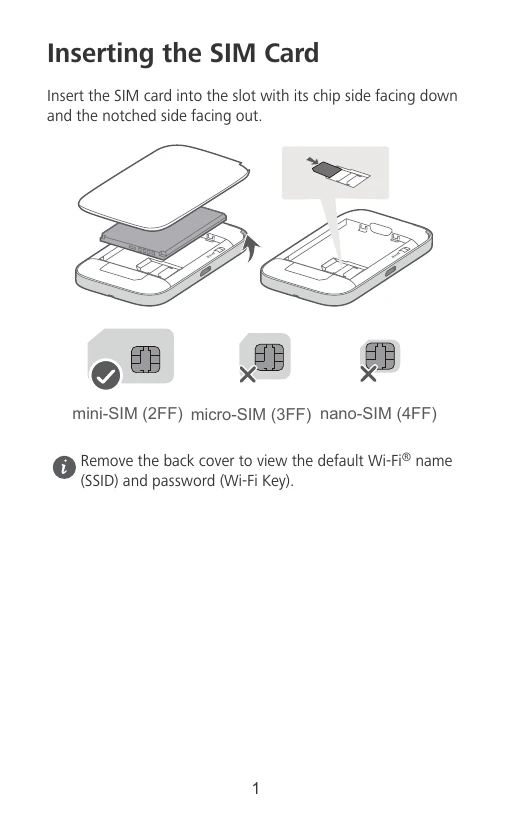
Insert the SIM card into the slot with its chip side facing down and the notched side facing out.
Supported SIM card types: mini-SIM (2FF), micro-SIM (3FF), nano-SIM (4FF).
Remove the back cover to view the default Wi-Fi name (SSID) and password (Wi-Fi Key).
Press and hold the Power button to power on the Mobile WiFi. Your Mobile WiFi searches for mobile network signals automatically after it is powered on.
Signal indicator meanings:
Refer to the FAQs section if the Signal indicator is red or yellow.
Connect your device to the Mobile WiFi to access the Internet. Remove the back cover to view the default Wi-Fi name (SSID) and password (Wi-Fi Key).
Using app: Scan the QR code to download HUAWEI SmartHome App to manage your Mobile WiFi (e.g., changing Wi-Fi name/password, checking data usage).
Using browser: Enter 192.168.8.1 into your browser to access the web-based management page. Default login password is 'admin'.
Red indicator: Low battery power. Please charge your Mobile WiFi.
Use the original Huawei charging cable and power adapter.
To power off: Press and hold the Power button until all indicators turn off.
To restore factory settings: Use a pin to press and hold the Reset button while the Mobile WiFi is powered on. When all indicators flash, the reset is complete.
| Issue | Solution |
|---|---|
| Signal indicator is red (no Internet access) |
|
| Signal indicator is yellow (weak signal) or network speed is slow |
|
| Cannot connect after a period of inactivity |
|
| Cannot access the web-based management page (192.168.8.1) |
This may be due to an IP address conflict. Try entering 192.168.9.1 in your browser. |