Brand: HUAWEI
Category: Wireless Router
Document Type: Manual
Language: EN
Brand: HUAWEI
Category: Wireless Router
Document Type: Manual
Language: EN
Uploaded: Nov. 21, 2025, 6:59 p.m.
Manual Publish Date: 2022-02-18
Copyright © Huawei Technologies Co., Ltd. 2022. All rights reserved.
Step 1: Connect Cables: Connect an Ethernet cable from the WAN port of the HUAWEI router to a LAN port on your old router or Internet source. Then, power on the HUAWEI router.
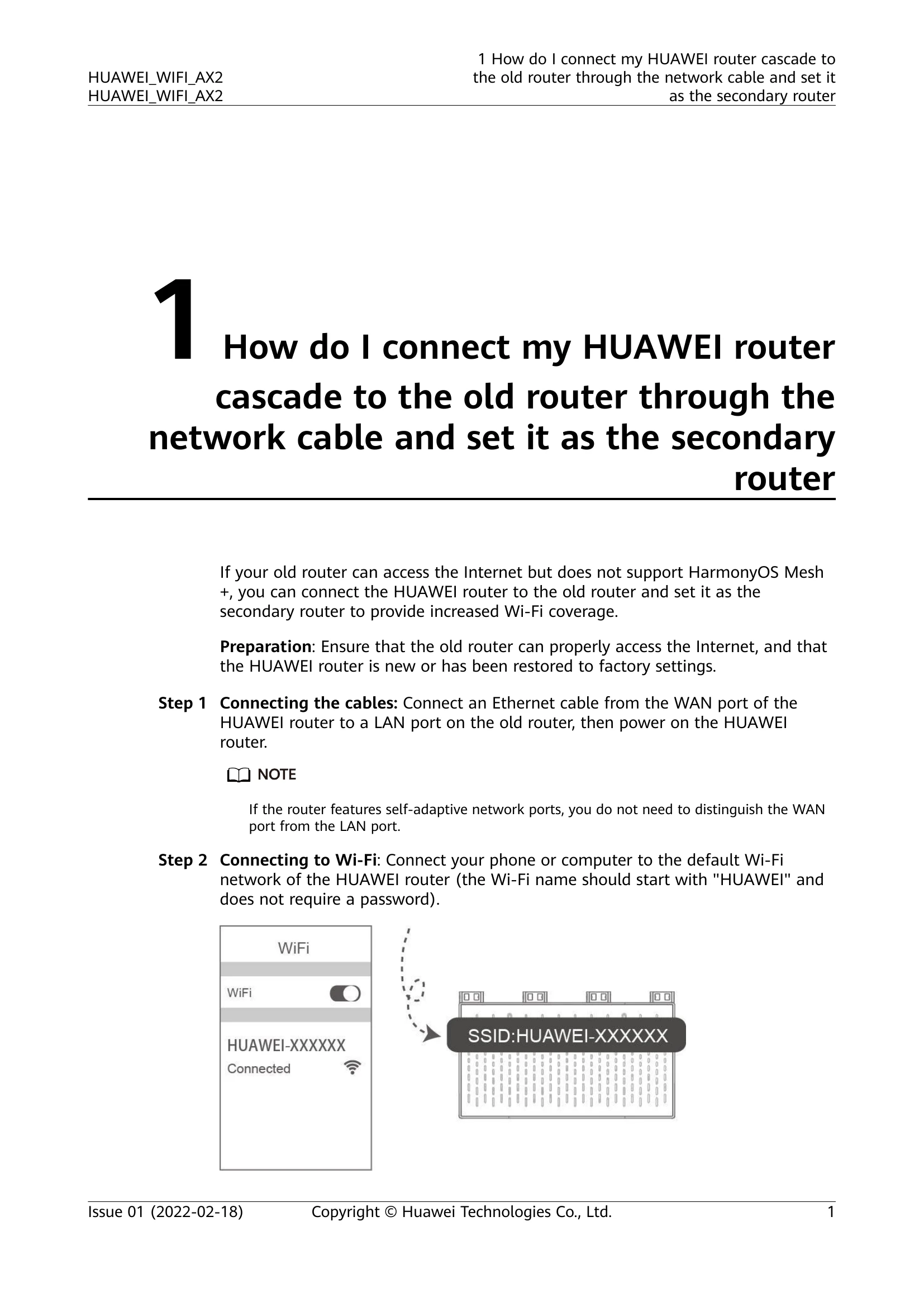
Step 2: Connect to Wi-Fi: Connect your phone or computer to the default Wi-Fi network of the HUAWEI router (SSID starts with "HUAWEI").
Step 3: Configure Router: Open a web browser, enter the router's IP address (e.g., 192.168.3.1), and log in. Follow the on-screen instructions to set the Wi-Fi name, Wi-Fi password, and router login password.
Wireless Switch Setup: For this mode, connect the WAN port to the old router's LAN port, then access the web-based management page and select "Bridge (AP)" in Internet access mode.
Internet Setup via App: Install the HUAWEI AI Life App, scan the router's QR code, and follow the app's wizard to configure the Internet access mode (DHCP, PPPoE, or Static IP).
| Indicator | Status | Description |
|---|---|---|
| Power-on | Steady red | Router starting up... |
| Internet connection | Steady green | Router connected to the Internet. |
| Steady red | Router not connected to the Internet. | |
| HarmonyOS Connect | Flashing red slowly | Detected HarmonyOS devices that can be paired: HUAWEI routers, HUAWEI STBs, HUAWEI phones (running HarmonyOS 2/EMUI 10.1 or later), and smart home devices (such as smart bulbs and curtains) that support HarmonyOS Connect. |
| HarmonyOS Connect | Flashing red quickly | Pairing over HarmonyOS Connect... |
| HarmonyOS Connect | Flashes red quickly and then switches to the Internet connection state (steady green or steady red) | HarmonyOS Connect pairing successful (steady green: Internet access successful; steady red: pairing successful but Internet access failed) |
| Turns from flashing red quickly to flashing red slowly | HarmonyOS Connect pairing fails. | |
| Update | Flashing green quickly | Updating router software... |