Brand: JVC
Category: Audio System
Document Type: Manual
Language: EN
Brand: JVC
Category: Audio System
Document Type: Manual
Language: EN
Uploaded: Nov. 21, 2025, 9:17 p.m.
No explicit warranty period found in the provided document excerpt.
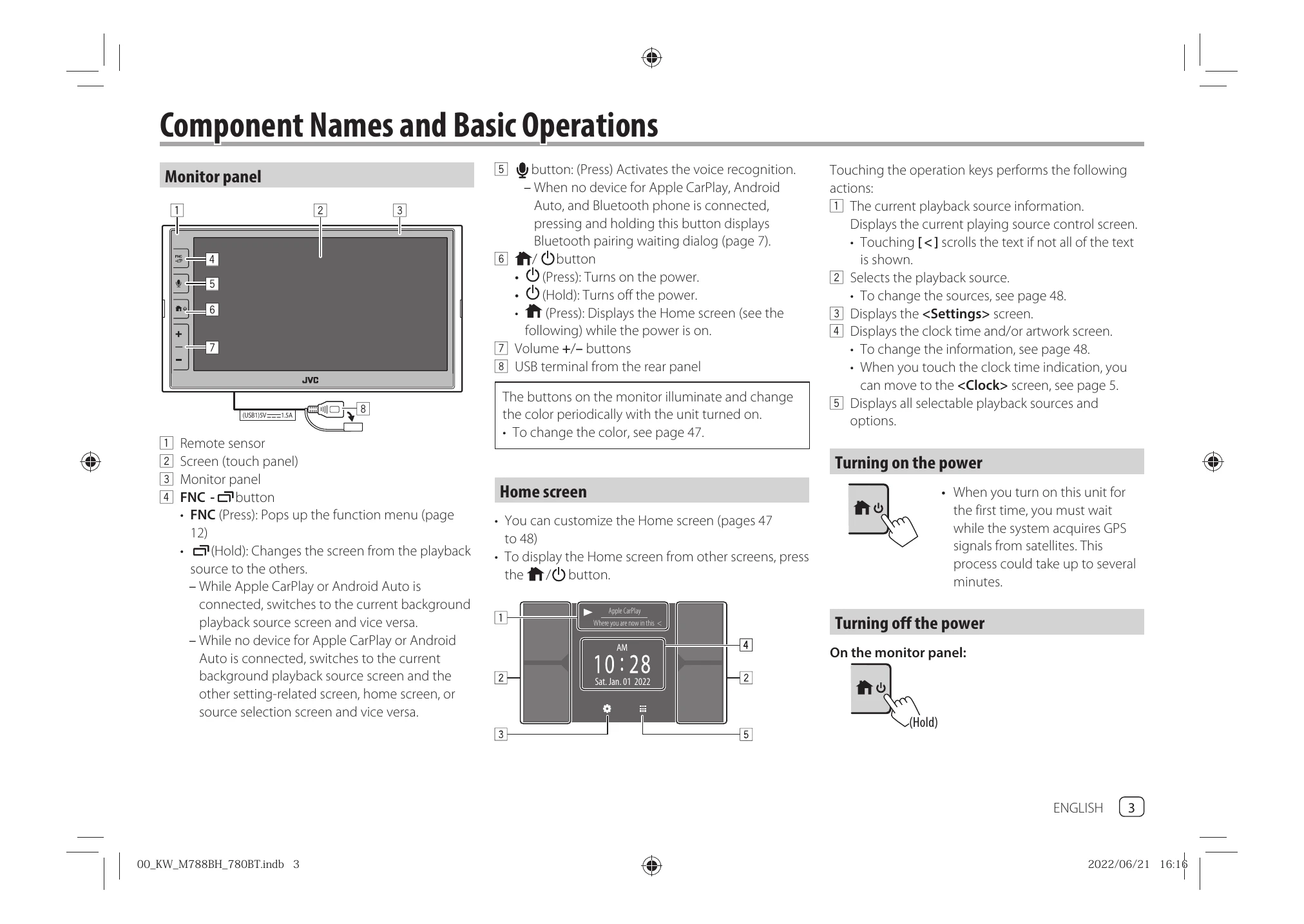
Monitor panel: Controls include Remote sensor, Touch panel, FNC button, Voice Recognition button, Power button, Volume +/- buttons, and USB terminal.
Home screen: Customizable, displays playback source information, playback source selection, Settings, clock, and all selectable playback sources.
Turning on the power: Press the power button. Initial setup may require waiting for GPS signal acquisition.
Turning off the power: Press and hold the power button.
Adjusting the volume: Use Volume +/- buttons. Holding + increases volume continuously to level 15.
Attenuating the sound: Use the sound attenuating key on the source control screen.
Turning off the AV source: Use the [AV Off] option on the source/option selection screen.
Initial settings: Performed on first power-on or initialization, includes Demonstration, Language, Camera settings, User Customize, and Viewing Angle.
Date and clock settings: Adjusted via the <System> screen, allowing GPS-SYNC or manual setting.
| Problem | Solution |
|---|---|
| General | |
| No sound comes out of the speakers. | → Adjust the volume to the optimum level. → Check the cords and connections. |
| The unit does not work at all. | → Initialize the unit (page 51). |
| The remote controller does not work. | → Replace the battery. |
| "No Signal"/"No Video Signal" appears. | → Start playback on the external component connected to this unit. → Check the cords and connections. → Signal input is too weak. |
| "Miswiring DC Offset Error”/“Warning DC Offset Error" appears. | → A speaker cord has shorted or it has come into contact with the car chassis. Wire or insulate the speaker cord as appropriate, turn the ignition switch off then on. |
| "Parking off" appears. | → No playback picture is shown when the parking brake is not engaged. |
| Bluetooth connection | |
| The Bluetooth device does not detect this unit. | → Turn off, then turn on the Bluetooth device → Turn off, then turn on this unit. |
| This unit does not pair with the Bluetooth device. | → If the device is connected via USB cable, disconnect it, and retry. → Turn off, then turn on the Bluetooth device. |
| The device is disconnected automatically or the device cannot be connected. | → When iPhone compatible with Apple CarPlay is connected to the USB terminal, it cannot be connected via Bluetooth. Use the phone and audio player function on the Apple CarPlay screen. → When an Android device compatible with Android Auto is connected to the USB terminal, the device is connected via Bluetooth automatically, and the Bluetooth mobile phone currently connected is disconnected. |
| The Bluetooth connection between the Bluetooth device and the unit is unstable. | → Delete the unused registered Bluetooth device from the unit (page 9). |
| "Connection Error" appears. | → The device is registered but the connection has failed. Connect the registered device using the <Device List> screen (page 9). |
| "Please Wait..." appears. | → The unit is preparing to use the Bluetooth function. If the message does not disappear, turn off and turn on the unit, then connect the device again. |
| "Initialize Error" appears. | → The unit has failed to initialize the Bluetooth module. Try the operation again. |
| Apps | |
| Apple CarPlay: [Apple CarPlay] is not highlighted on the source/option selection screen. | → Check the version of the connected iPhone - whether it is compatible with Apple CarPlay. → Check the iPhone is connected properly for Apple CarPlay. You can check the connection referring to the <Device List> screen. |
| Sound is too loud or small while using Apple CarPlay. | → Adjust <Guidance/Voice Recognition Volume>, <Phone Incoming Volume>, <Phone Calling/ Talking Volume> or <Media Volume> for <Apple CarPlay> (page 11). |
| Android Auto: [Android Auto] is not highlighted on the source/ option selection screen. | → Check whether [Android Auto] is selected in the <Android Mode Select> (page 51). → Check the version of the connected Android device whether it is compatible with Android Auto. → Check the Android device is connected properly for Android Auto. You can check the connection referring to the <Device List> screen. |
| Sound is too loud or small while using Android Auto. | → Adjust <Guidance/Voice Recognition Volume>, <Phone Incoming Volume>, <Phone Calling/ Talking Volume> or <Media Volume> for <Android Auto> (page 11). |
| USB Mirroring: [USB Mirroring] is not highlighted on the source/ option selection screen. | → Check whether [Mirroring for Android] is selected in the <Android Mode Select> (page 51). → Check the version of the connected Android device whether it is compatible with USB Mirroring. → Check the Android device is connected properly for USB Mirroring. You can check the connection referring to the <Device List> screen. → Check JVC's Mirroring OA App is activated on Android device. |
| USB Mirroring is deactivated. | → When you start Apple CarPlay, USB Mirroring is deactivated. |
| No sounds from Android device come out of the speakers. | → Check the Android device is connected properly with Bluetooth. |
| USB | |
| "No File" appears. | → The loaded USB does not contains any file of the selected type (audio/video/photo). Select the correct file type or replace the USB. |
| "Reading" does not disappear from the screen. | → Turn the power off and on again. |
| While playing a file, sound is sometimes interrupted. | → The files are not properly copied into the USB device. Copy the files again, and try again. |
| Files are not played back as you have intended them to play. | → Playback order may differ from the one played back using other players. |
| The source does not change to [USB] when you connect a USB device while listening to another source or "USB Device Error" appears when you connect a USB device. | → The USB port is drawing more power than the design limit. → Turn the power off and unplug the USB device. Then, turn on the power and reattach the USB device. → If the above does not solve the problem, turn the power off and on before replacing with another USB device. |
| HD Radio (for KW-M788BH) | |
| Sound quality changes when receiving HD Radio stations. | → Fix the <Receive Mode> setting either [Digital] or [Analog] (page 22). |
| No sound can be heard. | → The <Receive Mode> setting is not appropriate. Select the appropriate mode – [Digital], [Analog]. or [Auto] (page 22). |
| Your desired station cannot be tuned in. | → <Area Setting> is incorrect. Select the correct area for <Area Setting> (page 22). |
| Tuner (for KW-M780BT) | |
| SSM automatic presetting does not work. | → Store stations manually (page 27). |
| Static noise while listening to the radio. | → Connect the antenna firmly. |
| Your desired station cannot be tuned in. | → <Area Setting> is incorrect. Select the correct area for <Area Setting> (page 26). |
| HDMI | |
| No picture appears on the screen. While driving, no video is shown. You can only listen to the sounds. | → Turn on the HDMI device if it is not on. → Connect the HDMI device correctly. |
| AV-IN | |
| No picture appears on the screen. While driving, no video is shown. You can only listen to the sounds. | → Select [AV-IN] for <AV Input> setting (page 50). → Turn on the external component if it is not on. → Connect the external component correctly. |
| Cameras | |
| No picture appears on the screen. | → Connect the camera correctly. |
| Picture from the camera connected to the AV-IN terminal is not displayed on the screen. | → Select [Camera] for <AV Input> setting (page 50). |
| SiriusXM Satellite Radio | |
| "SXM No Signal" appears. | → Make sure the antenna of the SiriusXM Connect Vehicle Tuner is mounted outside the car. Move the car to an area with a clear view of the sky. |
| "SXM Check Antenna" appears. | → Check the antenna connection of the SiriusXM Connect Vehicle Tuner, and make sure the antenna is firmly attached to the tuner. → Check whether the antenna cable of the SiriusXM Connect Vehicle Tuner is bent or broken. If it is damaged, replace the whole antenna unit. |
| "SXM Check Tuner" appears. | → Make sure the SiriusXM Connect Vehicle Tuner is connected to the unit. |
| "SXM Chan Unavailable" appears. (Appears on the screen for about 5 seconds, then returns to the previous channel): | → The selected channel is no longer available. Select another channel or continue listening to the previous channel. |
| "SXM Ch Unsubscribed" appears. (Appears on the screen for about 5 seconds, then returns to the previous channel) | → The selected channel is not part of your current subscription plan. Call 1-866-635-2349 (USA) or 1-888-539-7474 (Canada) to subscribe. |
| "SXM Subscription Updated – Press Return to Continue" appears. | → Your subscription has been updated. Press the appropriate button to continue. |
| "SXM Channel Locked" appears. | → The selected channel has been locked by the parental controls. Enter the parental lock code when you are asked. |
| "SXM Incorrect Lock Code" appears. | → You have entered an incorrect lock code. Enter the correct parental lock code. |
| Bluetooth hands-free phone | |
| Phone is disconnected. | → When iPhone for Apple CarPlay or Android Auto device is connected, the currently connected Bluetooth device is disconnected. Use Apple CarPlay or Android Auto screen for phone. |
| Phone sound quality is poor. Echo or noise occurs. | → Reduce the distance between the unit and the Bluetooth mobile phone. → Move the car to a place where you can get a better signal reception. → Adjust the sound quality using <Microphone Level>, <Echo Cancel Level>, <Noise Reduction Level> (page 11). |
| The unit does not respond when you try to copy the phone book to the unit. | → You may have tried to copy the same entries (as stored) to the unit. |
| "No Data" appears. | → No phone book data is contained in the connected Bluetooth phone. |
| "Dial Error" appears. | → Dialing has failed. Try the operation again. |
| "Hung Up Error" appears. | → The call has not ended yet. Park your car, and use the connected mobile phone to end the call. |
| "Pick Up Error" appears. | → The unit has failed to receive a call. |
| Bluetooth audio | |
| Bluetooth audio played is disconnected. | → When iPhone for Apple CarPlay or Android Auto device is connected, the currently connected Bluetooth device is disconnected. |
| The sound is interrupted or skipped while using a Bluetooth audio player. | → Reduce the distance between the unit and the Bluetooth audio player. Disconnect the device connected for Bluetooth phone if any. → Turn off, then turn on the unit. (When the sound is not yet restored) connect the player again. |
| The connected audio player cannot be controlled. | → Check whether the connected audio player supports AVRCP (Audio/Video Remote Control Profile). |