Brand: JVC
Category: Camcorder
Document Type: Manual
Language: EN
Brand: JVC
Category: Camcorder
Document Type: Manual
Language: EN
Uploaded: Aug. 10, 2025, 12:33 a.m.
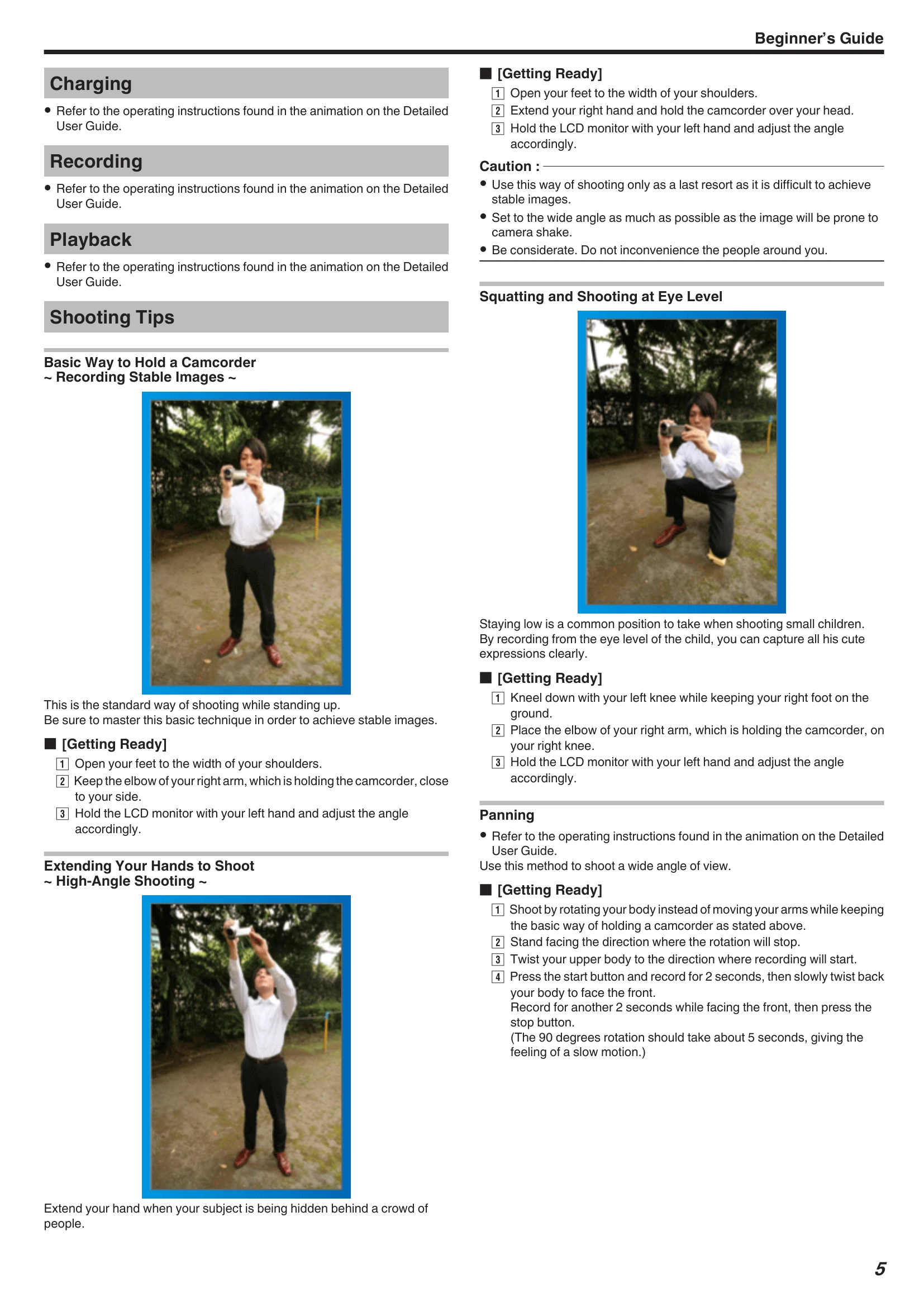
This is the standard way of shooting while standing up. Be sure to master this basic technique in order to achieve stable images.
[Getting Ready]
Extend your hand when your subject is being hidden behind a crowd of people.
Squatting and Shooting at Eye LevelStaying low is a common position to take when shooting small children. By recording from the eye level of the child, you can capture all his cute expressions clearly.
[Getting Ready]
Use this method to shoot a wide angle of view.
[Getting Ready]
| Battery Pack | Unable to turn on the power when using the battery pack. | Recharge the battery pack. "Charging the Battery Pack" (p. 63) Check whether the terminals are dirty. If the terminal of this unit or the battery pack is dirty, wipe it with a cotton swab or something similar. If you use any other battery packs besides JVC battery packs, safety and performance cannot be guaranteed. Be sure to use JVC battery packs. |
|---|---|---|
| Short usage time even after charging. | Battery deterioration occurs when a battery pack is charged repeatedly. Replace the battery pack with a new one. "Optional Accessories" ( p. 73) | |
| Unable to charge the battery pack. | When the battery pack is fully charged, the lamp does not flash. Check whether the terminals are dirty. If the terminal of this unit or the battery pack is dirty, wipe it with a cotton swab or something similar. Using a non-original AC adapter may result in damage to this unit. Be sure to use an original AC adapter. |
|
| The remaining battery display is not correct. | Remaining battery power is not displayed when the AC adapter is connected. If this unit is used for long periods of time in high or low temperatures, or if the battery pack is repeatedly charged, the amount of remaining battery may not be displayed correctly. |
|
| Recording | Recording cannot be performed. | Check the 7 button. "/(Video/Still Image) Button" (p. 201) When there are multiple light sources and depending on the shooting conditions, exposure and focus may not be adjusted correctly in the Intelligent Auto mode. In this case, adjust the settings manually. "Adjusting Focus Manually" (p. 83) |
| Recording stops automatically. | Recording stops automatically as it cannot be performed for 12 or more consecutive hours according to specifications. (It may take some time to resume recording.) Turn off this unit, wait for a while, and turn it on again. (This unit stops automatically to protect the circuit when the temperature rises.) |
|
| The continuous shooting speed of still images is slow. | The continuous shooting speed will drop if this function is used repeatedly. Continuous shooting speed may drop depending on the SD card or under certain recording conditions. | |
| The focus is not adjusted automatically. | If you are recording in a dark place or a subject that has no contrast between dark and light, adjust the focus manually. "Adjusting Focus Manually" (p. 83) Wipe the lens with a lens cleaning cloth. Cancel manual focus on the manual recording menu. "Adjusting Focus Manually" ( p. 83) |
|
| Zoom does not work. | Digital zoom is not available in the still image recording mode. Zoom operation is not available in time-lapse recording. (Simultaneous still image recording and image stabilizer are also not available.) To use digital zoom, set "ZOOM" in the menu accordingly. "ZOOM" (p. 174) |
|
| Mosaic-type noise occurs when recording scenes with fast movements or extreme changes in brightness. | Set the "VIDEO QUALITY" to "UXP" or "XP" for recording. "VIDEO QUALITY" ( p. 174) |
|
| Vertical lines appear on recorded images. | Such a phenomenon occurs when shooting a subject illuminated by bright light. This is not a malfunction. |