Brand: JVC
Category: Camcorder
Document Type: Manual
Language: EN
Brand: JVC
Category: Camcorder
Document Type: Manual
Language: EN
Uploaded: Nov. 21, 2025, 8:54 p.m.
JVC warrants the software program against defects for thirty (30) days from the date of purchase.
| Trouble | Action |
|---|---|
| The camcorder operates slowly when switching between video mode and still image mode, or when switching the power on or off. | If there are many files (such as video) in the camcorder, it takes time for the camcorder to respond. It is recommended that you copy all files from the camcorder onto your computer, and erase the files from the camcorder. |
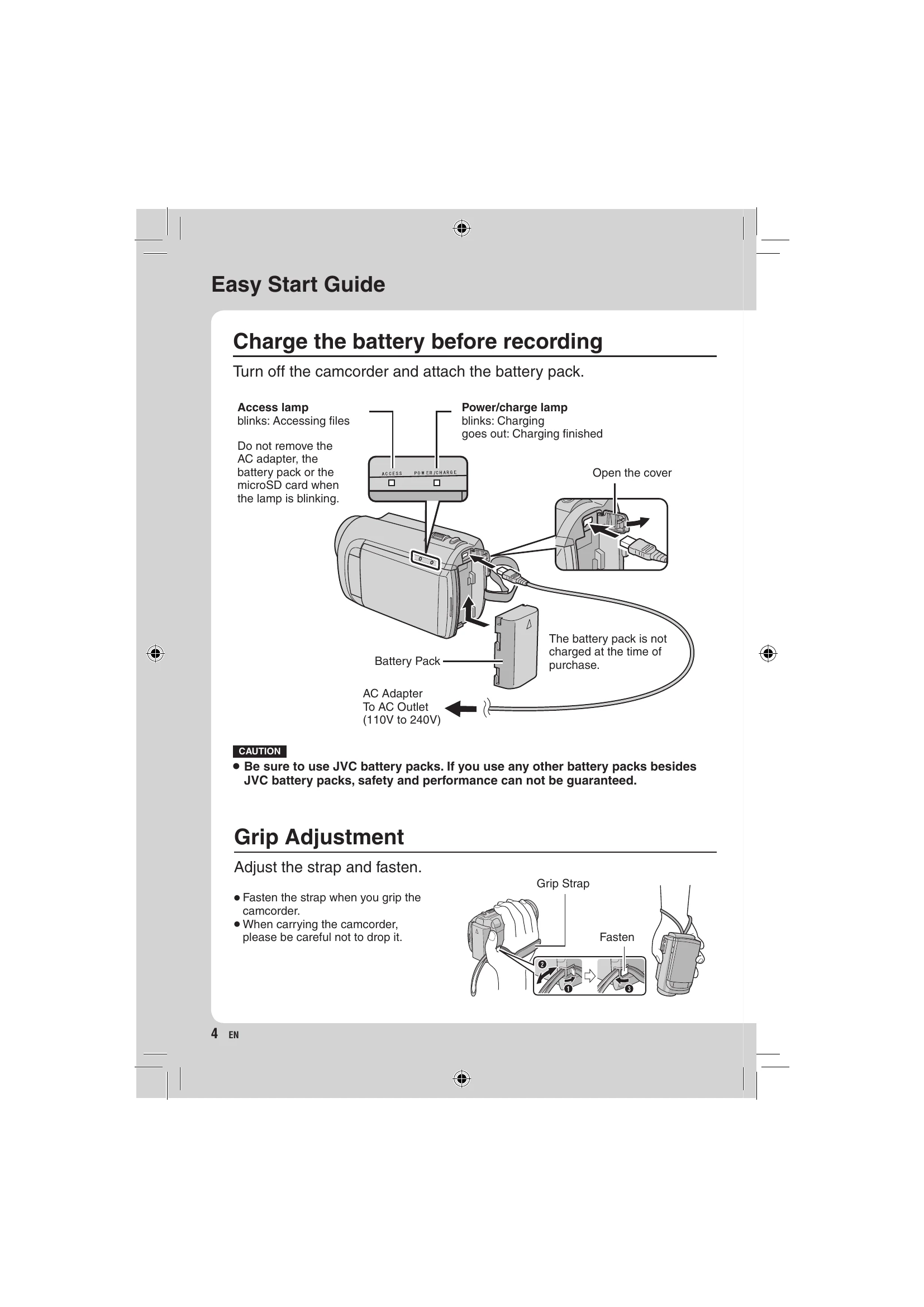
| The lamp does not flash during battery pack charging. | • Check the remaining battery pack charge. (When the battery pack is fully charged, the lamp does not flash.) • When recharging in either a hot or cold environment, ensure that battery is being charged within the permitted temperature range. (If the battery pack is being recharged outside the permitted temperature range, recharging may stop to protect the battery pack.) |
| The remote control does not work. | • Replace the battery. • Set [REMOTE] to [ON]. • The remote control may not operate outdoors or in places exposed to strong light. |
| GZ-MG680 When connecting to the HDMI cable, the image or sound does not appear on the TV properly. |
• When connecting to the HDMI cable, the image or sound may not appear on the TV properly depending on the TV connected. In such cases, perform the following operations. 1) Disconnect the HDMI cable and connect it again. 2) Turn off and on the camcorder again. |
| GZ-MG680 HDMI-CEC functions do not work properly, and the TV does not work in conjunction with the camcorder. |
TVs may operate differently depending on the specifications, even if they are HDMI-CEC compliant. Therefore, the HDMI-CEC functions of the camcorder cannot be guaranteed to operate in combination with all the TVs. In such cases, set [HDMI CONTROL] to [OFF]. |
| GZ-MG680 The language on the display changed. |
It may occur when you connect the camcorder to a TV with different language setting using an HDMI cable. |
| If a malfunction occurs in the HDD | |
| ① Perform [FORMAT HDD]. (All data is deleted.) ② If this does not solve the problem, perform the disc check function from a PC after formatting. ③ If this does not solve the problem, contact the JVC customer service for repairs. |
|
| To reset the camcorder when it does not operate normally | |
| Close the LCD monitor and remove the power supply (battery pack or AC adapter) from the camcorder, then reattach it. ② Execute [FACTORY PRESET]. (☞ p. 62) |
|