Brand: JVC
Category: Digital Media Camera
Document Type: Manual
Language: EN
Brand: JVC
Category: Digital Media Camera
Document Type: Manual
Language: EN
Uploaded: Nov. 21, 2025, 6:53 p.m.
This limited warranty is valid only in the 50 United States, District of Columbia and Puerto Rico.
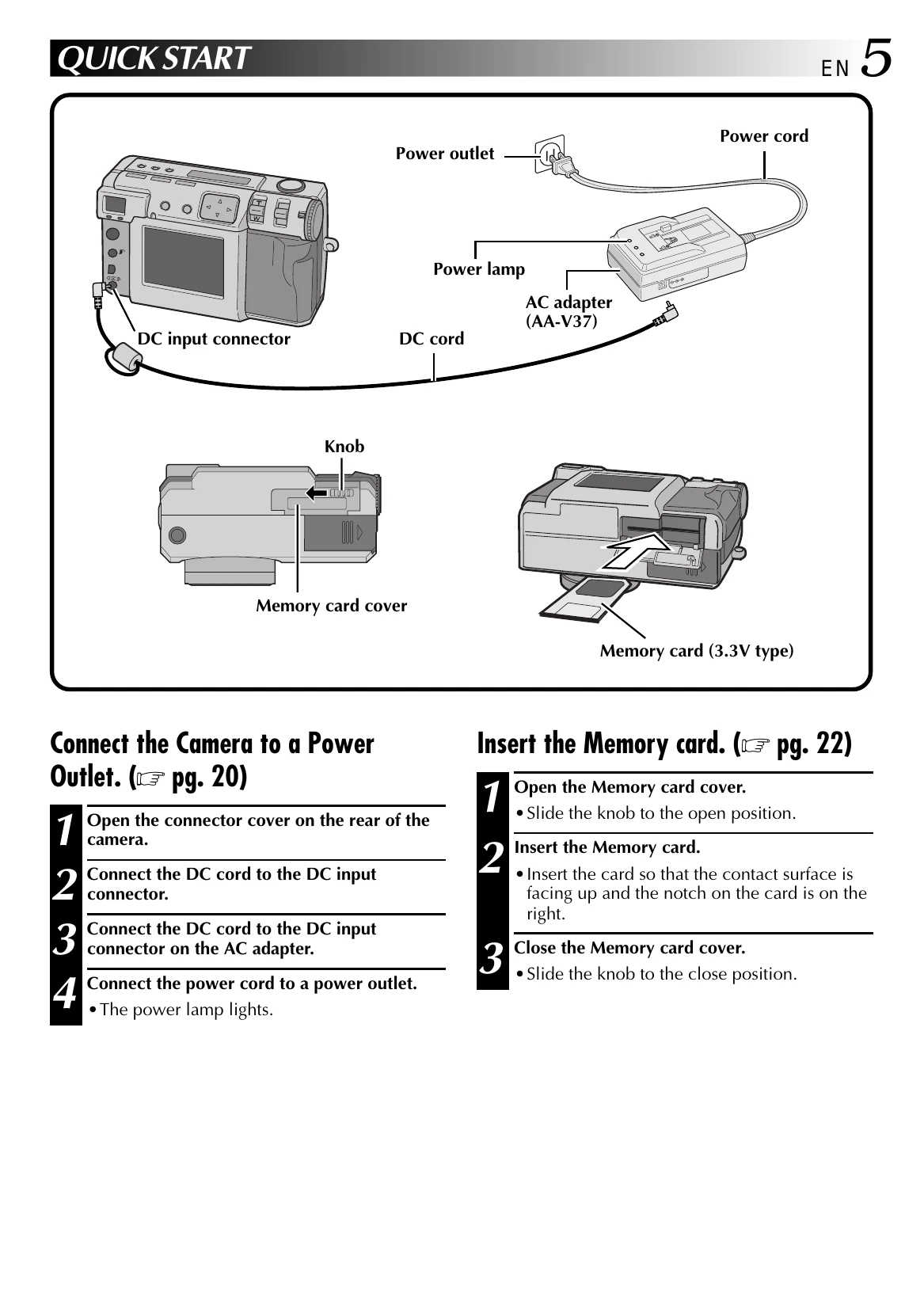
Connect the Camera to a Power Outlet:
Insert the Memory Card:
Shoot a Picture:
Play back a Picture:
| Messages | Contents | Page |
|---|---|---|
| MEMORY FULL | The storage capacity of the Memory card has been reached. You can store additional photos either by replacing the memory card with a new one, or by deleting photos that are no longer needed. | 22 |
| SET DATE/TIME | The date has not yet been set. Set the date. | 66 |
| WRITE PROTECTION | The Memory card is write protected. Check the contents of the card, and then either replace this memory card with a new one, or remove the protect sticker. | 22 |
| NO VALID IMAGE | This message is displayed if the Power dial is set to I", when there are no pictures stored in the Memory card. | - |
| NO MEMORY CARD | This message is displayed if no Memory card has been inserted. Insert a Memory card. Otherwise, there are dust, finger prints, etc. on the contact surface on the Memory card. Clean the surface with a soft cloth. | 22 |
| FORMAT MEMORY CARD | This message is displayed if a Memory card that is not yet formatted has been inserted. Format the memory card. | 23 |
| NOW EDITING | This message is displayed when editing processing is in progress. | 55 |
| NOW RECORDING | This message is displayed when picture data is being saved to a Memory card. | 30 |
| NOW DELETING | This message is displayed when picture data is being deleted. | 53 |
| PROTECTED | This message is displayed when an attempt is made to delete the picture that is currently being displayed, and which is protected. | 52 |
| NOW FORMATTING | This message is displayed while a Memory card is being formatted. | 23 |