Manual for GZ-MC100

Manual for GZ-MC100

Brand: JVC

Category: Digital Media Camera

Document Type: Manual

Language: EN
Uploaded: Aug. 10, 2025, 12:33 a.m.

Warranty Information

None

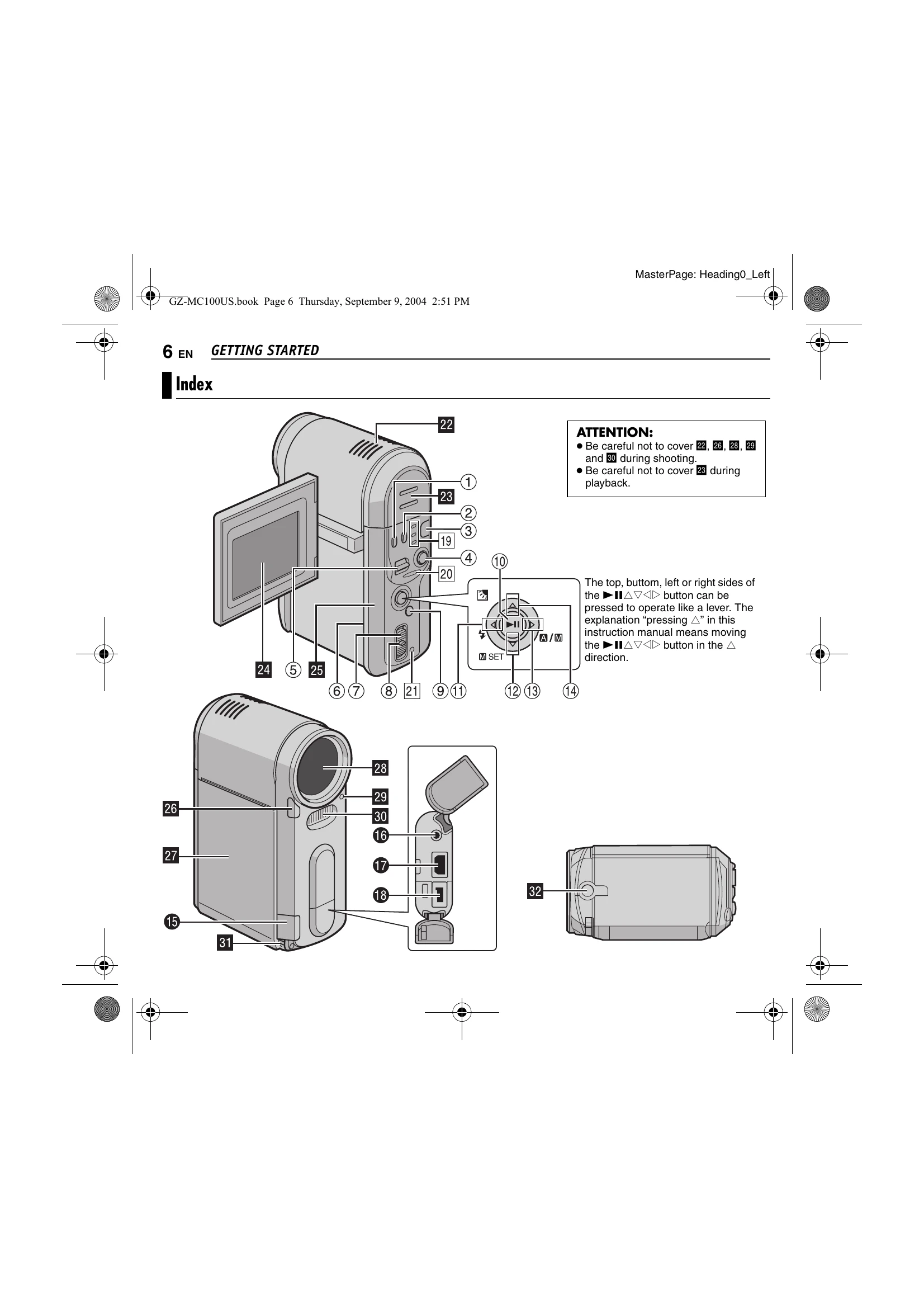
Turning On/Off: Set the power switch to the desired position (recording or playback) while pressing the lock button. To turn off, set the switch to OFF. Power-linked operation allows turning on/off by opening/closing the LCD monitor.
Mode Selection: Press the MODE button to choose between Video, Still Image, or Voice recording modes. The corresponding mode lamp will illuminate.
Recording: In Video Mode, press the recording start/stop button to begin and end recording. For still images, press the button to record the image. A half-press allows focus confirmation.
Playback: Select the desired playback mode, navigate to the file, and press the play button. Use the zoom lever to adjust volume during playback. The INFO button displays file information or removes the on-screen display.

Troubleshooting and error codes

Power No power is supplied.
  • The power is not connected properly. →Connect the AC Adapter securely. (pg. 14)
  • The battery pack is not attached firmly. →Detach the battery pack once again and re-attach it firmly. (pg. 14)
  • The battery is dead. →Replace the dead battery with a fully charged one. (pg. 14)
Recording Recording cannot be performed.
  • [MEMORY CARD IS FULL] appears. →Replace with new recording medium or delete unnecessary files. (pg. 16, 29)
  • Recording medium is not selected properly. →Select the recording medium. (pg. 17)
  • The rear panel is open. →Close the cover and set the power switch to OFF, then to ⑨.
When shooting a subject illuminated by bright light, vertical lines appear. • This is not a malfunction.
Screen Issues When the screen is under direct sunlight during shooting, the screen becomes red or black for an instant. • This is not a malfunction.
During recording, the date/time does not appear. • [DATE/TIME] is set to [OFF]. →Set [DATE/TIME] to [ON]. (pg. 18)
The LCD monitor indications blink. • Certain modes of wipe/fader, program AE, effect, DIS and other functions that cannot be used together are selected at the same time.
Digital zoom does not work. • [ZOOM] is set to [10X] (optical zoom). →Set [ZOOM] to [40X] or [200X]. (pg. 28)
Playback Playback cannot be performed.
  • Recording medium is not selected properly. →Select the recording medium. (pg. 17)
  • The rear panel is open. →Close the cover and set the power switch to OFF, then to ⑨.
  • Playback starts, but there is no picture on TV. →Set the TV's input mode or channel appropriate for video playback.
Advanced features The focus does not adjust automatically.
  • Focus is set to the manual mode. →Set focus to the automatic mode. (pg. 31)
  • The lens is dirty or covered with condensation. →Clean the lens and check the focus again. (pg. 32)
The color of the image looks strange. • The light source or the subject does not include white. Or there are various different light sources behind the subject. →Try manual white balance adjustment. (Refer to the advanced operation manual in CD-ROM. pg. 32)
Privacy Policy