Brand: JVC
Category: Digital Media Camera
Document Type: Manual
Language: EN
Brand: JVC
Category: Digital Media Camera
Document Type: Manual
Language: EN
Uploaded: Nov. 21, 2025, 6:38 p.m.
Refer to the Warranty Card (for USA) for warranty information.
This section covers safety precautions, features, and initial setup steps for the JVC VN-H557U HD IP PTZ Camera. It includes important information on mounting, power, and network connections.
Details on operating environment, network, and image settings.
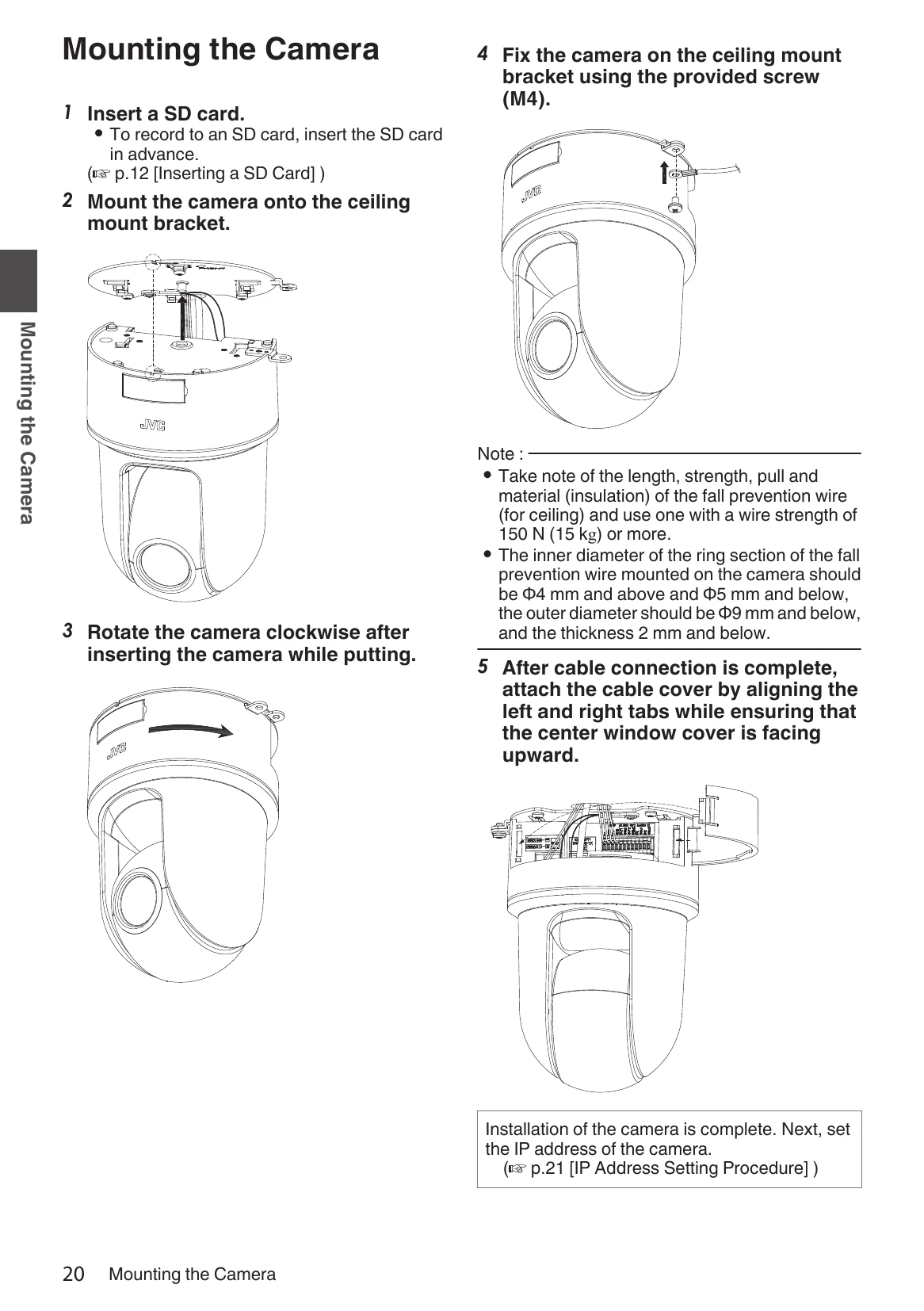
Step-by-step instructions for installing the camera, including IP address configuration.
This section covers the use of the Built-in Viewer software for monitoring, controlling, and configuring camera settings. It explains how to perform various operations like PTZ control, image adjustments, and recording setup.
Troubleshooting common issues, information on consumable parts, and appendices with technical details.
| Symptom | Possible Causes and Actions Taken |
| No video image. / Power does not turn on. | Is there any problem with the power cable for connecting this product to the power supply unit? (If the cable is too long or thin, this may increase the resistance and prevent the voltage from being properly supplied.) Connect using a cable with a thickness/length specified for this product. (p.18 [Installation and Connection Preparations]) Is the port number to be used when the client computer accesses to the camera via HTTP correctly specified? (If the port number is incorrect, the Built-in Viewer menus will be displayed, but videos will not appear, and a “Connection is failed” message will be displayed instead.) Set the HTTP port value for the Built-in Viewer to the same value specified for the HTTP server port on the camera's Protocol page. (p.57 [[Protocol] Page]) (p.80 [[Unicast] Settings]) |
| The power does not turn on even when PoE is used to supply power. | Is connection established using a PoE (compliant with IEEE802.3af) power supply device and a LAN cable of Category 5e or higher? Check the cable. For some PoE power supply devices (such as a hub), power will not be supplied when the number of PoE terminals connected exceeds the limit of the total electrical power that can be supplied. For more information, please refer to the instruction manual of the PoE power supply device. |
| Power turns on, but shuts down once the camera starts rotating. | Is there any problem with the power cable for connecting this product to the power supply unit? (If the cable is too long or thin, this may increase the resistance and prevent the voltage from being properly supplied.) Connect using a cable with a thickness/length specified for this product. (p.18 [Installation and Connection Preparations]) |
| I do not know the IP address of the camera. | If no changes have been made to the factory default settings, the IP address is 192.168.0.2, and the subnet mask is 255.255.255.0. If you have set the [IP Setting] to “DHCP Enable" and if you start the camera on the LAN where no DHCP server exists, you can start the camera with the factory default IP address. If you have a computer connected to the same LAN, search for the IP address using "JVC-VN-SearchTool” on the computer. |
| I cannot display the Settings page of the camera. | Check the current settings of Internet Explorer. When a proxy server is in use, configure the proxy server settings of the Internet Explorer accordingly. |
| Unable to install Built-in Viewer/a warning message appears when I start the Built-in Viewer. | Check the current settings of Internet Explorer. The Built-in Viewer consists of a software component called ActiveX. The ActiveX is usually installed when the Built-in Viewer is used for the first time. However, installation may be rejected depending on the anti-virus software settings. In this case, change the settings of the anti-virus software before installing the Built-in Viewer. |
| When I install the Built-in Viewer, authentication by VeriSign appears. | The Built-in Viewer has an electronic signature for authentication by VeriSign. If computers are connected to the Internet in the network environment, the digital certificate of the Built-in Viewer can be checked by VeriSign authentication. |