Brand: JVC
Category: TV
Document Type: Manual
Language: EN
Brand: JVC
Category: TV
Document Type: Manual
Language: EN
Uploaded: Nov. 21, 2025, 7:44 p.m.
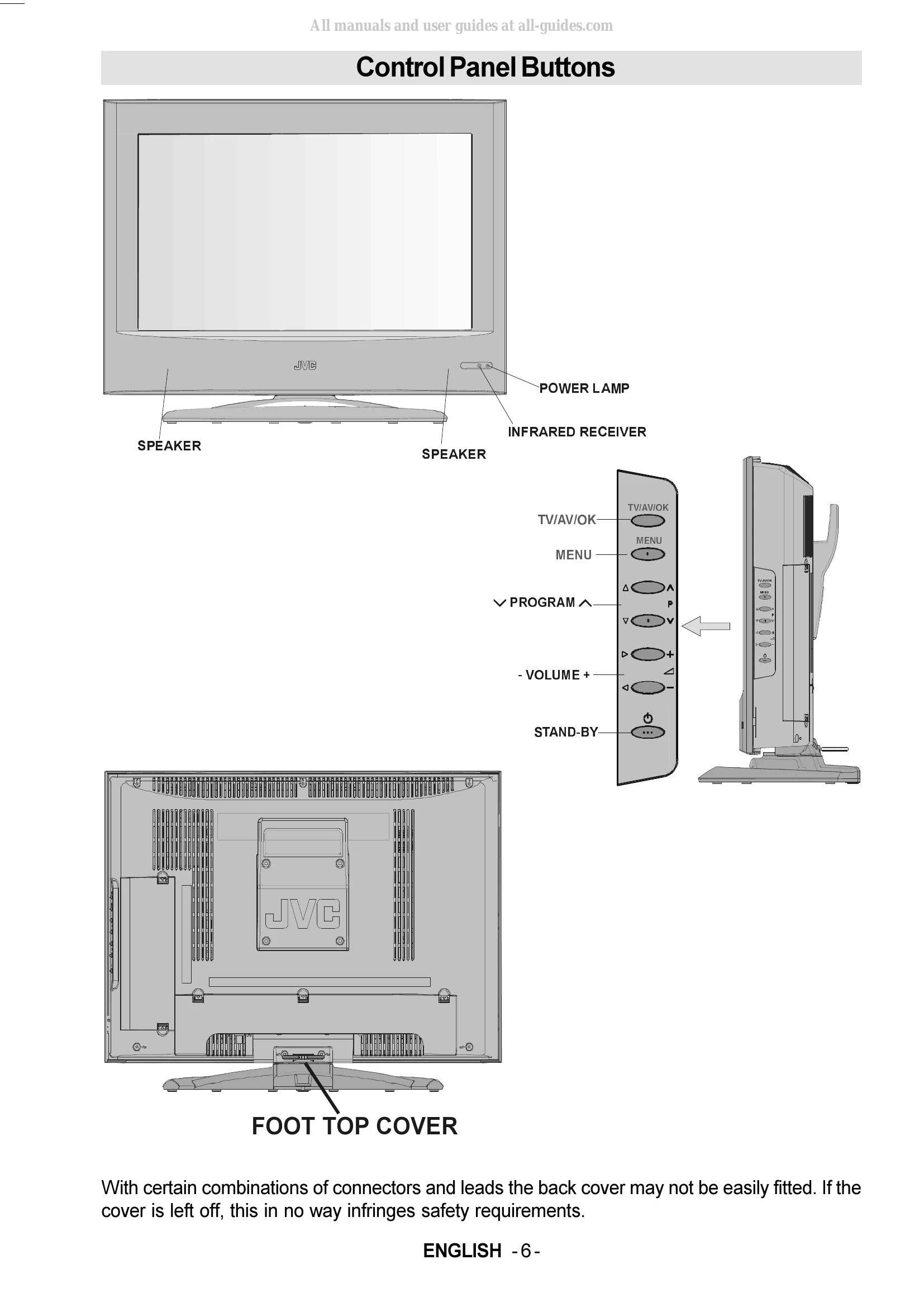
Turning On/Off: Press the '/I' button on the remote or TV to switch to standby (red light) or on (green light). To fully turn off, unplug the mains lead.
Volume Control: Use the '+' and '-' buttons on the remote or TV to adjust volume. A slider will appear on screen.
Programme Selection: Use 'P^' and 'PV' buttons to cycle through programmes. Direct access is available via number buttons (0-9) or by pressing two digits for programmes 10-99.
Input Modes: Press the TV/AV/OK button to switch between TV and AV input modes.
Menu System: Press the 'MENU' button to access the main menu. Navigate using cursor buttons and select with 'OK'.
Picture Settings: Access the Picture menu to adjust Contrast, Brightness, Sharpness, Colour, and Colour Temperature in Manual mode.
Sound Settings: Access the Sound menu to adjust Volume, Bass, Treble, Balance, and Hyper Sound.
Features: Explore menus for Sleep Timer, Child Lock, Language, Blue Back, and Zoom Modes.
PC Mode: Connect a PC via D-SUB cable. Adjust PC Picture settings and position in the PC menus.
Teletext: Press the '(TELETEXT)' button to access Teletext. Navigate using digit buttons or page up/down buttons.
| Tips | |
| Can not turn the TV on? | |
| Check that TV/VCR/DVD switch is set to TV position. | |
| TV may go to stand-by mode when you turn the TV on soon after you turn the TV off. If you can turn the TV on again, it is not a problem. | |
| Can not turn the TV off? | |
| Check that TV/VCR/DVD switch is set to TV position. | |
| Care of the Screen | |
| Clean the screen with a slightly damp, soft cloth. Do not use abrasive solvents as they may damage the TV screen coating layer. | |
| Colours of image on screen are abnormal | |
| Have you selected the correct TV system? Is your TV set or house aerial located too close to the loudspeakers, non-earthed audio equip-ment or neon lights, etc. ? | |
| Mountains or high buildings can cause double pictures or ghost images. Sometimes you can improve the picture quality by changing the direction of the aerial. | |
| Is the picture or Teletext unrecognisable? Check if you have entered the correct frequency. | |
| The picture quality may degrade when two peripherals are connected to the TV at the same time. In such a case, disconnect one of the peripherals. | |
| No Image on Display Screen | |
| Is the aerial connected properly? Are the plugs connected tightly to the aerial socket? Is the aerial cable damaged? Are suitable plugs used to connect the aerial? If you are in doubt, consult your dealer. | |
| No Image means that your TV is not receiving any transmission. Have you pressed the cor-rect buttons on the remote control? Try once more. | |
| PC Picture | |
| If no PC picture appears, check that the D-SUB cable is connected properly. Check that your PC's resolution set correctly. See page 27 for supported modes. | |
| Sound | |
| You can not hear any sound. Did you perhaps interrupt the sound, by pressing (Mute) button? Are external speakers connected to the TV? | |
| Sound is coming from only one of the speak-ers. Is the balance set to one direction ex-treme? See Sound menu. | |
| Remote Control | |
| If your TV no longer responds to the remote control, perhaps the batteries are exhausted. Replace the batteries. | |
| Have you selected the wrong menu? Press "MENU" button to return to normal screen or press "BACK” button to return to the previous menu. | |
| No solution | |
| Switch your TV set off and on. If this does not work, switch off, remove the mains plug and call the service personnel; never attempt to repair it yourself. | |