Brand: KENWOOD
Category: Audio System
Document Type: Manual
Language: EN
Brand: KENWOOD
Category: Audio System
Document Type: Manual
Language: EN
Uploaded: Nov. 21, 2025, 9:02 p.m.
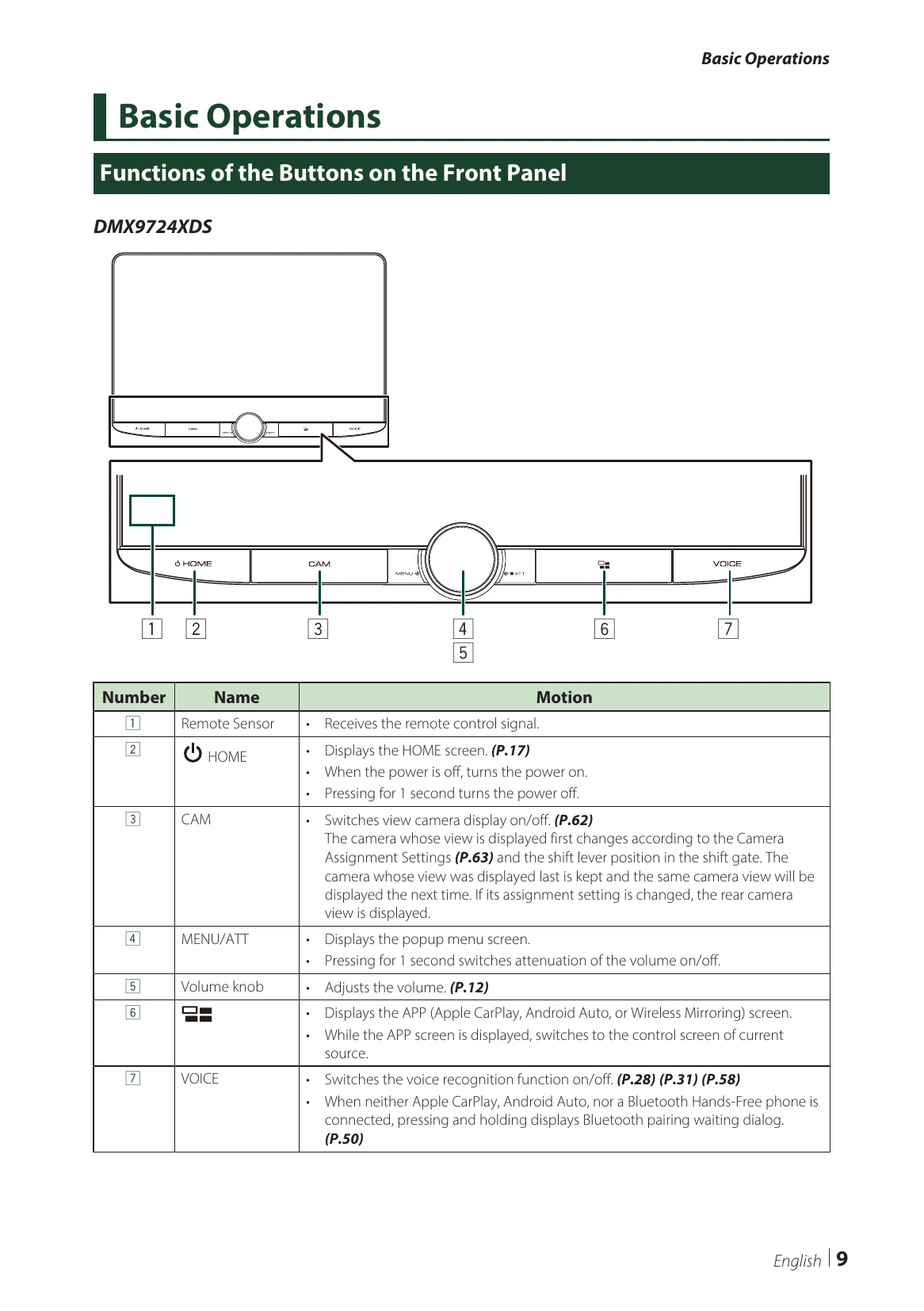
Remote Sensor: Receives the remote control signal.
HOME: Displays the HOME screen. Turns the unit on/off.
CAM: Switches camera view on/off.
MENU/ATT: Displays the popup menu screen. Long press switches volume attenuation on/off.
Volume knob: Adjusts the volume.
(Icon): Displays APP screen (Apple CarPlay, Android Auto, Wireless Mirroring) or switches to current source control.
VOICE: Switches voice recognition on/off. Long press displays Bluetooth pairing.
Touch: Select an item.
Touch and hold: Keep finger on screen until display changes.
Flick: Swipe finger left/right to change pages. Swipe up/down to scroll lists.
Swipe: Slide finger up/down to scroll the screen.
DMX9724XDS: Press the HOME button.
DAX8000XDS: Touch the screen.
DMX9724XDS: Turn the knob clockwise to increase, counter-clockwise to decrease.
DAX8000XDS: Touch at the top of the screen and use [-] or [+] on the popup menu.
DMX9724XDS: Press MENU/ATT, then touch Display OFF.
DAX8000XDS: Touch at the top of the screen, then touch Display OFF.
DMX9724XDS: Press HOME, touch , then touch STANDBY.
DAX8000XDS: Touch at the top, touch HOME on popup, then touch STANDBY.
| Problem | Solution |
|---|---|
| About settings | |
| Cannot set up the subwoofer. | Set the subwoofer to on. See Speaker / X’over setup (P.78). |
| Cannot set up subwoofer phase. | |
| No output from the subwoofer. | |
| Cannot set up the low pass filter. | |
| Cannot set up the high pass filter. | |
| About audio operations | |
| Radio reception is poor. | The car antenna is not extended. Pull out the antenna all the way. The antenna control wire is not connected. Connect the wire correctly. See Connecting the system and external components (P.105). |
| Cannot select a folder. | The random play function is enabled. Turn off the random function. |
| The unit does not respond when you try to perform a operation during USB mirroring. | A connector is not properly connected. Unplug the smartphone from the USB terminal, then reattach the smartphone again. |
| Others | |
| The Touch Sensor Tone doesn’t sound. | The preout jack is being used. The Touch Sensor Tone cannot be output from the preout jack. |
| Error Messages | |
| There is an error in the speaker wiring. Please check the connections. | Protective circuit has been activated because a speaker cord has shorted or it has come in contact with the car chassis. Wire or insulate the speaker cord as appropriate and turn the power off and on again. |
| No Device (USB device) | The USB device is selected as a source although no USB device is connected. Change the source to any source other than USB/iPhone. Connect a USB device, and change the source to USB again. |
| Disconnected (iPhone, Bluetooth audio player) | The iPhone/Bluetooth audio player is selected as a source although no iPhone/Bluetooth audio player is connected. Change the source to any source other than iPhone/Bluetooth. Connect an iPhone/Bluetooth audio player, and change the source to iPhone/Bluetooth again. |
| No Media file | The connected USB device contains no playable audio file. Media was played that does not have data recorded that the unit can play. See Playable Media and Files (P.109) and try another USB device. |
| USB device over current status detected. | The connected USB device is rated a current capacity higher than the allowable limit. Check the USB device. Some trouble may have occurred to the connected USB device. Change the source to any source other than USB. Remove the USB device. |
| The speed sense wire is not connected. Please check the connection. | The speed pulse disconnection is detected. By default, it is treated as connected. To improve precision of a vehicle position recognition, check the connection of the speed pulse. |