Manual for DNR1007XR

Manual for DNR1007XR

Brand: KENWOOD

Category: Audio System

Document Type: Manual

Language: EN
Uploaded: Nov. 21, 2025, 8:19 p.m.

Warranty Information

None

  • Basic Operations

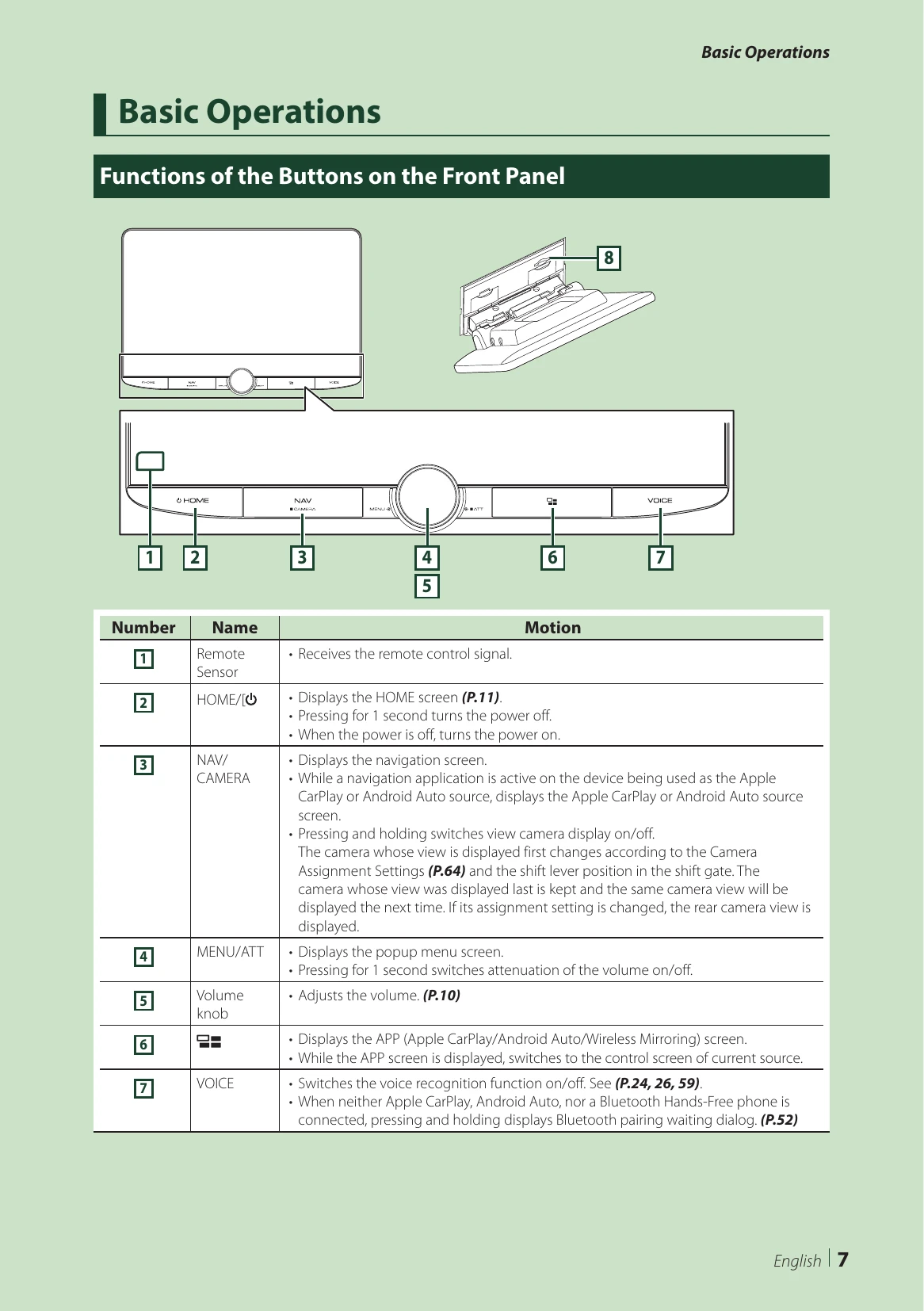
  • Functions of the Buttons on the Front Panel

    The manual describes the function of each button on the front panel:

    • Remote Sensor: Receives remote control signals.
    • HOME/ button: Displays the HOME screen or turns the unit ON/OFF.
    • NAV/CAMERA: Displays the navigation or camera screen.
    • MENU/ATT: Displays the popup menu or switches attenuation.
    • Volume knob: Adjusts the volume.
    • button: Displays the APP screen or switches to the control screen of the current source.
    • VOICE: Switches voice recognition ON/OFF or displays Bluetooth pairing dialog.
  • Turning on the Unit

    Press the HOME/ button to turn the unit ON. To turn it OFF, press and hold the HOME/ button for 1 second. If it's the first time, perform Initial SETUP.

  • Initial Settings

    Perform initial setup when using the unit for the first time. This includes setting Locale, Language, Display & Button, and Camera. These settings can also be made from the SETUP menu.

  • Adjusting the volume

    Turn the volume knob clockwise to increase and counter-clockwise to decrease.

  • Touch screen operations

    Operate the screen by touching, touching and holding, flicking, or swiping.

  • HOME screen descriptions

    Most functions can be accessed from the HOME screen, which displays widgets, source selection, and SETUP menus.

  • Popup menu

    Press the MENU/ATT button to display the popup menu with various options like Screen Adjustment, Display OFF, Camera, SETUP, Audio, and USB.

  • Source selection screen

    Displays icons for all playback sources, allowing you to change pages and access the SETUP menu.

  • Turn off the screen

    Select Display OFF from the popup menu. The clock can be displayed when the screen is off by setting "OSD Clock" to "ON".

Troubleshooting and error codes

Problems and Solutions Details and Solutions
About settings
  • Cannot set up the subwoofer, subwoofer phase, or low/high pass filters: Ensure Subwoofer is ON.
  • Dual zone function issues (no output, rear speaker volume, equalizer, crossover): Turn OFF the dual zone function.
About audio operations
  • Poor radio reception: Extend antenna, check antenna control wire connection.
  • Cannot select a folder: Turn off random play.
  • Unit does not respond during USB mirroring: Unplug and reattach the smartphone.
Others
  • Touch Sensor Tone doesn’t sound: Preout jack is in use.
  • Android smartphone operation is slow: Close unused applications.
Error Messages
  • Speaker wiring error: Check connections, insulate cords.
  • Hot Error: Unit overheated, allow to cool.
  • Error 07-67: Turn power off/on. Contact dealer if persists.
  • No Device (USB/iPod/Bluetooth): Connect the device.
  • No Media file: Try another USB device.
  • USB device over current: Check USB device, try another.
  • Navigation Error: Turn on power after car warms up.
  • Speed sense wire not connected: Check connection.
  • Starting tuner failed: Turn power off/on. Contact dealer if persists.
  • SiriusXM Errors: Check tuner connection, subscription, channel availability, antenna, and signal.
  • Apple CarPlay: Ensure GPS antenna is connected wirelessly or via USB.
Privacy Policy