Brand: KENWOOD
Category: Audio
Document Type: Manual
Language: EN
Brand: KENWOOD
Category: Audio
Document Type: Manual
Language: EN
Uploaded: Nov. 21, 2025, 6:06 p.m.
Welcome
Now that you've set up your SPECTRUM system, the real fun begins! Operating your system is easy, if you follow the step-by-step instructions in this manual. Spend a little time with the manual before you jump in, so you become familiar with the many capabilities of your system. You'll find a handy table of contents to guide you to the information you need. Then put up your feet, sit back and enjoy the fabulous sound of your SPECTRUM system!
| Problem | Possible Solution |
| Receiver | |
| Remote doesn't operate | Check the batteries, and replace them if needed. Check that the remote is close enough to the system; that the controlling angle is small enough; that there's no obstacle in between. Check that you've placed your CD, videotape, laser disc, or other source in the proper player. Check to make sure that the audio cables and system control cables are connected properly. |
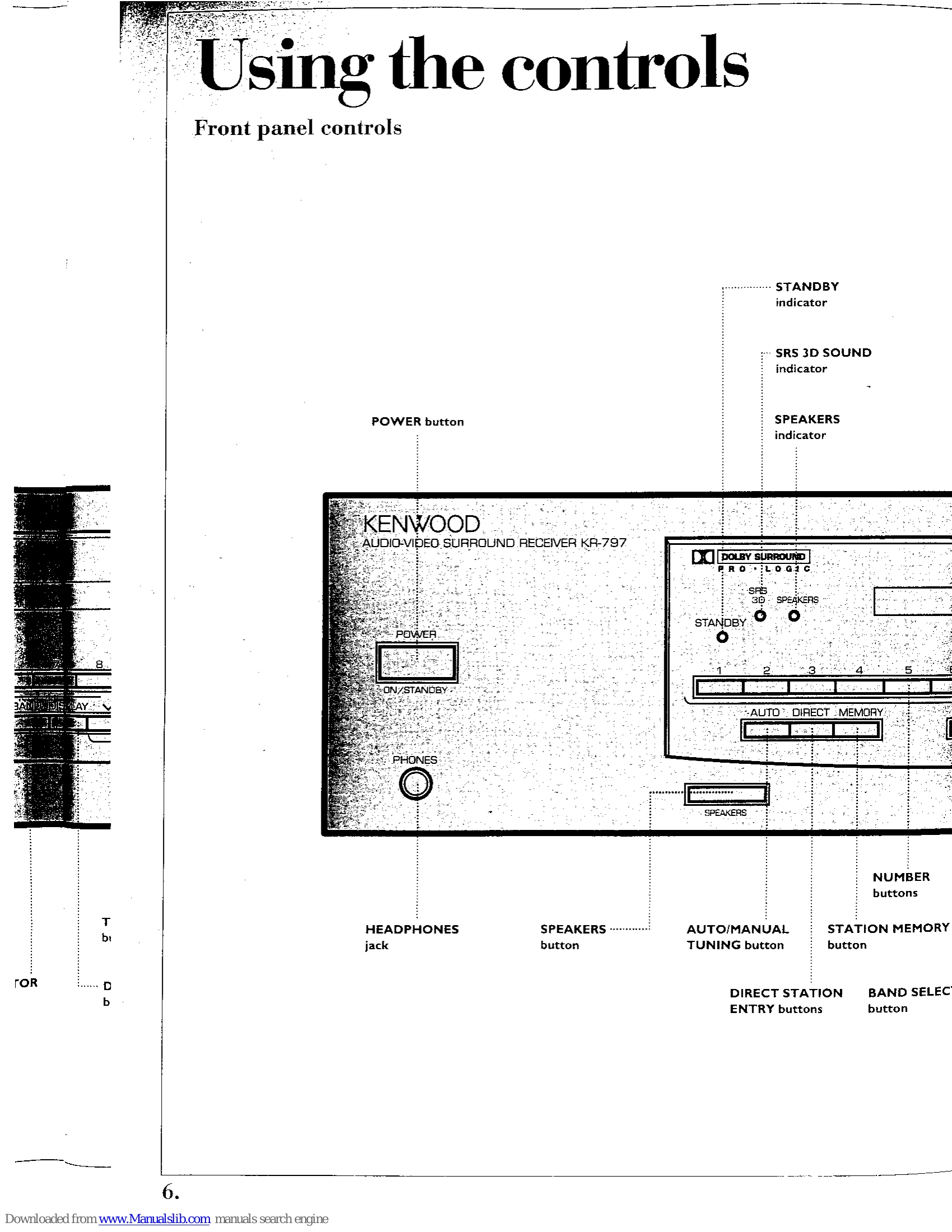
| No sound from the system | Check that the volume is set at a proper level. Check that the mute is OFF. Check that the equalizer's power switch is ON. Check that the speakers are turned ON. If the speakers are ON, the speaker indicator is ON. Check that all your power cords are connected properly. Check that the speaker cables are connected properly. Check that the input cable from the source component is connected properly. |
| No sound from one of the speakers | Check that the balance between the left and right speakers isn't set too far to one side. Check that the audio and speaker cables are connected properly. |
| No sound from the surround speaker(s) and/or center speaker, or the sound is abnormally low | Check that one of the surround modes is ON. Check that the center channel isn't set to PHANTOM. Check that the speaker cables are connected properly. Check that the CENTER and SURROUND channels are calibrated properly. |
| The STANDBY light blinks, but there is no sound | Check that the speaker cables aren't short-circuited—that is, the (+) and (-) wires aren't touching each other. If they are, separate the wires. |
| A hum when you select the PHONO input | Check that the turntable is grounded on the rear panel. The ground wire should be connected to the screw labeled GND. |
| None of the functions operate, or the display shows wrong information | Reset the unit's microcomputer by unplugging the power cord from the AC outlet and plugging it back in while holding down the POWER button. |
| You can't receive radio stations | Check that the station is tuned in properly. Check that the TUNER input is selected. Check that the antenna is connected properly. |
| You can't receive a preset station by pressing the corresponding number buttons | Check that the TUNER input is selected. Check that the preset station is a receivable frequency. Check that the preset memory hasn't been cleared because the power cord was unplugged a long time. If so, preset the station again. |
| Interference with reception | Check for interference from electrical appliances. If so, turn them OFF. Check for interference from the TV set. If so, turn it OFF, or move the antenna away from the TV. Check for interference from automobiles. If so, install the outdoor antenna away from roads. |
| CD player | |
| Power light doesn't come on | Check that the power cord is properly plugged into the AC outlet on the back of the receiver. |
| Player doesn't play a loaded CD | Check that the CD is loaded right-side up. Check that the CD isn't cracked or dirty. There may be condensation on the lens. Leave the player on for at least I hour before using it. |
| No sound | Check that the CD is loaded properly. Check that the CD isn't cracked or dirty. Check that the PLAY mode is active (the PLAY indicator light should be ON). Check that the audio cables are connected properly. |
| Skipping (mis-tracking) | Check that the CD isn't cracked or dirty. Make sure that the player isn't subjected to strong vibrations. |
| CD automatically plays when power is turned on | Remove all CDs before turning the unit OFF. The player is designed to automatically begin playing when the power is turned ON. |
| Cassette deck | |
| No sound when the PLAY button is pressed | Check that the tape isn't blank. Check that the tape is wound properly in the cassette case. If not, replace the tape. Check that the audio cables are connected properly. Check that the tape heads are clean. |
| None of the operation buttons work | Make sure that a tape has been inserted into the well. Make sure the cassette well door is completely closed. Make sure that the tape isn't fully wound to the end. If it is, reinsert the tape facing the other direction. Check that the tape is wound properly in the cassette case. If not, replace the tape. |
| Recordings sound dull | Check that the tape heads are clean. The recording level may be too high. Set the recording level according to the section 'Setting the recording level' on page 40. Make sure that Dolby Noise Reduction isn't activated when playing tapes recorded with no Dolby Noise Reduction. |
| Recordings are distorted | The recording level may be too high. Set the recording level according to the section 'Setting the recording level' on page 40. |
| Pressing the REC and PLAY buttons simultaneously doesn't start recording | Make sure that the recording-activation tabs have not been removed from the tape. Make sure that the cassette well door is completely closed. Check that the recording level isn't set to minimum. Check that the tape isn't fully wound to the end. |
| Tape noise (hiss) level is high | Make sure that the proper Dolby Noise Reduction is selected for play. Make sure that the head is demagnetized properly. The tape may have been recorded at too low a recording level. If so, record it again at a higher level. |
| Sound is 'sour', with unstable pitch | Make sure that the capstans and pinch rollers are clean. Make sure that the tape is wound properly in the cassette case. |
| None of the functions operate, or the display shows wrong information | Reset the unit's microcomputer by unplugging the power cord from the AC outlet and plugging it back in while holding down the STOP button. |