Brand: Lenovo
Category: Smartphone
Document Type:
Language: EN
Brand: Lenovo
Category: Smartphone
Document Type:
Language: EN
Uploaded: Aug. 10, 2025, 12:06 a.m.
Before using this information and the product it supports, be sure to read the following:
The Quick Start Guide and the Regulatory Notice have been uploaded to the website at http://support.lenovo.com.
Looking for help? The Lenovo Companion app can offer you support for getting direct access to Lenovo's web assistance and forums*, frequent Q&A*, system upgrades*, hardware function tests, warranty status checks*, service requests**, and repair status**.
Note:
* requires data network access.
** is not available in all countries.
You have two ways to get this app:
This section lists the technical specifications about wireless communication only. To view a full list of technical specifications about your phone, go to http://support.lenovo.com.
| Data | FDD-LTE/TDD-LTE/WCDMA/GSM |
| Note: In some countries, LTE is not supported. To know if your smartphone works with LTE networks in your country, contact your carrier. | |
| WLAN | WLAN 802.11 b/g/n, 2.4 GHz |
| Bluetooth | Bluetooth 4.0 |
| GPS | Supported |
There are three buttons on your phone.
The home screen is the starting point for using your phone. For your convenience, the home screen is already set up with some useful apps and widgets.
Note: Your phone's features and the home screen may be different depending on your location, language, carrier, and model.
Press and hold any blank area on the home screen to enter edit mode. Tap the Back button to exit edit mode.
In edit mode, you can do any of the following:
Tip: Some widgets are grouped by app, swipe left or right to locate the app that you want and then tap it to see the available widgets.
In your home screen, you can do any of the following:
Note: System apps cannot be uninstalled. When you are trying to uninstall a system app, does not appear at the top of the screen.
When your phone is on, press the On/Off button to lock the screen manually. Press the On/Off button again to display the lock screen, and then swipe up from the bottom of the screen to unlock.
Note: Swipe is the default screen unlocking method. To change your screen lock, see Settings.
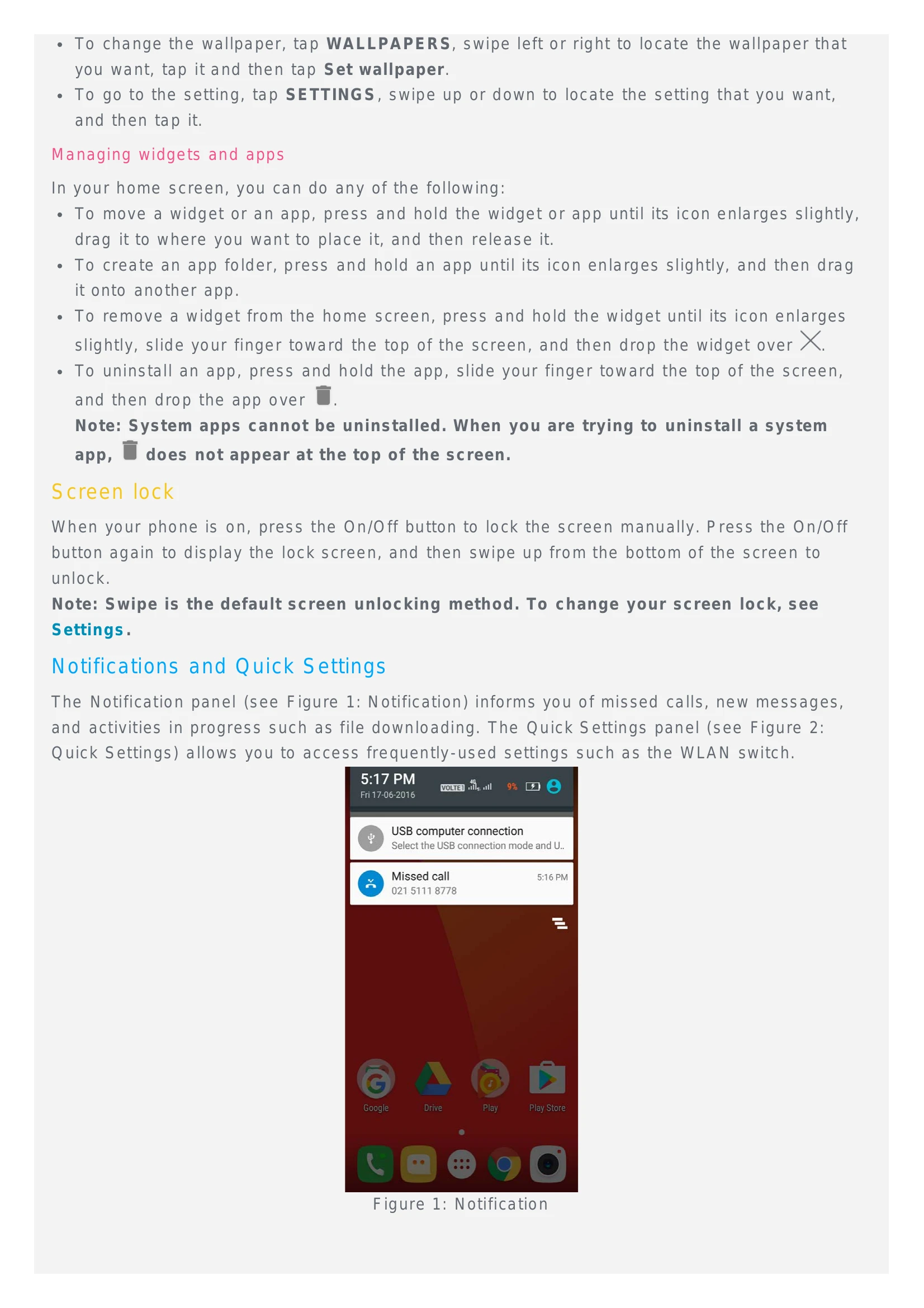
The Notification panel (see Figure 1: Notification) informs you of missed calls, new messages, and activities in progress such as file downloading. The Quick Settings panel (see Figure 2: Quick Settings) allows you to access frequently-used settings such as the WLAN switch.
When you connect your phone to a computer using a USB cable, the Notification panel displays a notification such as "USB computer connection". You can tap the notification, and then select one of the following options:
When you receive a phone call, the incoming call screen appears. You can do one of the following:
You have the following ways to silence a call:
When you are on a call, the following options are available on the screen:
You can also press the volume button to turn the volume up or down.
The call log contains missed, outgoing, and received call entries. You can press and hold a call log entry until the options menu appears, and then tap an option. For example, you can tap the Copy to clipboard option to add the entry to the Contacts list.
You can use the Messaging app to send text messages and multimedia messages.
You can use the Camera app to take photos and record videos.
Press and hold the On/Off button and the volume down button at the same time to take a screenshot.
By default, the screenshots are stored in your phone's internal storage. To view the screenshots, do one of the following:
By default, photos and videos are grouped together by album. If you want to group photos or videos by location, tap and then select Locations. If you want to group photos or videos by time, tap , , and then select Times.
When you are viewing a photo or video, tap anywhere on the screen, tap , and then select a sharing channel such as Bluetooth or Hangouts to share the photo or video with others.
If you want to share multiple photos and videos at the same time, do all of the following:
When you are viewing a photo or video, tap anywhere on the screen, tap > Delete, and then tap OK.
If you want to delete multiple photos and videos at the same time, do all of the following:
Do one of the following:
Do one of the following:
Note: You need a valid SIM card with a data service. If you do not have a SIM card, contact your carrier.
Your phone comes with dual SIM slots. Both slots support 4G/3G/2G data services, but you can enable only one SIM card for data connection at a time. To decide which SIM card to use for data connection, do one of the following:
You can use a WLAN hotspot to share an Internet connection with another phone or other devices.
If this is your first time to turn on the WLAN hotspot, tap Set up WLAN hotspot to view or change the configuration information.
Note: Tell your friends the Network SSID and password, and they can connect to your network.
If your phone has been connected to WLAN or a mobile network, you can use the Chrome app to surf the Internet. For more information about connecting to WLAN or a mobile network, see Network.
When viewing a web page that you want to bookmark, tap > . The next time you open the Chrome app, tap > Bookmarks, and then tap the bookmark to quickly access the web page.
Go to Settings > Security > Screen lock to select a screen lock option and set up the screen lock.
Before you install apps that you downloaded from unknown sources, do all of the following:
You can define the default ringtone for incoming calls, messages, and notifications. You can also adjust the volume for each sound type.
Go to Settings > Sound & notification.
To avoid personal injury, property damage, or accidental damage to the product, read all of the information in this section before using the product.
Do not drop, bend, or puncture the Lenovo Phone; do not insert foreign objects into or place heavy objects on the Lenovo Phone. Sensitive components inside might become damaged.
Do not immerse the Lenovo Phone in water or leave the Lenovo Phone in a location where it can get saturated with water or other liquids.
Do not disassemble or modify the Lenovo Phone. The Lenovo Phone is a sealed unit. There are no end-user serviceable parts inside. All internal repairs must be done by a Lenovo-authorized repair facility or a Lenovo-authorized technician. Attempting to open or modify the Lenovo Phone will void the warranty.
The Lenovo Phone screen is made of glass. The glass might break if the Lenovo Phone is dropped on a hard surface, is the subject of a high impact, or is crushed by a heavy object. If the glass chips or cracks, do not touch the broken glass or attempt to remove it from the Lenovo Phone. Stop using the Lenovo Phone immediately and contact Lenovo technical support for repair, replacement, or disposal information.
You can use any of the following charging methods to safely recharge the internal battery of the Lenovo Phone.
| Charging method | Display on | Display off |
| ac adapter | Supported | Supported, but the battery will charge slowly. |
| USB connection between the dc-in connector on the Lenovo Phone and a USB connector on a personal computer or other devices that comply with the USB 2.0 standards. | Supported, but will compensate power consumption and the battery will charge more slowly than usual. | Supported, but the battery will charge slowly. |
Notes:
Display on: Device on
Display off: Device off or in screen lock mode
Charging devices might become warm during normal use. Ensure that you have adequate ventilation around the charging device. Unplug the charging device if any of the following occurs:
Lenovo is not responsible for the performance or safety of products not manufactured or approved by Lenovo. Use only approved Lenovo ac adapters and batteries.
NOTE: Adapter shall be installed near the equipment and shall be easily accessible. Users have to use the connection to USB interfaces with USB 2.0 version or higher.
Take care when using the Lenovo Phone in a motor vehicle or on a bicycle. Always prioritize your safety and the safety of others. Follow the law. Local laws and regulations might govern how you can use mobile electronic devices, such as the Lenovo Phone, while you drive a motor vehicle or ride a bicycle.
Keep the Lenovo Phone and accessories away from small children. The Lenovo Phone contains small parts that can be a choking hazard to small children. Additionally, the glass screen can break or crack if dropped on or thrown against a hard surface.
Do not charge or use the Lenovo Phone in any area with a potentially explosive atmosphere, such as at a fueling area, or in areas where the air contains chemicals or particles (such as grain, dust, or metal powders). Obey all signs and instructions.
Observe signs and notices that prohibit or restrict the use of mobile phones (for example, in healthcare facilities or blasting areas). Although the Lenovo Phone is designed, tested, and manufactured to comply with regulations governing radio frequency emissions, such emissions from the Lenovo Phone can negatively affect the operation of other electronic equipment, causing them to malfunction. Turn off the Lenovo Phone or use Airplane Mode to turn off the Lenovo Phone wireless transmitters when use is prohibited, such as while traveling in aircraft, or when asked to do so by authorities.
The Lenovo Phone contains radios that emit electromagnetic fields. These electromagnetic fields may interfere with pacemakers or other medical devices. If you wear a pacemaker, maintain at least 15 cm (6 inches) of separation between your pacemaker and the Lenovo Phone. If you suspect the Lenovo Phone is interfering with your pacemaker or any other medical device, stop using the Lenovo Phone and consult your physician for information specific to your medical device.
Clean the Lenovo Phone immediately if it comes in contact with anything that may cause stains, such as dirt, ink, makeup, or lotions. To clean:
Be aware of heat generated by the Lenovo Phone. When using the Lenovo Phone, keep it away from hot or high-voltage environments, such as electric appliances, electric heating equipment, or electric cooking equipment. Use the Lenovo Phone only in the temperature range of -10°C (14 °F)-35°C (95 °F) to avoid damage.
When the Lenovo Phone is turned on or the battery is charging, some parts might become hot. The temperature that they reach depends on the amount of system activity and the battery charge level. Extended contact with your body, even through clothing, could cause discomfort or even a skin burn. Avoid keeping your hands, your lap, or any other part of your body in contact with a hot section of the Lenovo Phone for any extended time.
Do not delete unknown files or change the name of files or directories that were not created by you; otherwise, the Lenovo Phone software might fail to work.
Be aware that accessing network resources can leave the Lenovo Phone vulnerable to computer viruses, hackers, spyware, and other malicious activities that might damage the Lenovo Phone, software, or data. It is your responsibility to ensure that you have adequate protection in the form of firewalls, antivirus software, and anti-spyware software and keep such software up to date.
Keep electrical appliances away from the Lenovo Phone, such as an electric fan, a radio, high-powered speakers, an air conditioner, and a microwave oven. The strong magnetic fields generated by electrical appliances can damage the screen and the data on the Lenovo Phone.