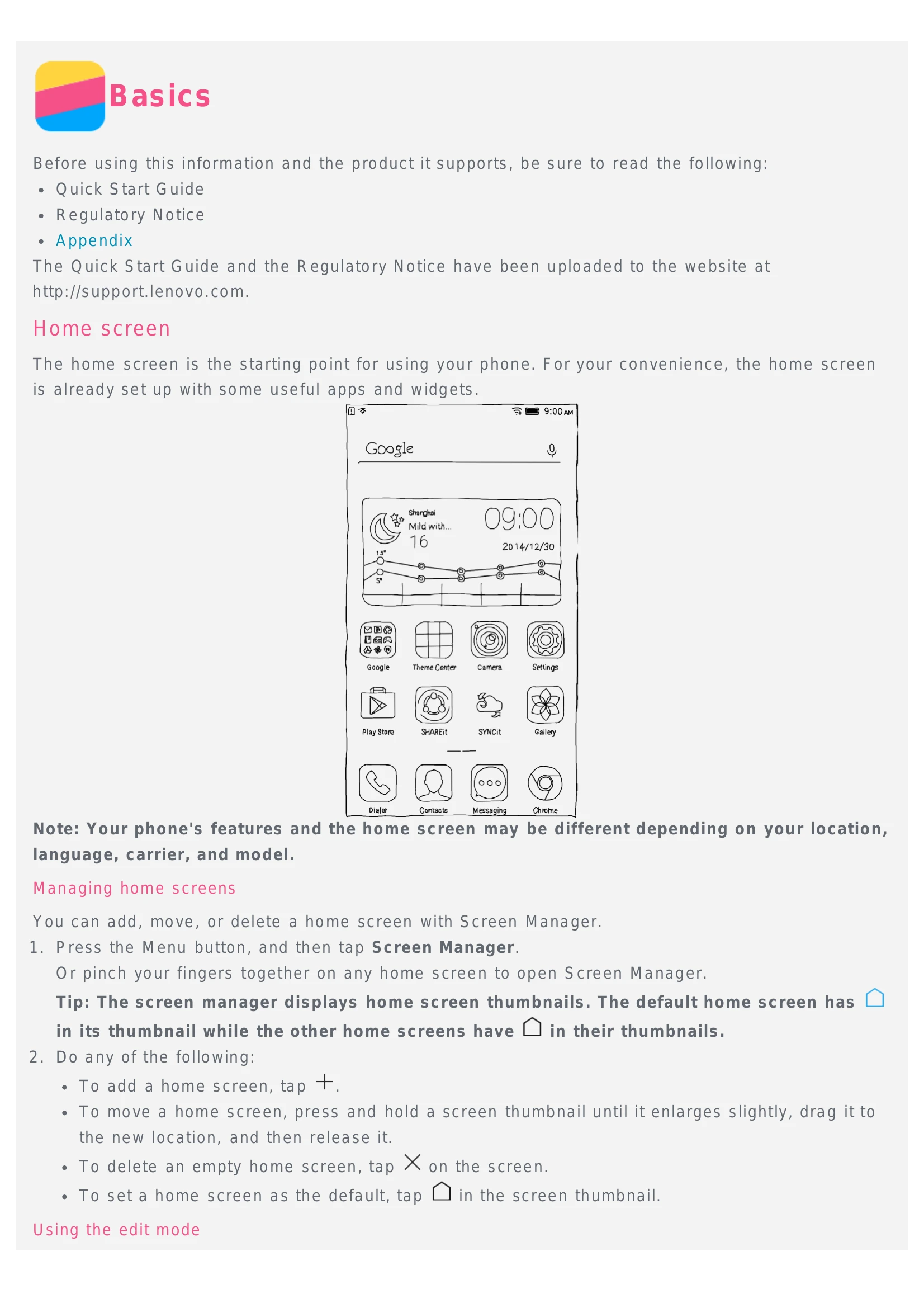
Home Screen
The home screen is the starting point for using your phone. It is set up with useful apps and widgets. You can manage home screens by adding, moving, or deleting them using the Screen Manager. You can also enter edit mode to add widgets, move apps, create app folders, or uninstall apps. To change the wallpaper, go to the Menu button, tap Wallpaper, select a photo or a wallpaper, and then tap Apply.
Screen Buttons
There are three buttons: Menu button (displays options or running apps), Home button (returns to the home screen or opens Google search), and Back button (returns to the previous page or exits the current app).
Screen Lock
Press the On/Off button to lock the screen. Slide up from the bottom to unlock. The default method is slide. You can change it in Settings.
Notifications
The Notifications panel shows missed calls, messages, and download progress. It also provides quick access to shortcut switches like WLAN.
USB Connection
When connected via USB, choose from Media device (MTP), Camera (PTP), USB storage (SD card), or USB debugging (ADB) modes for file transfer or development.
Calls
Make calls by dialing manually, from the call log, or from contacts. Answer or reject calls by dragging the contact image. Silence calls by pressing volume buttons, the On/Off button, or placing the phone face down. Options during a call include Add call, Hold/Unhold, Mute, Record, Dialpad/Hide, and Speaker.
Contacts
Create new contacts by tapping '+', enter information, and tap Save. Search for contacts by scrolling or using the search box. Delete contacts by pressing and holding, then tapping 'Delete contact'. Import and export contacts via storage.
Messaging
Send text and multimedia messages. Tap '+' to add recipients and enter messages. Tap the media icon to attach media. Search for messages using the search box. Delete messages by selecting them and tapping the delete icon.
Camera
Use the Camera app to take photos and record videos. Tap icons to choose modes, take photos, record videos, or adjust settings. Take screenshots by pressing the On/Off and volume down buttons simultaneously.
Gallery
View photos and videos by album or timeline. Tap to view full screen, swipe for next/previous, pinch to zoom. Share photos/videos via Messaging or Bluetooth. Delete photos/videos by selecting them and tapping the delete icon.
Network
Connect to Wi-Fi by going to Settings > WLAN and selecting a hotspot. Enable Data roaming in Settings > Mobile networks. Set up a hotspot in Settings > More > Hotspot to share your internet connection.
Chrome
Surf the internet using the Chrome app. Visit websites by typing the address and tapping Go. Refresh pages or save images. Add bookmarks by tapping the star icon. Clear browser history in Settings > History.
Settings
Configure date and time, language, input method, screen lock, and ringtones. Enable app installation from unknown sources in Settings > Security. Perform a factory reset in Settings > Backup & reset > Factory data reset.
Appendix
Contains important safety information, handling, repairing, charging, distraction, choking hazard, explosive atmospheres, radio frequency interference, medical devices, cleaning, operating temperature, and data/software protection guidelines.