Manual for K10

Manual for K10

Brand: Lenovo

Category: Smartphone

Document Type:

Language: EN
Uploaded: Aug. 10, 2025, 12:05 a.m.

Basics

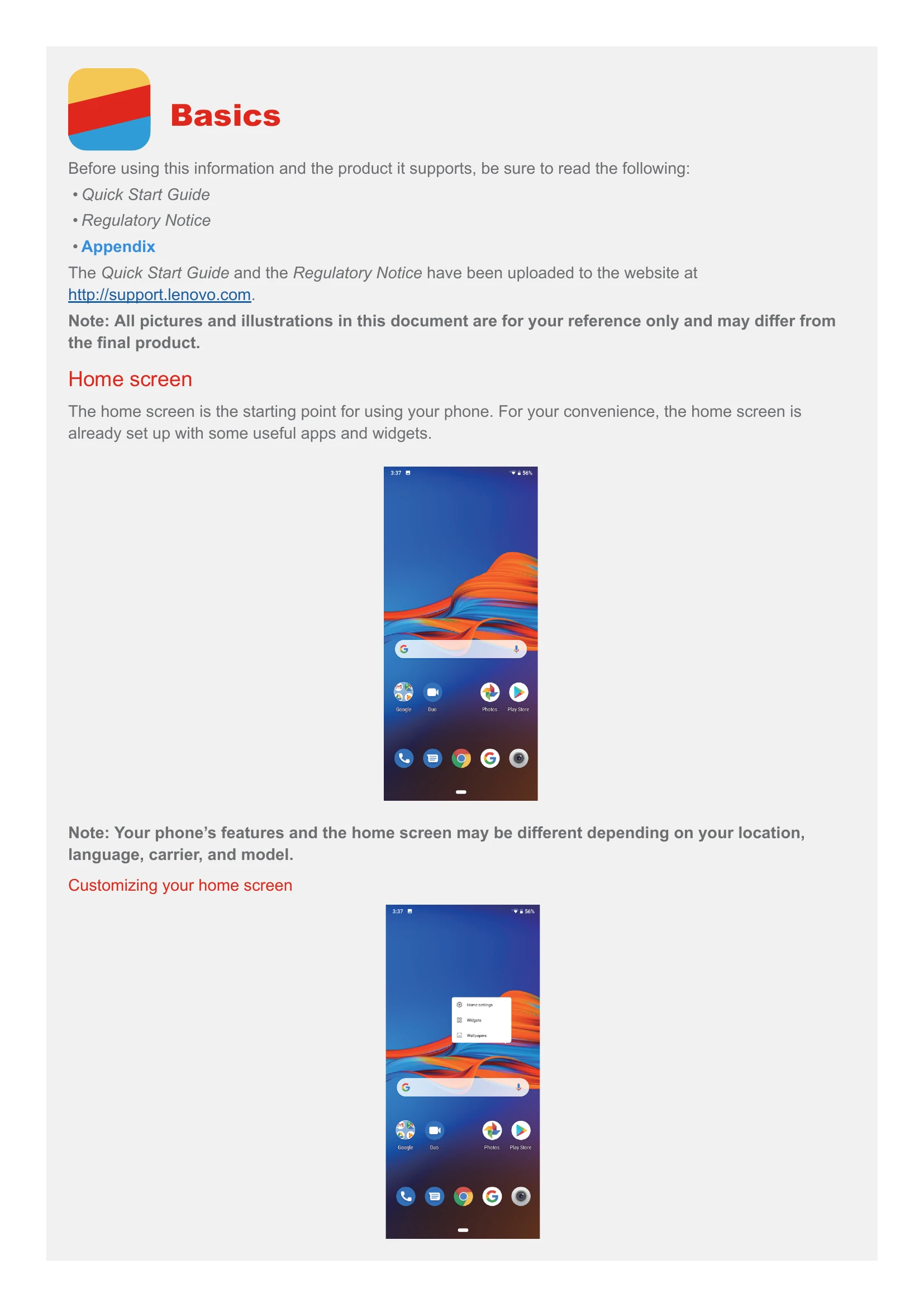
The home screen is the starting point for using your phone. For your convenience, the home screen is already set up with some useful apps and widgets.

Customizing your home screen

Press and hold anywhere on the home screen except the icons:

  • To change app notification settings, tap Home settings > Notification dots.
  • To add a widget to the home screen, tap Widgets, scroll down to locate the widget that you want, press and hold the widget until it pops out, drag it to where you want to place it, and then release it.
  • To change the wallpaper, tap Wallpapers, choose a picture from Wallpapers or Photos.

Managing widgets and apps

  • To move a widget or an app, press and hold the widget or app, drag it to where you want to place it, and then release it.
  • To create an app folder, press and hold an app and drag it onto another app.
  • To remove a widget from the home screen, press and hold the widget and drag it to Remove.
  • To uninstall an app, press and hold the app and drag it to Uninstall.

Screen buttons

By default, a single Home button appears at the bottom of every screen.

  • Tap the Home button to return to the default home screen.
  • Swipe up from the bottom of your screen to see recent apps.
  • Swipe up twice or swipe up from the bottom of your screen to the top to see all apps.

To change the single Home button to separate Back, Home, and Recent buttons, tap Settings > System > Gestures > Swipe up on Home button, then tap the switch to turn it off.

Split screen

Your phone supports using split screen mode. To enter split screen mode:

  1. Swipe up from the bottom of your screen to see all the recent apps.
  2. Swipe left or right to choose an app.
  3. Tap the app icon at the top of the screen.
  4. Tap Split screen.

Screen lock

When your phone is on, press the Power button to lock the screen manually. Press the Power button again to display the lock screen, and then swipe up to unlock.

Notifications and Quick Settings

The Notifications panel (see Figure 1: Notifications) informs you of missed calls, new messages, and activities in progress such as file downloading. The Quick Settings panel (see Figure 2: Quick Settings) allows you to access frequently-used settings such as the Wi-Fi switch.

Privacy Policy