Basics
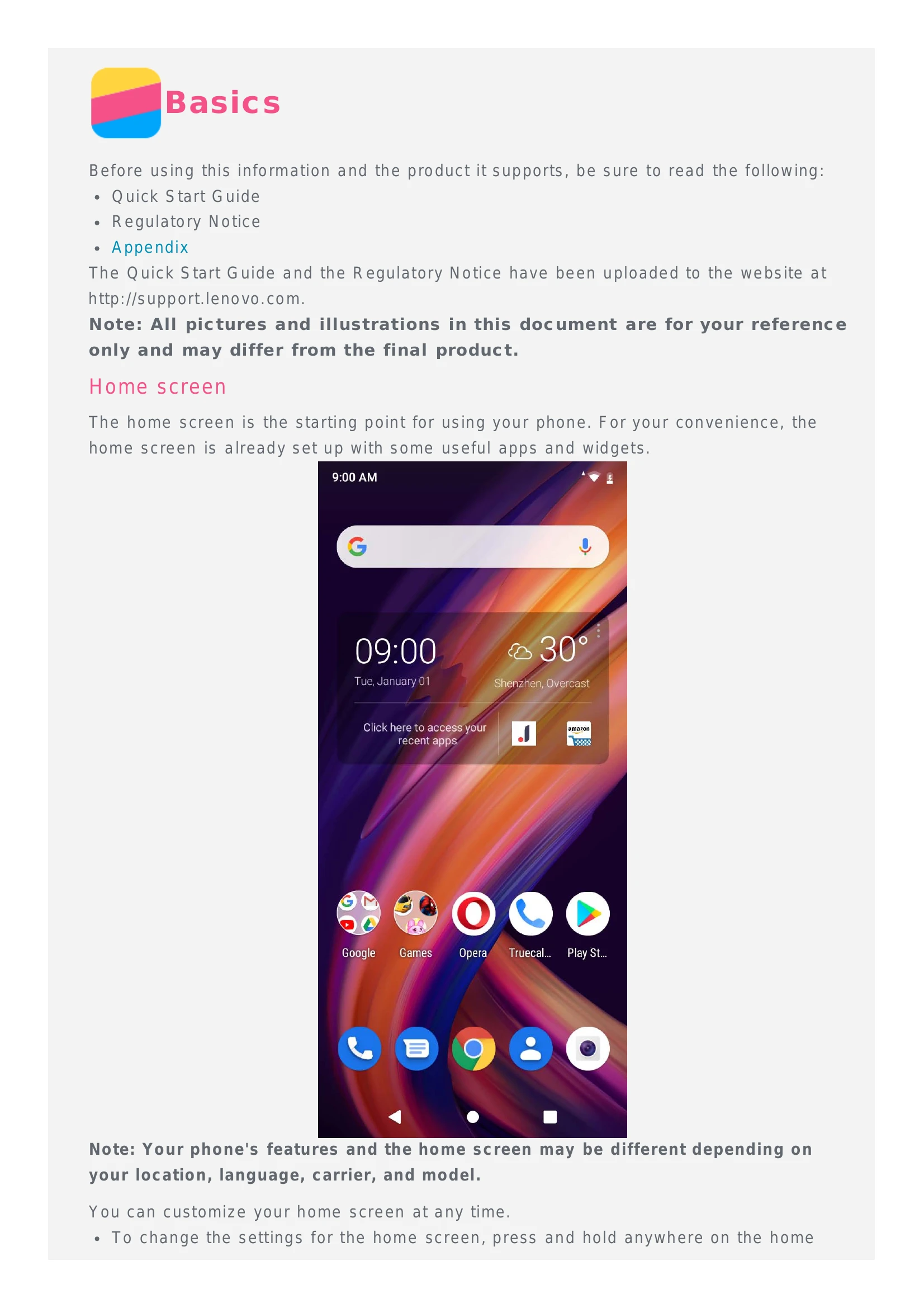
Home screen: The starting point for using your phone. Customizable with apps and widgets.
- Customize by pressing and holding anywhere on the home screen (except icons) to access Home Settings.
- Add widgets by pressing and holding, selecting Widgets, and dragging to desired location.
- Change wallpaper via Home screen (long press) or Settings > Display > Wallpaper.
- Move apps/widgets by pressing and holding until enlarged, then dragging.
- Remove widgets by pressing and holding, sliding to the top, and dropping over 'X'.
- Uninstall apps by pressing and holding, sliding to the top, and dropping over the delete icon (system apps cannot be uninstalled).
Screen buttons:
- Back button: Returns to the previous page or exits the current app.
- Home button: Returns to the default home screen.
- Multitask button: Shows recent apps. Swipe to close, tap 'X' or the clear icon to stop apps. Long press to enter split screen mode.
Screen lock: Press the Power button to lock. Swipe up from the bottom to unlock.
Notifications and Quick Settings
Swipe down from the top to see notifications and quick settings. Swipe up to close. Swipe left/right to dismiss notifications. Tap 'CLEAR ALL' to dismiss all. Connect phone via USB to access File Transfer, PTP, MIDI, No data transfer, or USB tethering options.
Calls
Making a call: Use the Phone app to dial manually, call from recents, or call a contact.
Receiving calls: Swipe up to answer, swipe down to reject. Press volume buttons or Power button to silence.
During a call: Options include Add call, Hold, Mute, Keypad, Speaker, and End call.
Contacts
Creating a contact: Open Contacts app, tap '+', enter info, tap Save.
Searching: Scroll or use the search bar.
Editing: Open Contacts, tap contact, tap edit icon, edit info, tap Save.
Sharing: Long press contact, select, tap share icon.
Deleting: Long press contact, select, tap delete icon.
Importing/Exporting: Use Settings > Import/Export options.
Messages
Sending a message: Open Messages app, tap 'Start chat', enter recipient, type message, tap send icon. Tap '+' for multimedia.
Searching: Open Messages app, tap search icon, enter keywords.
Deleting messages: Open Messages app, tap thread, tap options, tap Delete. Or long press message, tap delete icon.
Camera
Camera basics: Use Camera app for photos and videos.
- Tap to take photo.
- Tap Video mode to record video.
- View photos/videos in Photos app.
- Switch flash modes, cameras, and settings using icons.
Taking a screenshot: Press and hold Power + Volume Down buttons.
Photos
Viewing photos and videos: Open Photos app, tap to view. Swipe left/right for next/previous. Pinch to zoom. Tap play icon for videos.
Sharing: Tap share icon, select channel. For multiple, long press one, select others, tap share.
Deleting: Tap delete icon. For multiple, long press one, select others, tap delete.
Network
Wi-Fi connection: Turn on/off via Quick Settings or Settings > Network & internet. Connect to available hotspots. Manually add hotspots if needed.
Data connection: Turn on/off via Quick Settings or Settings > Network & internet > Mobile network. Requires SIM card.
Hotspot setup: Settings > Network & internet > Hotspot & tethering to share internet.
Chrome
Visiting websites: Open Chrome app, enter address/keywords, tap go. Use back/forward buttons. Tap 'Download image' to save images.
Adding a bookmark: Tap menu, select Bookmarks.
Clearing browser history: Tap menu > History > Clear browsing data.
Fingerprints
Adding a fingerprint: Settings > Security & location > Fingerprint. Follow on-screen instructions. Requires screen lock.
Deleting a fingerprint: Settings > Security & location > Fingerprint, select, tap Delete fingerprint, then Delete.
Settings
Date and time: Settings > System > Date & time. Options for network-provided or manual settings, time zones, and 12/24-hour format.
Language: Settings > System > Language & input > Language. Drag to reorder.
Input method: Settings > System > Language & input > Virtual keyboard.
Screen lock: Settings > Security & location > Screen lock.
App installation: Settings > Apps & notifications > Advanced > Special app access > Install unknown apps. Allow from specific sources.
Ringtone: Settings > Sound. Adjust volume.
Factory reset: Settings > System > Advanced > Reset options > Erase all data (factory reset). Confirm RESET PHONE and ERASE EVERYTHING.
Appendix
Important safety info: Handle with care, keep dry, do not disassemble. Screen is glass and can break. Contact authorized service for repairs.
Charging: Use AC adapter or USB connection. Charging may be slower via USB. Devices may get warm. Unplug if exposed to liquid, damaged, or for cleaning.
Distraction: Use phone safely in vehicles. Follow laws.
Choking hazard: Keep away from small children due to small parts. Glass screen can break.
Explosive atmospheres: Do not use or charge in areas with explosive potential.
Radio frequency interference: Observe restrictions in sensitive areas. Turn off or use Airplane Mode when prohibited. Emissions may affect other electronics.
Medical devices: Maintain distance from pacemakers or medical devices. Consult physician if interference is suspected.
Cleaning: Disconnect cables, power off. Use soft, lint-free cloth. Avoid moisture. Do not use cleaning products or compressed air.
Operating temperature: Ideal operating temperatures 0-35°C, storage -20-45°C. Extreme temperatures can cause damage. Phone may get hot during use or charging.
Protecting data and software: Do not delete unknown files. Be aware of viruses, hackers, spyware. Install firewalls, antivirus, anti-spyware software. Keep electrical appliances away to avoid magnetic field interference.