Installation Guide for 22CV241

Installation Guide for 22CV241

Brand: LG logo LG

Category: Desktop Computer

Document Type: Installation Guide

Language: EN
Uploaded: Nov. 21, 2025, 7:40 p.m.

Warranty Information

Warranty information is not available in the provided document sections.

Using the Product Correctly

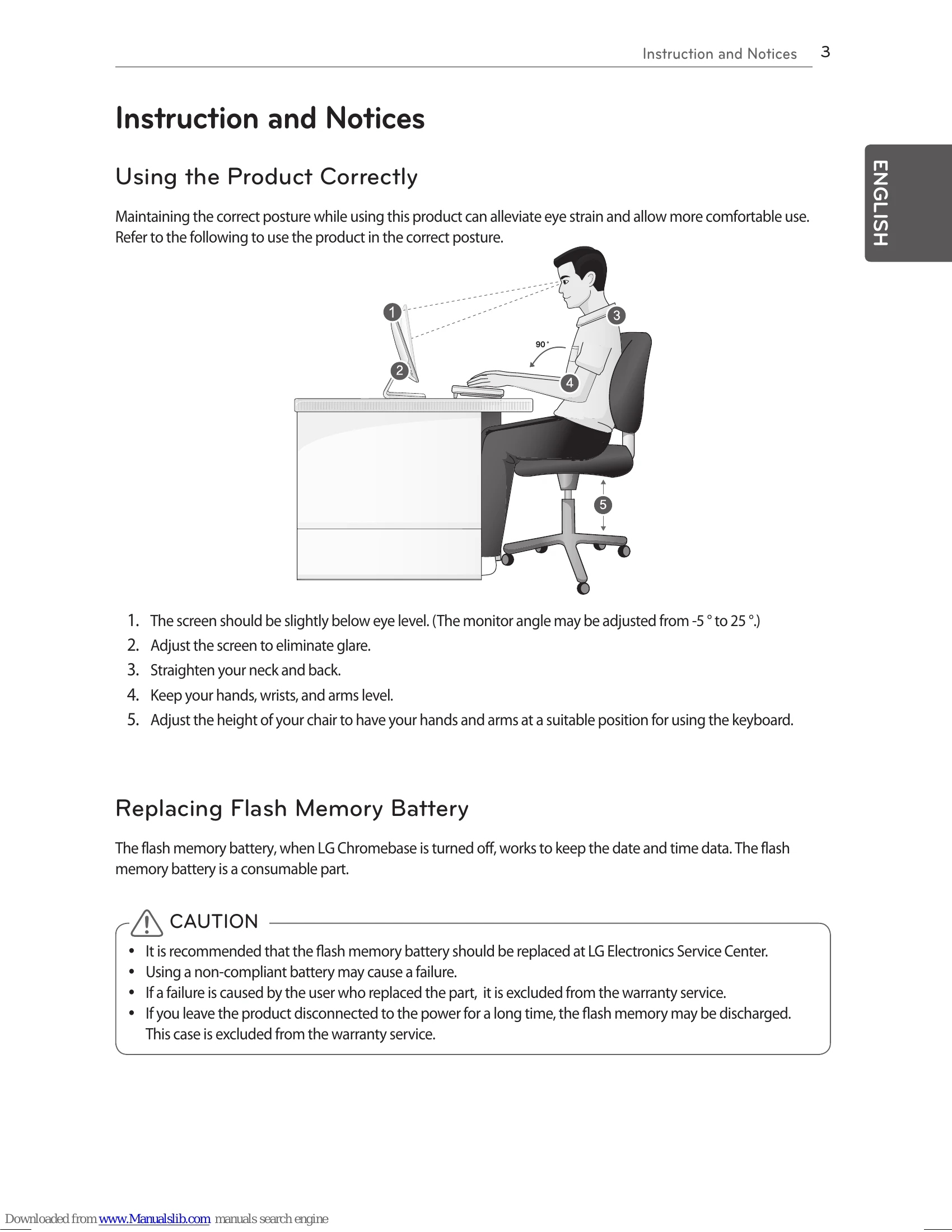
Maintaining the correct posture while using this product can alleviate eye strain and allow more comfortable use.
  1. The screen should be slightly below eye level. (The monitor angle may be adjusted from -5 ° to 25 °.)
  2. Adjust the screen to eliminate glare.
  3. Straighten your neck and back.
  4. Keep your hands, wrists, and arms level.
  5. Adjust the height of your chair to have your hands and arms at a suitable position for using the keyboard.

Assembling and Preparing

Before using the product, check that it comes with all the specified components.

Product Components: LG Chromebase Main body, Stand body, Stand base, Stand cap, Installation guide and Cards, Regulations and Safety Notices, AC Adapter, Power cable, 6 Screws (M4 x 10), Keyboard, Mouse.

Connecting the Power

Connect the AC adapter to the product and connect the power cord to a wall outlet.

Connecting the Keyboard / Mouse

To use Chrome OS, connect the keyboard and mouse to the USB ports on the back of the product.

Turning on Power

  1. When you have connected the AC adapter and the HDMI cable, press the power button to turn the power on.
  2. Press the CHROME button to switch between Chrome OS or Monitor mode.

Turning off Power

Chrome OS Mode

On the Chrome OS mode, you can turn off the power as follows:

  • System Default Settings Menu: on the Chrome OS screen, press the 9:21 at bottom right corner to display the System Default Settings Menu. Press the icon to turn off the power.
  • Front power button: press the front power button until the account is signed out and the power is turned off (press the power button for a half second to sign out of Chrome OS and keep pressing the button for another half second to turn off the power.). If any error occurs while using Chrome OS, press the power button and hold for 6 seconds or longer to turn the power off.

Monitor Mode

Press the power button for half a second or longer to turn the power off.

Troubleshooting and error codes

When the Web Browser Screen is not properly displayed.
Does a message appear saying No network connection when trying to visit a website?
  • Verify that your LAN cable is properly connected.
  • Verify in your task bar that Network connect is activated.
Have you verified your network settings?
  • Settings > Network select Settings from the Network screen.
  • Check LAN items.
  • Select Ethernet from Settings and select DHCP or Static IP.
  • If you have been assigned a static IP from your internet service provider, enter your IP address.
Is a screen asking for personal information?
  • When you try to connect to the internet for the first time through a LAN cable, certain internet service providers will request your personal information.
  • The user information screen is to verify the internet subscription of the user.
Is a web page asking to download and install Adobe Flash Player?
  • This message appears when the Adobe Flash Player plug-in is not enabled on your system.
  • Open your web browser settings and check Enable plug-ins.
Are you unable to use ActiveX?
  • The web browser installed on the internet monitor does not support ActiveX. Only Internet Explorer supports ActiveX.
Does the web browser stop only on certain sites?
  • If a web page contains multiple instances of Flash content, the web browser may stop working.
Malfunction of the external storage device (USB memory)
Are you unable to open files on the external storage device?
  • Check if your external storage device has enough free space.
  • If not, remove some of the files to free up space on the device.
Is the photo viewer slow?
  • If your external storage device has more than 1,000 files, the media player may perform slowly.
  • Remove some of the files and try again.
Malfunction in Peripheral Devices
Is the mouse not responding?
  • Verify that the mouse is connected to the USB port on the rear of the monitor.
Does the keyboard display jumbled letters?
  • Different types of keyboards are used for different languages.
  • Verify that your keyboard matches the language used by the program.
  • The keyboard is set when the user selects the country.
Are the speakers not producing any sound?
  • Make sure that nothing is connected to the headset with microphone port on the right side of the product.
  • Make sure that the volume is NOT set to 0 or Muted.
The screen is blank
Is the product's power cord connected correctly?
  • Check if the power cord is connected correctly to a wall outlet.
Is the power lamp on?
  • Check the Power button.
Is the power on and the power lamp is lit either blue or green?
  • Adjust the screen brightness and contrast.
Is the power lamp blinking?
  • The power lamp blinks when the Internet Monitor is in standby mode. When you press the power button, the monitor turns on again within 2 to 3 seconds. Using a keyboard or mouse does not exit standby mode.
Do you see the Monitor Frequency Range Exceeded message on the screen?
  • This occurs when the signal sent by the PC (video card) exceeds the range of horizontal or vertical frequency supported by the monitor, so check the Product Specifications of this manual and change the settings.
Do you see the Check Signal Cable Connection message on the screen?
  • This occurs when the signal cable between the PC and the monitor is not correctly connected or unplugged, so check and reconnect the signal cable.
There are afterimages on the screen
Are there afterimages on the screen even after turning the monitor off?
  • Please be careful as displaying a fixed image on the screen for a prolonged period of time can damage the monitor and leave afterimages on the screen. Use screen savers to extend your monitor's working life.
The screen is unstable and shakes. / The screen shows ghost images.
Did you set the correct screen resolution?
  • Refer to User's Guide > Using the Monitor > Setting the Resolution and set the screen to the recommended resolution.
Privacy Policy