Brand:
LG
Category: Notebook
Document Type: Manual
Language: EN
Brand:
LG
Category: Notebook
Document Type: Manual
Language: EN
Uploaded: Nov. 21, 2025, 8:52 p.m.
Manual Publish Date: 2023-01-01
For the convenience of users, LG PC Manuals are provided in an electronic format. For more information on how to use the product, refer to the LG Easy Guide of the LG PC Manuals.
The images in the owner's manual may differ depending on the language selected and are subject to change without prior notice.
Any malfunction in the built-in solid state drive (SSD) may result in loss of stored data. You must back up all critical user data to an external storage device (USB HDD, memory card, etc.).
If you shut the system down before it is completely loaded, the product may not shut down properly. Shut down the system after it is completely loaded. (It takes about one or two minutes to completely load the system and may vary depending on the conditions.)
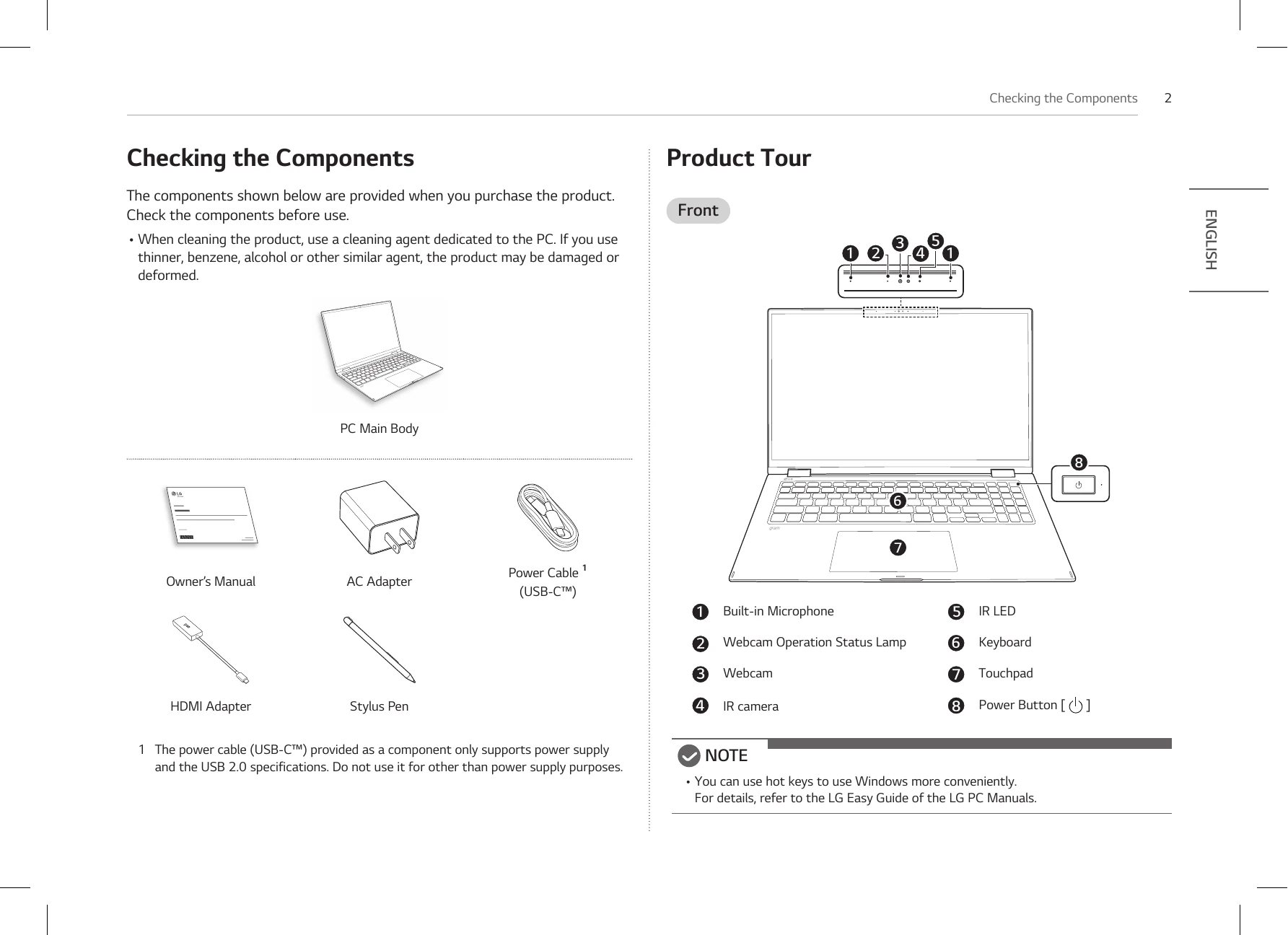
The components shown below are provided when you purchase the product. Check the components before use.
Front
NOTE: You can use hot keys to use Windows more conveniently. For details, refer to the LG Easy Guide of the LG PC Manuals.
The buttons on the stylus pen work similar to those of a mouse.
NOTE: When purchasing the product, the 1.5 V AAAA battery is provided inserted in the product. Detach the Pen Cap and remove the battery anti-discharge insulator before use.
NOTE: The Stylus Pen automatically enters the sleep mode to reduce battery consumption if the pen is not used for more than 10 minutes or if the pen tip remains pressed for more than 4 minutes.
NOTE: When rotating the product, the screen is rotated vertically or horizontally according to the current screen angle.
Unfold the notebook and rotate the LCD as shown in the picture to use it as a tablet PC.
To connect to the wired LAN, you must purchase a LAN adapter separately.
The AC adapter is used to power and charge the PC.
Do not use any other AC adapter than the one that was provided when you purchased this product.
When the AC adapter is connected, the AC adapter lamp turns on.
Press the [ ] key or [Ctrl] + [ESC] to display the Start menu.
Press the Start button [ ] > Power button [ ] and select [Shut down].
Check the following 'Important Safety Precautions' to prevent unexpected danger or damage in advance.
'Important Safety Precautions' is divided into 'WARNING' and 'CAUTION.'
WARNING: Use batteries certified and acknowledged by LG Electronics Inc.
CAUTION: Avoid humidity and heat above 140 °F as in cars or saunas.
CAUTION: Do not use the product on top of carpet, blanket or bed. Also, do not put the adapter under the blanket.
CAUTION: Keep the battery away from heat.
CAUTION: If you find leakage or smell bad odor from the battery, contact the local service center.
CAUTION: Prevent the battery from coming in contact with any metallic object like a car ignition key or a paper clip.
When the PC is not used for an extended period of time, keep the battery level at about 50% to increase the battery lifespan.
To increase battery lifespan, use the battery for a while before charging it rather than keeping the battery completely charged.
NOTE: This product has a built-in battery pack. After purchasing your PC, be sure to charge the battery pack completely before using it for the first time.
If the following symptoms appear while using the product, check again. It may not be a malfunction.
| Symptom | Cause and Solution |
|---|---|
| Some of the Windows functions do not work normally or are not supported. | • Depending on the product, some of the Windows functions may not be supported, and you may need to purchase a separate hardware, driver, or software to use the functions. Also, you may need to update the BIOS additionally. The Auto Update function of Windows is always activated. Updating Windows may incur Internet usage fees as well as additional system requirements for the storage device or the hardware. For more information, refer to the website https://www.microsoft.com. |
| Part of LG Software is not installed. | • The UWP app provided by LG Electronics can be installed only through the Microsoft Store. Access Microsoft Store and search for the app to install it. For more information on the app, refer to LG Easy Guide of the LG PC Manuals. |
| The screen color does not display properly. |
• Check if Reader Mode is on. When the Reader mode is on, turn the setting off. Press the Start button [] to turn the [All apps] > [LG Smart Assistant] > [Display Setting] > [Reader Mode] settings off. • Using the Reader mode and the Night mode at the same time can cause color distortion. Turn the Reader mode settings off or change the Night mode to [Off]. • Turning off Night light: Press the Start button [] and select Settings [] > [System] > [Display] > [Night light] > [Off]. • If the screen still does not properly display, contact the LG Electronics service center. Reader mode controls the brightness and color of the LCD screen to look like printed paper and protect the user from eyestrain. |
| The power does not turn on. |
• Check if the power cord is connected. • After disconnecting the power cord and reconnecting it, press the power button of the product. • Press the power button for approximately 6 seconds to reset the system. Once the system is reset, press the power button again to turn on the computer. Caution: Unsaved data may be lost. Pressing the power button while the PC is in use may cause damage to the hard disk or a system error. • After resetting the system, run "Setup Defaults" in the system setup. (For more information on how to run "Setup Defaults", refer to "Initializing System Setup" under "Setup and Upgrade" in the LG Easy Guide of the LG PC Manuals.) |
| The system stops during use or does not properly turn off. | • Press the Start button [] and run [All apps] > [LG Smart Assistant]. Then press [Dashboard] > [Touchpad]. If the touchpad does not function properly, the touchpad is either in the Touchpad Off (disabled) state or Touchpad Auto (disabled when the mouse is connected) state. For details on the touchpad settings, refer to the LG Easy Guide of the LG PC Manuals. |
| The touchpad is not functioning properly. |
• Press [Fn] + [F6] to check if the wireless network device is turned off. Press [Fn] + [F6] to set airplane mode to [OFF]. Click the Wi-Fi [ ] icon on the right side of the taskbar and check if AP displays properly. • Every time you press [Fn] + [F6], the wireless network and airplane mode turns on or off. You may not be able to connect to a secure wireless network. Ask the wireless network administrator. Reinstall the wireless LAN driver. |
| The wireless network is not connected. |
Press the Start button () and then select Settings [ ] > [Apps] > [Installed apps]. Then remove the driver to be reinstalled. • Press the Start button (), select and run [All apps] > [LG Update]. Then, use the [Required Updates] or [Update list] menu to reinstall the drivers. |
| I want to reinstall the driver. | • Check if the system is infected with a virus or a malicious code. |
| An error message appears. |