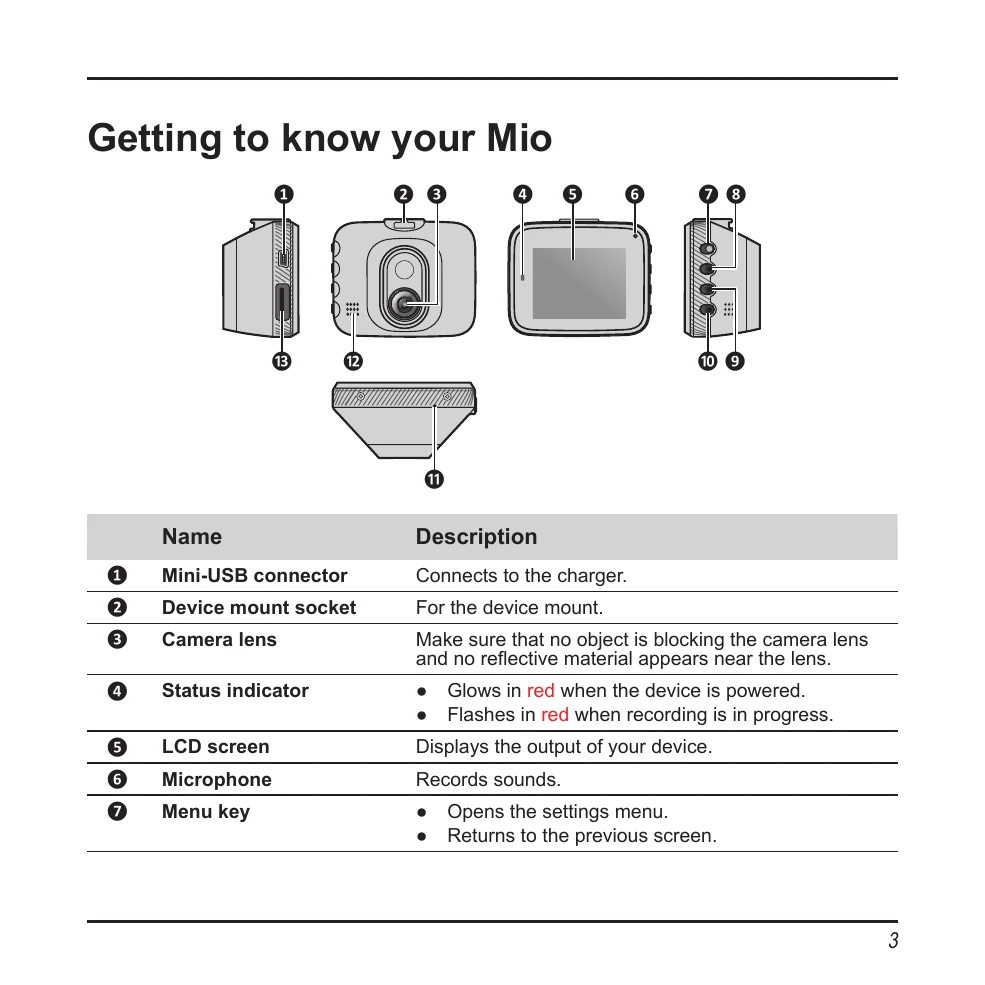
Familiarize yourself with the device's components: Mini-USB connector, device mount socket, camera lens, status indicator, LCD screen, microphone, menu key, OK key, Up key, Down key, shutdown button, and speaker.
Insert a MicroSD card (Class 10 or higher, up to 64 GB) before starting to record. Format the card before first use.
Using your Mio in a vehicle
Mount the device appropriately, ensuring it doesn't obstruct the driver's view or airbag deployment.
Secure the power cord with cable clips and place the Mio near the rear-view mirror for optimal recording.
Ensure the car is on level ground and adjust the mounting angle for a parallel camera view with a 6/4 ground/sky ratio.
Turning your Mio on and off
The device powers on automatically when the vehicle engine starts.
Follow on-screen prompts to select language and set date/time.
Press any key to turn on the screen if it turns off during recording.
A hardware reset can be performed by inserting a small rod into the shutdown button if the device becomes unresponsive.
Recording in driving mode
Continuous recording starts automatically after startup. Recordings are divided into clips and loop over the oldest files when the card is full.
Event recording is triggered by the G-sensor for impacts or sudden changes. It can also be manually started by pressing the Event button.
Capture and Playback modes
Capture photos by pressing the photo button.
Access Playback mode via the menu to view recordings and photos. Use navigation keys to select files and playback controls to play, stop, change speed, or delete.
Customising settings
Adjust settings like Video Clip Length, Light Frequency, G-sensor sensitivity, Date/Time, Volume, Backlight, Language, and perform System Reset or Format via the menu.