Brand: Mio
Category: Automotive Electronics
Document Type: Manual
Language: EN
Brand: Mio
Category: Automotive Electronics
Document Type: Manual
Language: EN
Uploaded: Aug. 10, 2025, 12:45 a.m.
Manual Publish Date: 2021-08-01
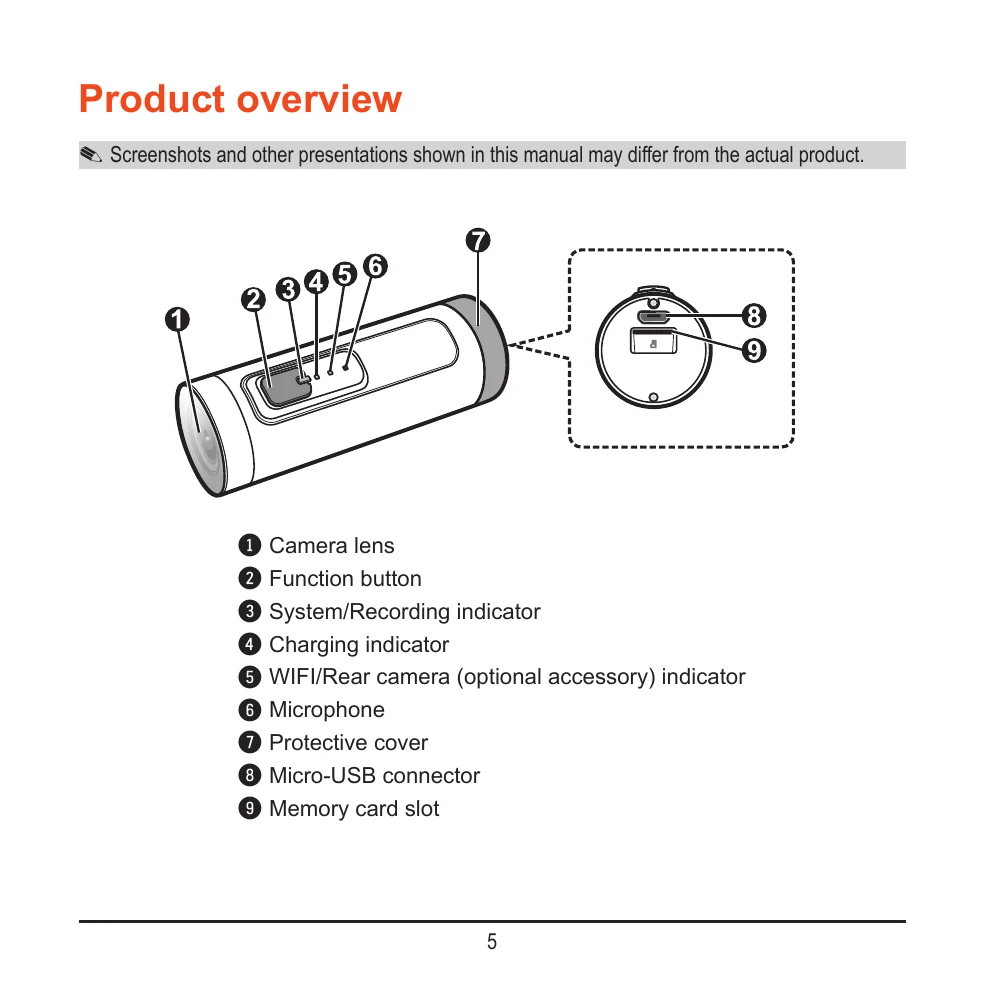
The Mio M700 is a dashcam for motorcycles. It features a camera lens, function button, system/recording indicator, charging indicator, WiFi/Rear camera indicator, microphone, and protective cover. It also has a Micro-USB connector and a memory card slot.
Insert a MicroSD card (up to 256GB) before recording. Format the card using the Function button (press 4 times rapidly) or via the MiVue Pro app (Settings > Format SD Card) to avoid malfunctions.
Charge the device before first use. The recorder can power on and start recording automatically when connected to a power source. Ensure proper ventilation and use the supplied charger.
Mount the recorder using the provided bracket, affixing it to a helmet or motorcycle. Adjust the viewing angle using the MiVue Pro app.
Press and hold the Function button for two seconds to turn the device on or off. For a hardware reset, press and hold for 10 seconds.
The Function button controls various features, including power, standby mode, and memory card formatting.
LEDs indicate recording status, battery level, charging status, and Wi-Fi connectivity.
Date and time settings can be synced via Wi-Fi with the smartphone or manually edited in the 'setting.txt' file on the memory card.
Settings like WiFi password reset, resolution, exposure, light frequency, video timestamp, loop recording, microphone, and bitrate can be adjusted via the 'setting.txt' file.
The device starts recording automatically. Recordings can be stopped and resumed using the Function button. Continuous recordings may overwrite the oldest files if loop recording is enabled.
Download the MiVue Pro app to view, share, and backup videos, update firmware, and set the viewing angle via Wi-Fi. Connect by enabling Wi-Fi on the recorder and using the app to select the recorder's network.
The app allows live view, settings configuration, video download/deletion, and viewing device information.
Install MiVue Manager from Mio's website to view and play back recorded videos on a computer. Files can be backed up and played using the software.