Brand: Mio
Category: Automotive Electronics
Document Type: Manual
Language: EN
Brand: Mio
Category: Automotive Electronics
Document Type: Manual
Language: EN
Uploaded: Aug. 10, 2025, 12:46 a.m.
Manual Publish Date: 2019-12-01
No specific warranty period is mentioned in the provided text.
Mount your dash cam securely to the windshield. Connect the power cable and start the engine; the dash cam will turn on automatically.
Receive alerts for safety cameras. Customize settings for Lane Departure Warning (LDWS), Forward Collision Warning System (FCWS), and more in the System Settings.
| Issue | Possible Cause | Solution |
|---|---|---|
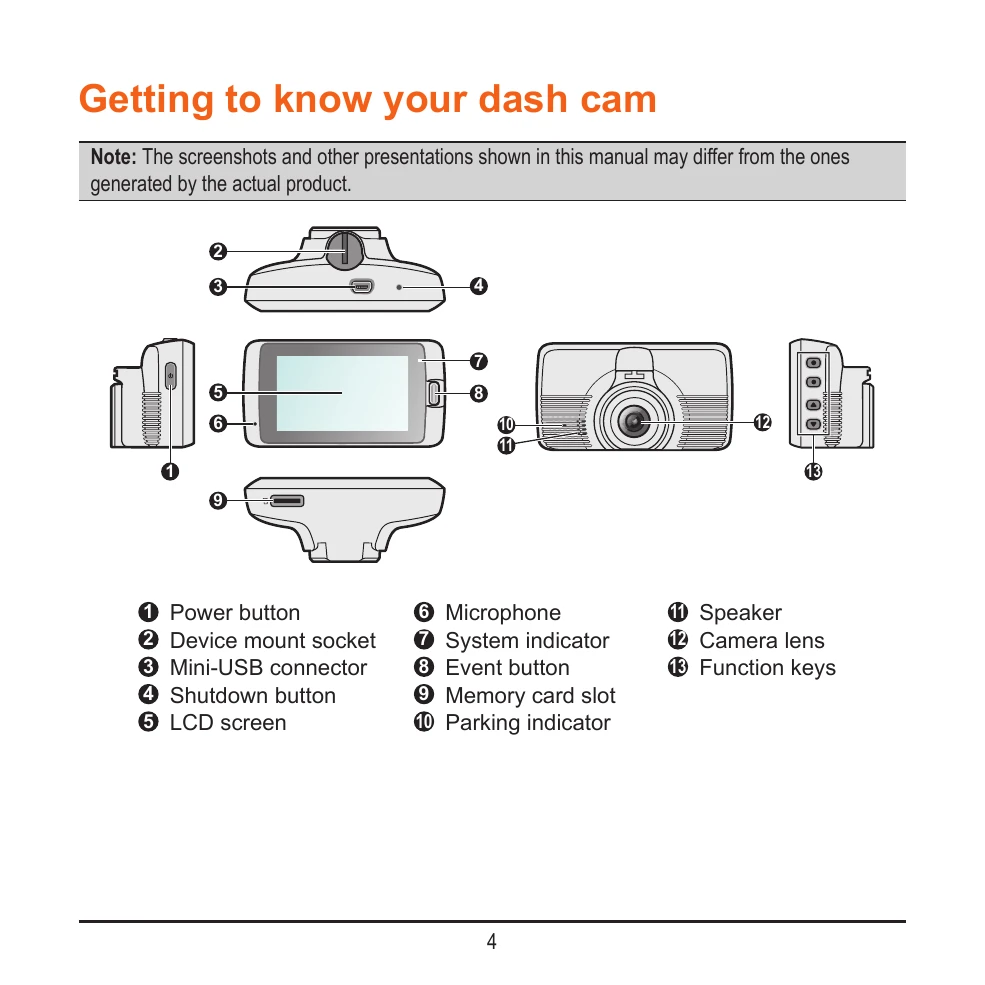
| Dash cam not responding / frozen | System error | Press and hold the Power button to shut down. Press the Power button again to turn on. If still unresponsive, use a paperclip to press the Shutdown button. |
| Cannot start recording | No memory card / Memory card full / Memory card error | Insert a compatible memory card (8GB-128GB, Class 10). Format the memory card. Replace the memory card if it is faulty. |
| Poor recording quality | Dirty lens / Incorrect mounting angle | Clean the camera lens. Ensure the dash cam is mounted parallel to the ground with a 6/4 ground/sky ratio. |
| GPS signal not available | Indoors / Bad weather / Obstacles | Ensure the device is used outdoors with a clear view of the sky. GPS data is for reference only. |
| Wi-Fi connection failed | Incorrect Wi-Fi settings / App issue | Ensure Wi-Fi is enabled on the smartphone. Verify the dash cam's SSID and password. Restart the MiVue Pro app and the dash cam. |