Brand: Mio
Category: Automotive Electronics
Document Type: Manual
Language: EN
Brand: Mio
Category: Automotive Electronics
Document Type: Manual
Language: EN
Uploaded: Aug. 10, 2025, 12:46 a.m.
Manual Publish Date: 2019-04-01
The manual does not specify the warranty period.
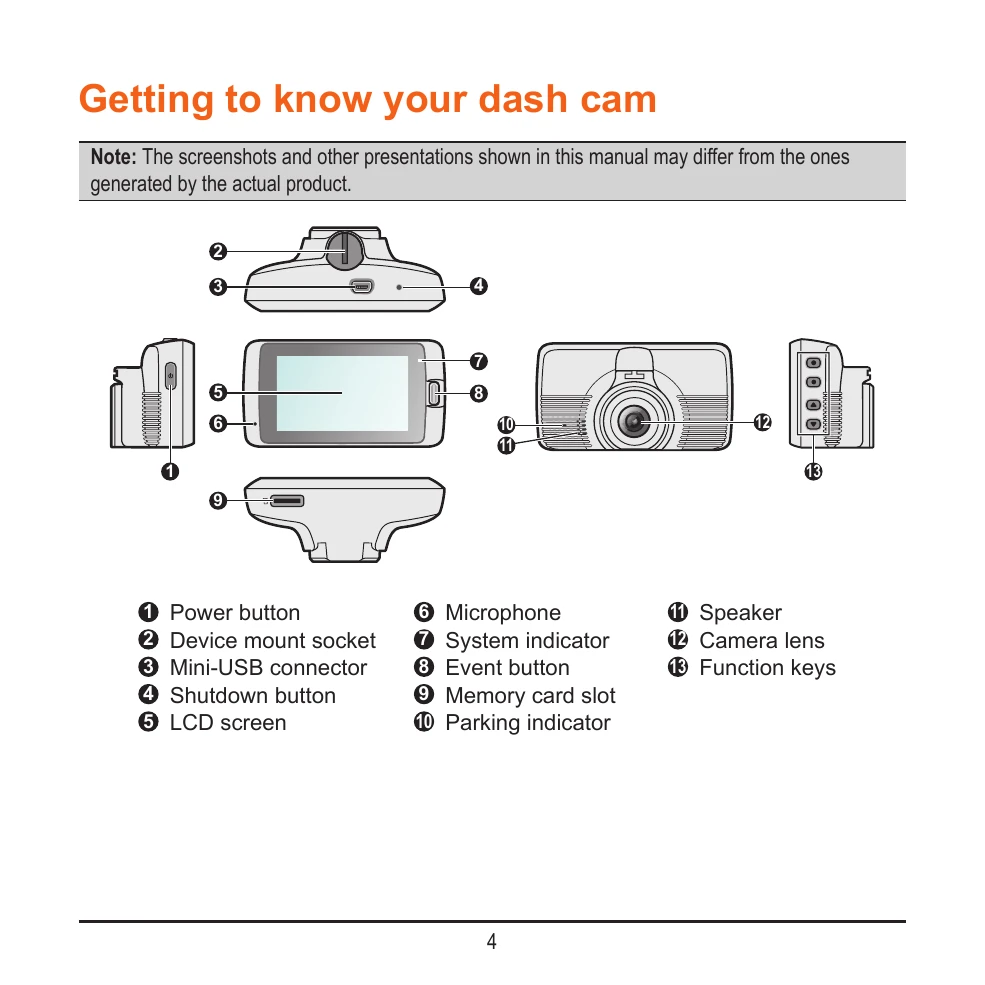
Getting to know your dash cam: Familiarize yourself with the buttons and indicators on your device.
Mounting and Powering: Securely mount the dash cam in your vehicle and connect it to power. The device turns on automatically when the engine starts, or can be manually turned on/off using the power button.
Recording Modes: The dash cam offers continuous recording, event recording (triggered by G-sensor impact), and parking mode (requires an uninterruptible power source).
Camera and Playback: Take photos and review recorded videos and photos through the device or the MiVue Manager software.
System Settings: Customize date/time, audio recording, Wi-Fi, and driving safety features like LDWS and FCWS.
Connectivity: Connect to your smartphone via Wi-Fi using the MiVue Pro app to view, share, and back up videos.
| The device does not turn on. | The device is not connected to power. | Ensure the device is properly connected to the car charger and the car charger is connected to the vehicle's power outlet. |
|---|---|---|
| The device is frozen or unresponsive. | System error. | Perform a hardware reset by pressing and holding the Power button until the system powers off, then press the Power button again to turn it on. If this does not work, use a straightened paperclip to press the Shutdown button. |
| No recording is being saved. | The memory card is full or not inserted correctly. | Format the memory card or ensure it is inserted correctly. If the card is full, the device will automatically overwrite the oldest files. |
| Poor GPS signal. | GPS receiver is obstructed or in a tunnel/building. | Ensure the device has a clear view of the sky. Move to an open area. |
| Unable to connect to smartphone via Wi-Fi. | Wi-Fi is not enabled on the dash cam or smartphone, or incorrect password. | Ensure Wi-Fi is enabled on both devices. Check the Wi-Fi password in the dash cam settings. |