Brand: Mitsubishi
Category: Monitors
Document Type: Manual
Language: EN
Brand: Mitsubishi
Category: Monitors
Document Type: Manual
Language: EN
Uploaded: Nov. 21, 2025, 9:03 p.m.
Manual Publish Date: 2011-05-24
This document defines the communication protocols for serial control of the MDT652S.
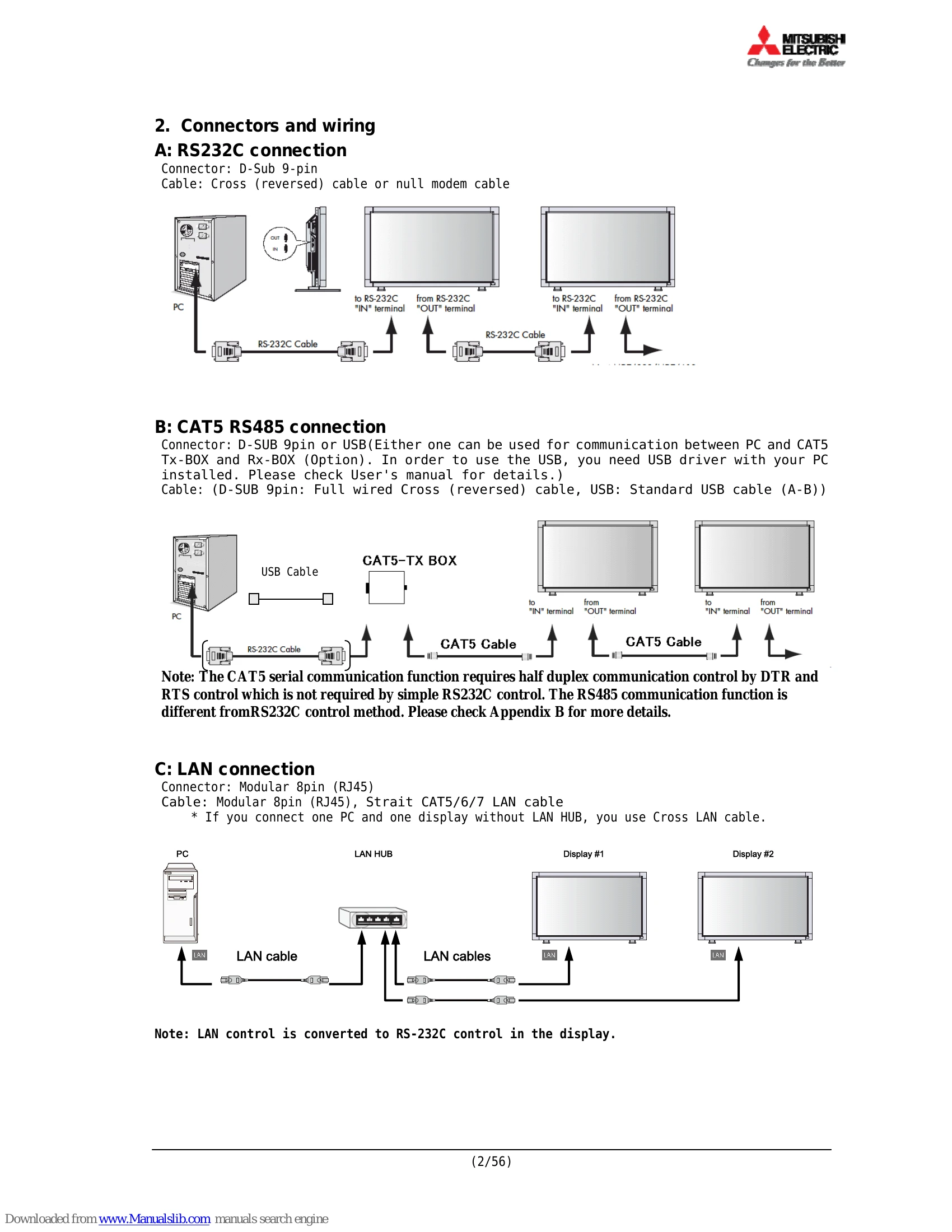
Connects a PC to the display using a D-Sub 9-pin connector and a cross (reversed) cable or null modem cable.
Uses a D-SUB 9pin or USB connection between a PC and CAT5 Tx-BOX/Rx-BOX. Requires specific drivers for USB. Communication uses half-duplex control.
Connects a PC to the display using a modular 8pin (RJ45) and CAT5/6/7 LAN cable. For a direct connection without a LAN HUB, a cross LAN cable is needed. LAN control is converted to RS-232C control within the display.
Sets communication parameters for RS232C, CAT5 RS485, and LAN connections.
Defines packet intervals (at least 600ms), time-out error handling, and communication disabled periods after power on/off.
Describes the basic command structure (Address, Function, Data, End codes) and control sequence for monitor operations like Power ON/OFF and input selection.
Introduces a more complex command packet structure (Header, Message, Check code, Delimiter) for multi-monitor control via daisy-chained connections.
Details various message types such as Get current parameter, Get parameter reply, Set parameter, Set parameter reply, and Commands (e.g., Save Current Settings).
Provides step-by-step examples for changing settings like Brightness and reading temperature sensor values.
| Case | Error | Description |
|---|---|---|
| Communication Failure | Timeout Error | A timeout error has occurred. (The default timeout is 10msec for command internal gap.) |
| Unsupported Message Type | The monitor receives an unsupported message type. | |
| Packet BCC Error | The monitor detects a packet BCC (Block Check Code) error. | |
| RS232C/RS485 Connection | No Reply | Monitor does not respond to commands. Check connection, communication parameters, and power. |
| Incorrect Data | Received data is corrupted or unexpected. Verify communication parameters and command format. | |
| LAN Connection | Connection Refused | PC cannot connect to the display. Check network settings (IP address, subnet mask, gateway), firewall, and ensure the display is powered on and LAN settings are correct. |
| No Response to Commands | Commands sent over LAN are not being processed. Verify the port number and ensure commands are correctly formatted. |