Brand: Motorola
Category: Navigation Device
Document Type: Quick Start Guide
Language: EN
Brand: Motorola
Category: Navigation Device
Document Type: Quick Start Guide
Language: EN
Uploaded: Nov. 21, 2025, 9:17 p.m.
Manual Publish Date: 2009-11-24
Refer to the Legal & Safety section for warranty information.
Your MOTONAV™ TN500 Series Personal Navigator helps you find the best route with Satellite Navigation accuracy and streaming traffic information.
We've crammed all the main features of your device into this handy guide, and in a matter of minutes you'll see just how easy it is to use. So go on, check it out.
This means a feature is network/subscription dependent, or that it depends on the handsfree profile support supported by your Bluetooth-enabled mobile phone. Refer to your mobile phone manual for more information.
This means a feature needs an optional accessory.
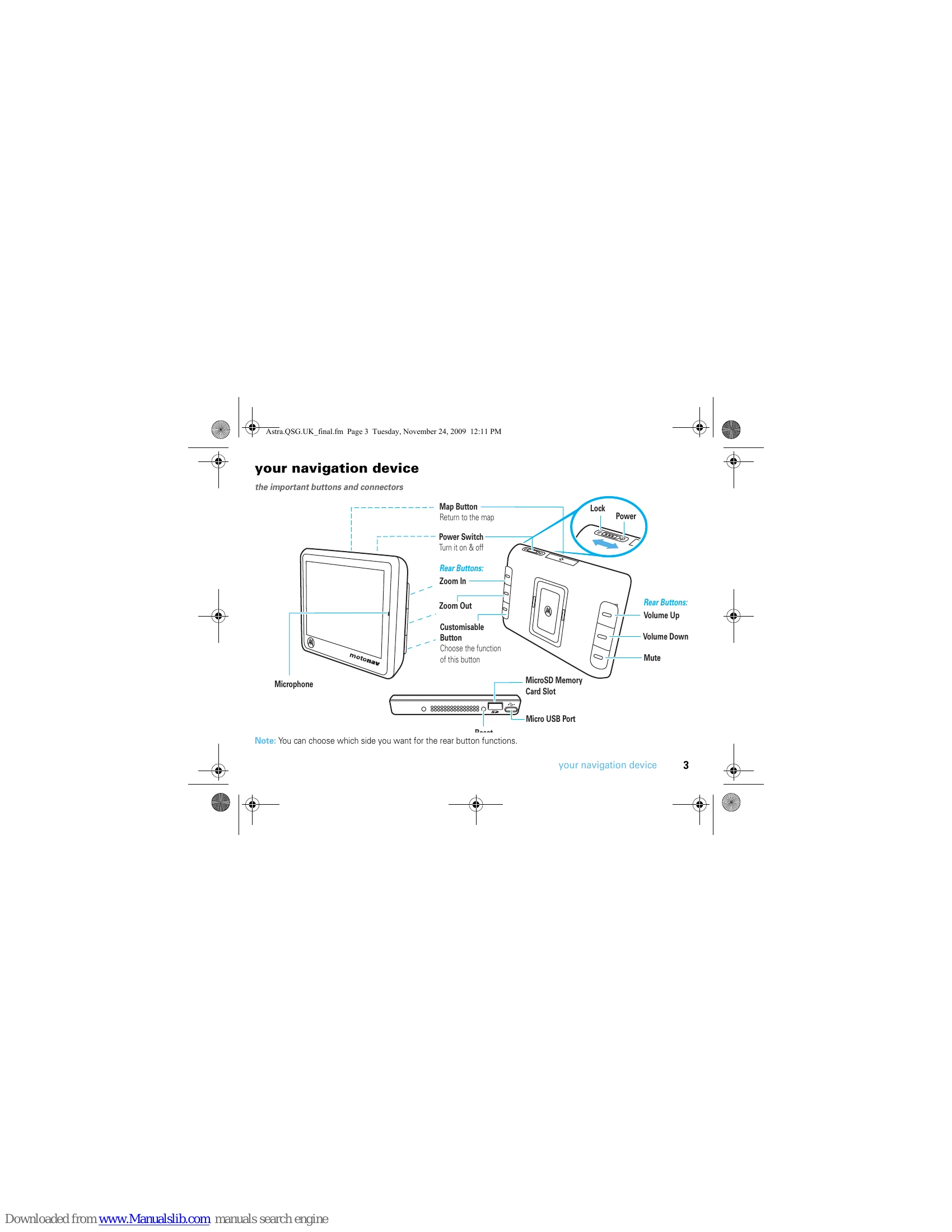
The important buttons and connectors
Put your device in your vehicle...or you can carry it when you leave your wheels behind
Before installing or using, check state and local laws regarding windscreen mounting or use of equipment. DO NOT MOUNT IN A LOCATION THAT OBSTRUCTS DRIVER'S VISION OR INTERFERES WITH OPERATION OF THE VEHICLE.
Plug in to power up
To take your MOTONAV device with you, press the Release Button to remove it from the charging dock.
Note: When you take your MOTONAV device out of the charging dock, tap Enter Pedestrian Mode to keep your device turned on while you walk. (You have the option of continuing on battery power, switching to pedestrian mode, or turning the device off.) If you don't select an option, your device turns off after 30 seconds.
Let's get you up and moving
The Power Switch is located on the top of the device.
To receive a strong signal, make sure your device has an unobstructed view of the sky. It may take a few minutes for your device to locate satellites the first time you turn the power on.
When you first turn on your device, you'll need to do a couple things to set it up. You know, answer a few questions. Get to know each other.
Note: To change these settings later, see your User's Guide.
Connect your MOTONAV device with your phone using Bluetooth® wireless technology to use your device to make hands-free calls, send text messages (if supported by your mobile phone), or use MotoExtras or voice prompted search features.
Note: For more help connecting, visit www.motorola.com/Bluetoothconnect.
After you connect with your mobile phone, you can set your device to automatically download your contacts, text messages, and recent calls to your MOTONAV device.
Note: Downloading your phonebook and text messages depends on your phone's capabilities. To determine whether your phone supports these features, go to www.motorola.com/Bluetoothconnect.
Adjust the volume during a call by pressing Volume Up or Volume Down on the back of the device (see page 3). To mute, press Mute (see page 3).
To customise these buttons, tap the map, then tap Main Menu > Settings > System > Customisable buttons.
Your MOTONAV display has expandable left and right views. You can use these panels without ever leaving the map.
Tap the map to see these main features.
Tap the map, then tap Main Menu to expand the right panel.
The main menu opens:
Tap on the bar on the left side of the display to open the left panel and see information about your route. Tap the trip progress bar to close the left panel.
Tap the left panel to see information about your route. To close the left panel, tap it.
Use your voice & keep your hands on the wheel
Tap, then say these voice commands:
Note: If the Display Language setting on your device is set to a language different than the language of the country in which you are using the device, voice commands for Address Entry and Search will not be recognised. Please use the touchscreen to enter an address or perform a search.
Hit the road, on wheels or on foot
Before you start driving, say or use the keyboard to enter an address or part of one to create a route.
Tip: To go to an intersection, enter the two street names separated by +.
Tip: The next time you want to go home, tap the map, then tap the home icon, and you're as good as there.
After you select an address or point of interest, tap the name, then tap Make Favourite (at the bottom of the overview map). To see your saved addresses and points of interest, tap the map, then Main Menu > Favourites.
The MOTONAV TN500 Series are able to provide traffic information via the Traffic Upgrade Kit. The Traffic service provides streaming traffic updates. When using the traffic service, your device calculates routes that minimise or avoid traffic delays. If traffic is detected on your route, your device offers you alternate routes to save you time. You can preview detours before accepting them.
Routes are updated automatically or you can preview detours before accepting them. (Tap Settings > Traffic > Automatic Avoid.) An icon appears next to progress bar showing the new route time. Tap the icon to learn more about the alternate route.
Traffic information is included with MOTONAV device models numbers that end in "t" or with the purchase of a charging dock with built-in traffic receiver. Visit www.motorola.com/motoextras for more information or to purchase a charging dock with built-in traffic receiver for your device.
Note: You receive traffic information only if your device supports this feature. Your device must be in the charging cradle and plugged in to the car charger to receive traffic information.
The traffic feature is only available for England, Wales, Scotland and Northern Ireland. The service is not available for the Republic of Ireland or outside the UK at this stage.
Stay up on weather, flight status, and fuel prices. Your device includes 3 months free of MotoExtras, which you can renew online after your 3 months are up. Visit www.motorola.com/motoextras to purchase MotoExtras for your device.
Note: These MotoExtra features are available only for the UK.
MotoExtras gives you these updates and features:
Note: Your device must be connected to a Bluetooth® enabled mobile phone to receive information.
You can use Google to search for an address or point of interest. Your device must be connected to your mobile phone via Bluetooth to use this feature.
MotoExtras also lets you send addresses from the internet to your device so you can navigate to them easily without entering the address. To use this feature, make sure your mobile phone is connected to your device via Bluetooth.
Your MOTONAV can warn you when approaching a speed camera, red light camera, or hazard area. Cameras appear as icons on the map.
You can:
Your device includes 3 months of free Safety Camera alerts, which you can renew online after your 3 months are up. Visit www.motorola.com/motoextras to purchase the safety camera feature or to get software updates for your device.
Note: The Safety camera feature is only available for England, Wales, Scotland and Northern Ireland. The service is not available for the Republic of Ireland or outside the UK at this stage.
Drive Safe, Call Smart
First, connect your MOTONAV with your mobile phone (see page 9).
Note: Using a mobile device while driving may cause distraction. End a call if you can't concentrate on driving. Also, using a mobile device or accessory may be prohibited or restricted in certain areas. Always obey the laws and regulations on the use of these products.
When you receive a call, your device plays a ringtone and says, "Incoming call. Answer or ignore?"
To make a call using Speak & Go, tap, then say "Dial Number," and follow the prompts.
Or, you can touch the screen to make a call:
While on a call, you can tap the menu to minimise the phone controls.
Tip: Good at multitasking? You can use any feature other than Bluetooth® features while on a call. To return to the phone controls, tap the phone bar.
Here's what else you can do while you're on a call. But remember to keep your eyes on the road.
Drive Safe, Text Smart
If your mobile phone supports Bluetooth® messaging, you can use your MOTONAV device to send and receive messages. For more information about texting, see your phone User's Guide.
Note: Downloading your phonebook and text messages depends on your phone's capabilities. To determine whether your phone supports these features, go to www.motorola.com/Bluetoothconnect
When you receive a new text message, your device shows a new message notification. Tap Open to read the message or say "open" to hear the message read out loud. You can reply to or call the sender.
Tap anywhere on this bar to hear the text message aloud.
Tip: No time right now? To read your messages later, tap Main Menu > Messaging.
There are some people who always want to know where you are. With trusted contacts, you can let them know automatically.
If your MOTONAV is connected with your mobile phone, you can automatically share your current location with a trusted contact when they text "motonav" to you. When you're not in a route, your current location is shared with your trusted contact. When in a route, you share your location, destination, and your estimated time of arrival (ETA).
A few things to make you a pro
Press and hold the location on the map.
Tap the arrow in the top left.
Press and hold the icon.
Tap the left & right panels.
Press the Zoom rear buttons (see page 3) or tap + or on the map.
Tap the right panel, then tap Main Menu > Offer Inbox.
Tap .
Tap .
Press and hold the Reset button (see page 3).
Note: You can find the battery level indicator by expanding the left panel and looking on the dashboard.
Power your device by using the included car charger.
A micro USB wall charger is available as an optional accessory which you can use it to charge your device.
To download new software, update your maps, purchase additional accessories, or get help, visit www.motorola.com/motoextras. To register your device, visit www.motorola.com/motonav.
If you need more help, visit www.motorola.com/Bluetoothconnect.
Within the first 60 days of use, get a free map update by visiting www.motorola.com/motoextras. Terms and conditions apply. Subject to availability. Visit the Web site for details.
If your MOTONAV stops working, you can reset it by pressing and holding the power button for 10 seconds. Or, press and hold the Reset button. See page 3 for button locations.
Because we're always working to make things better, some of your MOTONAV displays may be changed or updated. Visit www.motorola.com/motonav for the latest information.
Hereby, Motorola declares that this product is in compliance with: The essential requirements and other relevant provisions of Directive 1999/5/EC. All other relevant EU Directives.
When you see this symbol on a Motorola product, do not dispose of the product with household waste.
Do not dispose of mobile phones or electrical accessories, such as chargers or headsets, with your household waste. In some countries or regions, collection systems are set up to handle electrical and electronic waste items. Contact your regional authorities for more details. If collection systems aren't available, return unwanted mobile phones or electrical accessories to any Motorola Approved Service Centre in your region.
The following statement applies to all products that have received FCC approval. Applicable products bear the FCC logo, and/or an FCC ID in the format FCC-ID:xxxxxx on the product label. Motorola has not approved any changes or modifications to this device by the user. Any changes or modifications could void the user's authority to operate the equipment. See 47 CFR Sec. 15.21. This device complies with part 15 of the FCC Rules. Operation is subject to the following two conditions: (1) This device may not cause harmful interference, and (2) this device must accept any interference received, including interference that may cause undesired operation. See 47 CFR Sec. 15.19(3). This equipment has been tested and found to comply with the limits for a Class B digital device, pursuant to part 15 of the FCC Rules. These limits are designed to provide reasonable protection against harmful interference in a residential installation. This equipment generates, uses and can radiate radio frequency energy and, if not installed and used in accordance with the instructions, may cause harmful interference to radio communications. However, there is no guarantee that interference will not occur in a particular installation. If this equipment does cause harmful interference to radio or television reception, which can be determined by turning the equipment off and on, the user is encouraged to try to correct the interference by one or more of the following measures: Reorient or relocate the receiving antenna. Increase the separation between the equipment and the receiver. Connect the equipment to an outlet on a circuit different from that to which the receiver is connected. Consult the dealer or an experienced radio/TV technician for help.
Use of accessories not approved by Motorola, including but not limited to batteries, antennas, and convertible covers, may cause your mobile device to exceed RF energy exposure guidelines and may void your mobile device's warranty. Motorola recommends that you always use Motorola-branded chargers. Motorola devices are designed to work with Motorola chargers. For approved Motorola accessories, visit our Web site at: www.motorola.com
Your battery is designed to last the life of the product. It should only be removed by a recycling facility. ANY ATTEMPT TO REMOVE OR REPLACE YOUR BATTERY WILL DAMAGE THE PRODUCT.
WARNING: MAY EXPLODE IF DISPOSED OF IN FIRE.
Check and obey the laws and regulations on the use of mobile devices in the area where you drive. The use of wireless devices and their accessories in your area may be prohibited or restricted. The use of wireless phones while driving may cause distraction. Discontinue a call if you can't concentrate on driving. When using your mobile device while driving, please:
| Issue | Solution |
|---|---|
| Device not responding | Reset the device by pressing and holding the power button for 10 seconds, or press and hold the Reset button. |
| Unable to connect to Bluetooth device | Ensure Bluetooth is enabled on both devices. Try unpairing and re-pairing the devices. Consult www.motorola.com/Bluetoothconnect for help. |
| No GPS signal | Ensure the device has an unobstructed view of the sky. It may take a few minutes to acquire satellites. |
| Traffic information not available | Ensure the device is in the charging cradle and plugged into the car charger. Verify that your device model supports the traffic feature or that you have purchased the necessary upgrade kit. Check availability in your region (England, Wales, Scotland, Northern Ireland). |