Manual for BR700

Manual for BR700

Brand: Motorola

Category: Networking

Document Type: Manual

Language: EN
Uploaded: Nov. 21, 2025, 8:16 p.m.

Manual Publish Date: 2003-07-01

Warranty Information

None

Section 1: Overview

This section provides a general introduction to the Motorola Ethernet Broadband Router BR700, explaining its features and functions. It covers:

  • Features: Highlights include a CD-ROM installation wizard, web-based configuration, firmware upgrades, firewall protection, DHCP server, and VPN pass-through.
  • Functions: Explains the roles of the router, TCP/IP, Static IP Address, Dynamic IP Address, and DHCP Server in network operation.
  • Network Diagram: Illustrates a simple home network setup.
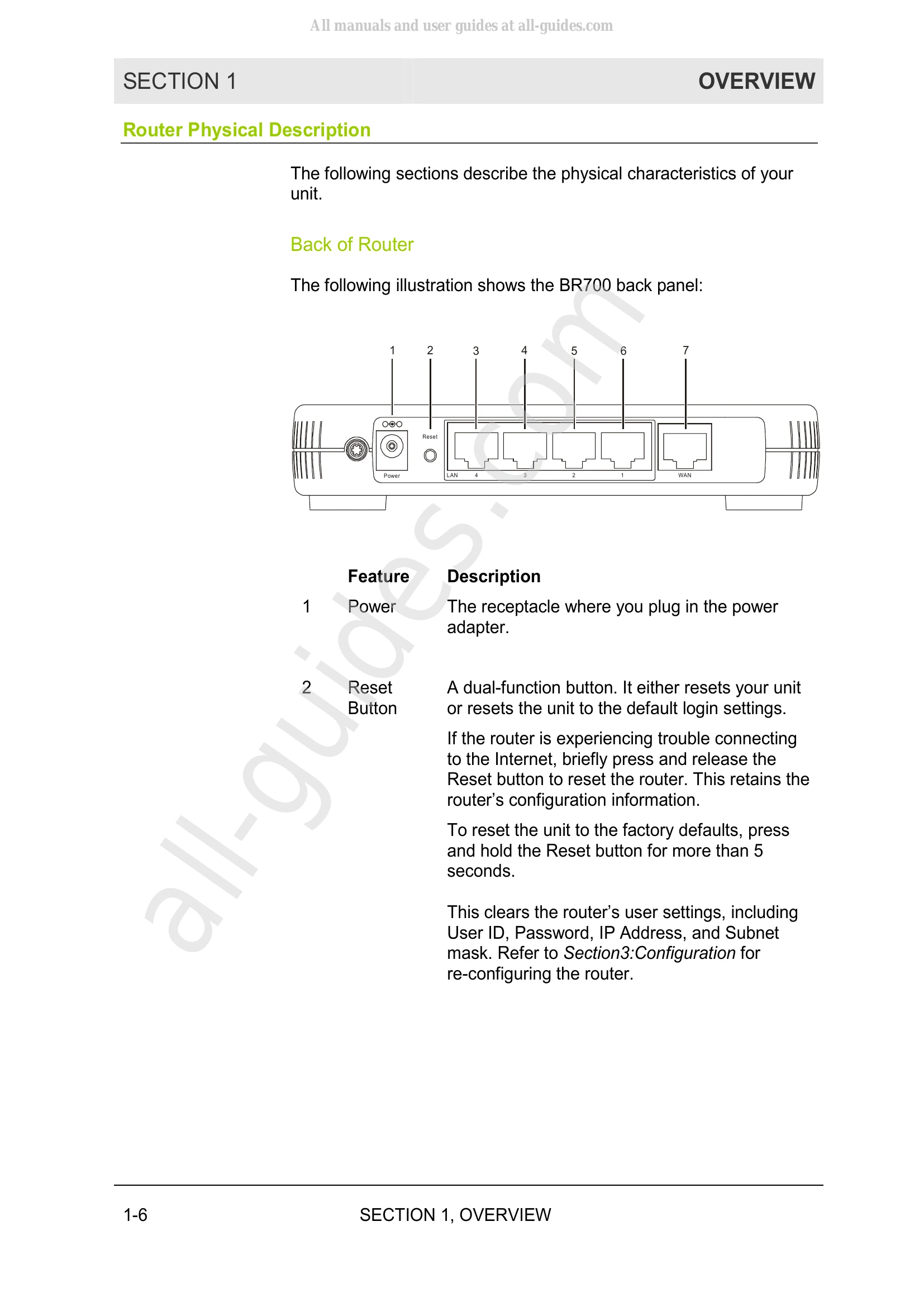
  • Physical Description: Details the back and front panels of the router, including LED indicators.

Section 2: Installation

This section guides users through setting up the router:

  • Hardware Setup: Covers physical installation (horizontal, vertical, wall mount) and electrical connection.
  • Software Setup: Offers both an easy setup using the CD-ROM and a manual software setup option.
  • Connection to Router: Provides step-by-step instructions for connecting the router to the modem and computers using Ethernet cables.
  • Configure Your Computers: Offers guidance on configuring network settings for Windows 98SE/ME, Windows 2000, and Windows XP to enable them to communicate with the router.

Troubleshooting and error codes

ProblemSolution
I cannot access the Configuration Utility for the router.
  • Verify your Ethernet connection to the router.
  • Verify that the IP address of the PC being used to configure the router is on the same network as the router's configuration IP address. The IP address of your network adapter must be on the same network and not a duplicate of any others on the network (for example: 192.168.20.3 and using a subnet mask of 255.255.255.0 can be used to login to the router's default IP address of 192.168.20.1). Refer to Section 2: Configuration > Configure Your Computers on how to adjust the IP address for your PC.
  • Verify that you can ping the router on this IP address. In the Command window, type ping and your router's default IP address and press Enter. For example, type: ping 192.168.20.2. If you have changed the factory configured default IP address of the router, you will need to set your network adapter accordingly.
  • Verify you are entering the correct URL in the browser. The default is http://192.168.20.1. If you think you have changed the IP address used to configure the router and cannot remember it, you must reset the unit back to factory defaults. To do this, press and hold the reset button for more the 5 seconds. This clears the router's user settings, including User ID, Password, IP Address, and Subnet mask.
  • Once the router is reset to factory default setting, re-verify the Ethernet connectivity and IP address issues.
  • Verify you are using the latest version of IE or Netscape. IE 5.2 and below are not supported.
Privacy Policy