Manual for moto g STYLUS 5G

Manual for moto g STYLUS 5G

Brand: Motorola

Category: Smartphone

Document Type: Manual

Language: EN
Uploaded: Nov. 21, 2025, 7:50 p.m.

Warranty Information

Refer to the manual for detailed information regarding warranty and legal, safety, and regulatory information.

Get Started

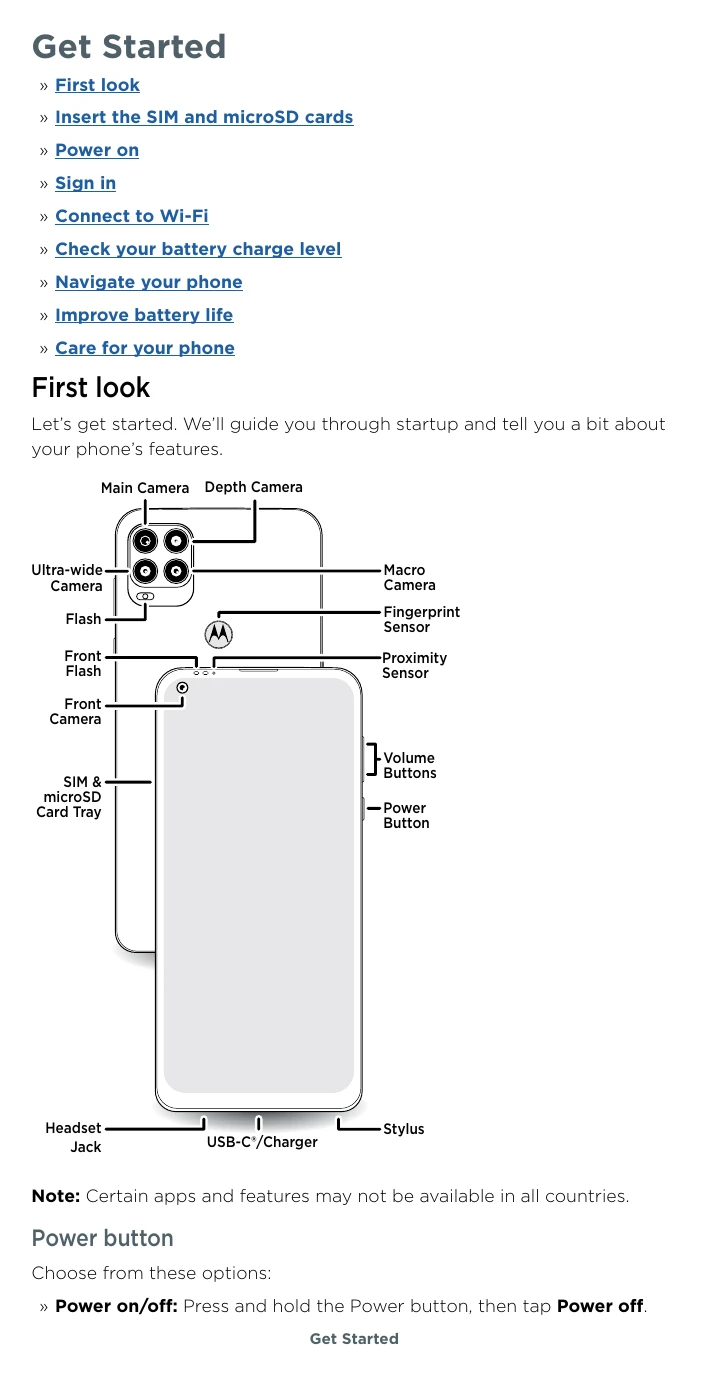
  • First look: Familiarize yourself with your phone's features, including cameras, sensors, and buttons.
  • Insert SIM and microSD cards: Learn how to insert SIM and microSD cards for phone service and additional storage.
  • Power on: Press and hold the Power button to turn on your phone and follow the on-screen prompts.
  • Sign in: Sign in with your Google account to access apps, sync data, and back up your information.
  • Connect to Wi-Fi: Connect to a Wi-Fi network for faster internet access and to conserve mobile data.
  • Check your battery charge level: Swipe down on the home screen to view the battery status.

Navigate your phone

  • Explore by touch: Learn gestures like tap, touch and hold, drag, swipe, and pinch/double-tap for navigation.
  • Split screen: Use two apps simultaneously by swiping up from the bottom and tapping the split screen option.
  • System navigation: Choose between gesture navigation or button navigation.

Personalize your phone

  • Redecorate your home screen: Change wallpaper, add pages, adjust display settings, and customize your style.
  • Choose apps & widgets: Add, download, group, and manage apps and widgets on your home screen.
  • Customize sounds & appearance: Set ringtones, notifications, and adjust audio effects and display settings.

Connect, share & sync

  • Sync to the cloud: Sync your Google account for access to apps, media, and data across devices.
  • Cast your screen to a TV: Mirror your phone's screen on a TV with Chromecast built-in or a Chromecast device.
  • Use a memory card: Move files to a microSD card for extra storage.
  • Airplane mode: Turn off wireless connections for flights.

Troubleshoot your phone

  • Restart or remove an app: Learn how to restart in Safe Mode to remove problematic apps.
  • Restart your phone: Reboot your phone if it becomes unresponsive.
  • Check for software update: Manually check for and install system updates.
  • Reset: Reset your phone to factory settings (warning: erases all data).

Accessibility

  • Create a shortcut: Activate accessibility features quickly.
  • Make your phone speak: Use features like Select to Speak and TalkBack to have your phone read content aloud.
  • Change your phone's display: Adjust font size, display size, and screen magnification.
  • Change your phone's sounds: Customize call ringtones and volume settings.

Troubleshooting and error codes

Problem Solution
App locks up phone Restart in Safe Mode: Press and hold Power button. When Power off option appears, press and hold it. Phone restarts in Safe mode. Remove the app. To exit Safe Mode, restart phone.
Phone stops responding Reboot: Press and hold Power button until screen goes dark, then phone restarts.
Cannot unlock phone (forgot pattern, PIN, or password) Enter Google account email and password on another device. If no Google account, contact service provider for factory reset. Warning: Factory reset deletes all data.
Privacy Policy