| Unable to find the device during product set-up |
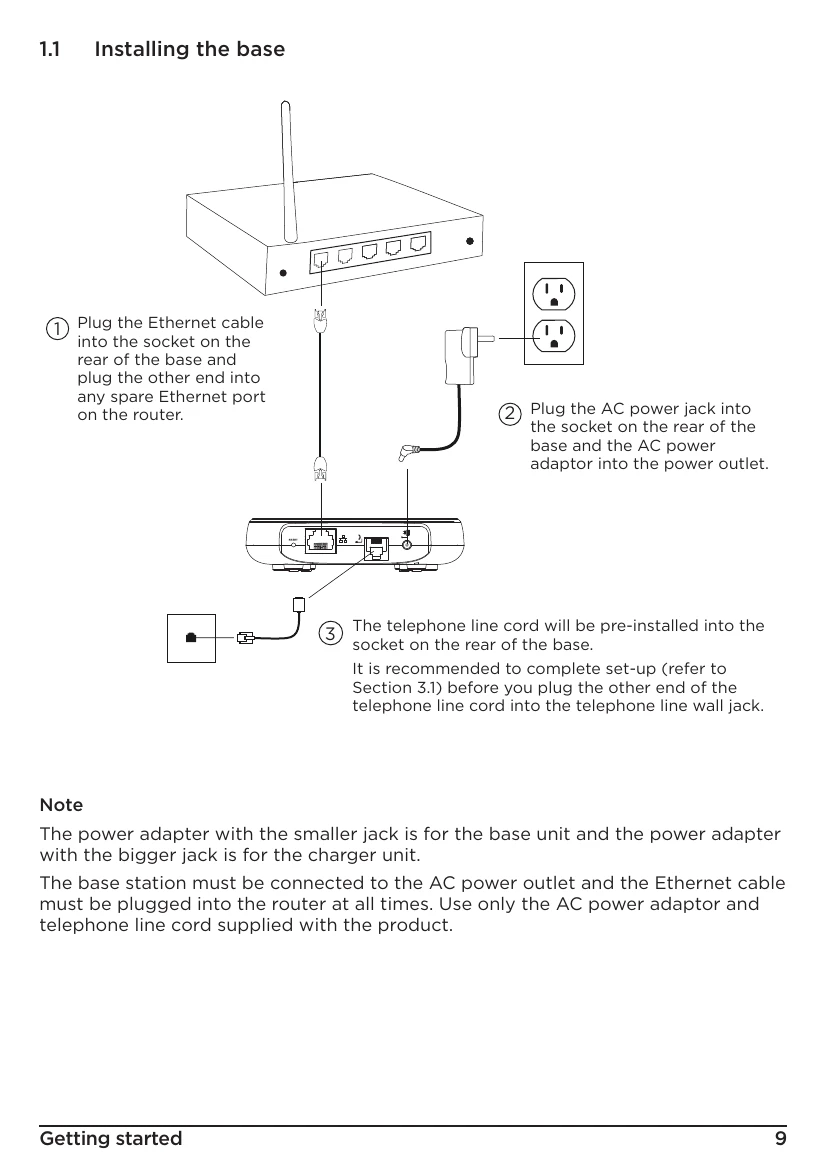
- Check AC power adapter connection to base and outlet.
- Check Ethernet cable connection to router.
- Ensure smartphone is on the same Wi-Fi network as the router.
- Reset the device by removing batteries and pressing the RESET button.
- Try resetting base from Advanced Settings menu.
|
| Phone does not work |
- Check AC power adapter connection.
- Ensure batteries are inserted correctly and handset is switched on.
- Check telephone line cord connection to base and wall jack.
- Check with your telephone service provider for network issues.
- Reset the device.
- Move handset/base away from electrical interference.
- Check you are not too far from the base.
|
| No dial tone |
- Refer to 'Phone does not work'.
- Disconnect and reconnect telephone line cord to another telephone.
- Try a different telephone wall jack.
|
| Unable to make landline calls |
- Refer to 'No dial tone'.
- Check for dial tone.
- Verify correct dial mode.
- Ensure line is not in use and no ongoing Alexa session.
|
| No display |
- Check batteries are inserted correctly and fully charged.
- Ensure handset is switched on.
|
| Handset does not ring |
- Refer to 'No dial tone'.
- Check ringer volume is not off.
- Check if caller is blocked.
- Verify handset is registered to the base.
- Ensure no more than 4 telephony/fax products are on the same line.
|
| Weak audio or call cutting in and out |
- Refer to 'Phone does not work'.
- Install a DSL filter if using high-speed internet service.
|
| No Caller Display |
- Check subscription with network operator.
- Install a DSL filter if using high-speed internet service.
- Caller may have withheld number.
- Caller may be using a switchboard.
|
| Caller Display cannot show the contact name match |
- Refer to 'No Caller Display'.
- Ensure hellovoice app has access to smartphone contacts.
- Verify contact is in the contacts list.
- Check correct number and area code are stored.
|
| Battery icon is not scrolling during charge |
- Check AC power adapter connection to charger and outlet.
- Ensure handset is properly seated in the cradle.
- Clean charger cradle contacts.
- Battery is full.
|
| Searching... appears on the handset |
- Check AC power adapter connection.
- Check proximity to the base.
- Reset the device.
- Try re-registering the handset.
|
| Cannot register a handset to the base |
- Maximum 5 handsets can be registered. De-register one if needed.
|
| Unable to open the Amazon Alexa app |
- Force close the app.
- Restart smartphone.
- Uninstall and reinstall the app.
|
| Unable to open the hellovoice app |
- Force close the app.
- Restart smartphone.
- Uninstall and reinstall the app.
|
| Alexa does not respond |
- Check AC power adapter and Ethernet cable connections.
- Verify internet connection.
- Wait for beep after pressing Alexa key.
- Ensure line is not in use and no ongoing Alexa session.
|
| Unable to use Alexa to call a person or contact name |
- Refer to 'Alexa does not respond'.
- Ensure Alexa app has access to smartphone contacts.
- Check contact is saved in Amazon Alexa app.
|