Brand: NEC
Category: Monitor
Document Type: Manual
Language: EN
Brand: NEC
Category: Monitor
Document Type: Manual
Language: EN
Uploaded: Nov. 21, 2025, 8:51 p.m.
Refer to the "Recommended Use" section for safety precautions and maintenance guidelines.
To turn on the monitor, push the Power Button. To turn off, first push the front panel power switch, then remove the power cord from the AC outlet.
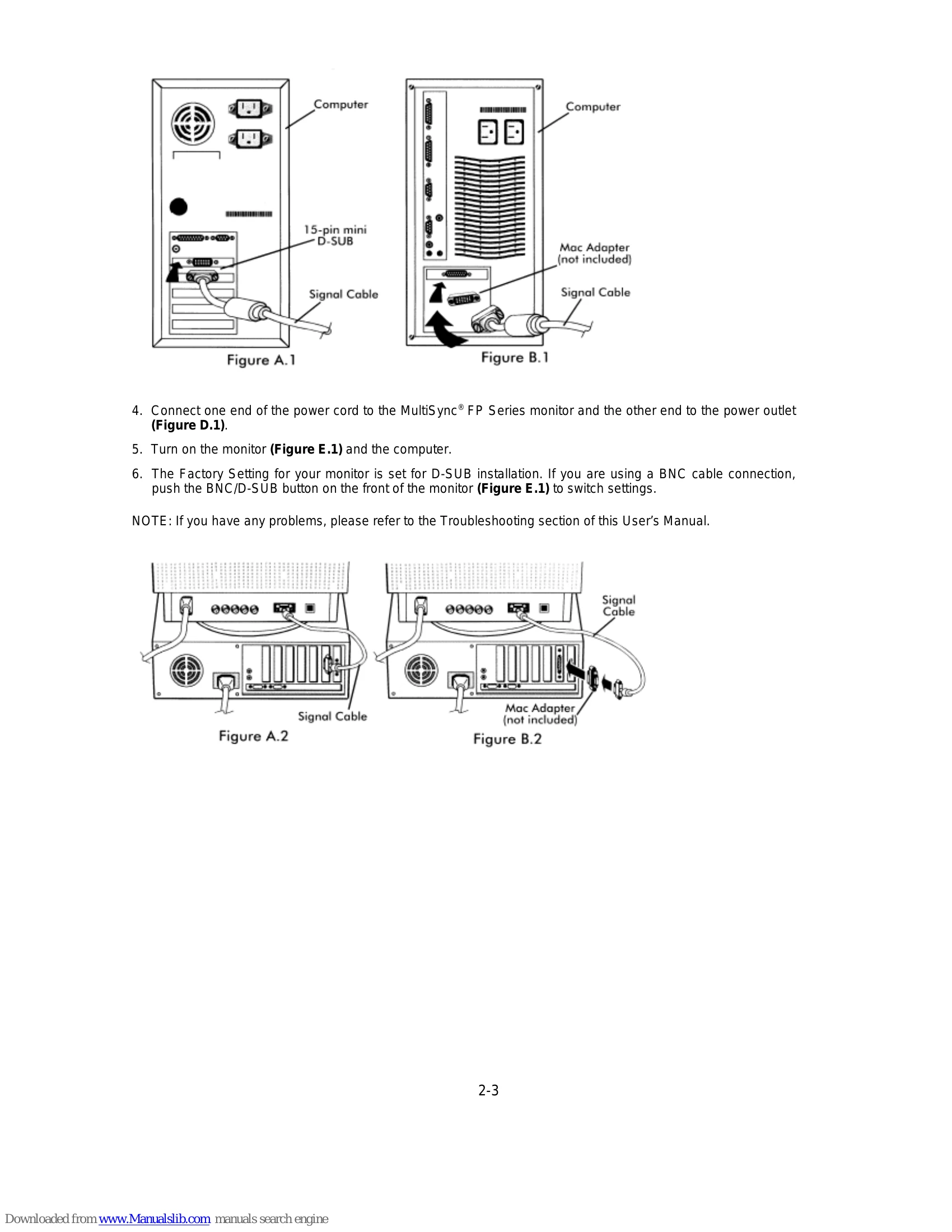
Connecting to a ComputerFor PC: Connect the 15-pin mini D-SUB signal cable to the display card and the monitor. For Mac: Use the Macintosh cable adapter. For BNC connection, connect the R, G, B, /Sync, HS/CS, and VS cables to the respective connectors on the monitor.
Basic ControlsUse the EXIT, CONTROL, and PROCEED buttons to navigate the On-Screen Manager (OSM) menu for adjustments like Brightness, Contrast, Size, Position, Color, Geometry, Sharpness, and Language.
TroubleshootingRefer to the Troubleshooting section for common issues like 'No Picture,' 'Image is scrolling or unstable,' 'LED on monitor is not lit,' 'Picture is fuzzy or color looks blotchy,' and 'Picture bounces or a wavy pattern is present.'
| Issue | Possible Causes and Solutions |
|---|---|
| No picture |
|
| Image is scrolling or unstable |
|
| LED on monitor is not lit (no green, orange, yellow color can be seen) |
|
| Picture is fuzzy or color looks blotchy |
|
| Picture bounces or a wavy pattern is present in the picture |
|
| Edges of the display image are not square |
|
| Display image is not centered, too small, or too large |
|