Manual for MultiSync XV17+

Manual for MultiSync XV17+

Brand: NEC

Category: Other

Document Type: Manual

Language: EN
Uploaded: Nov. 21, 2025, 7:23 p.m.

Warranty Information

This warranty covers defects in material and workmanship for three years for parts and labor.

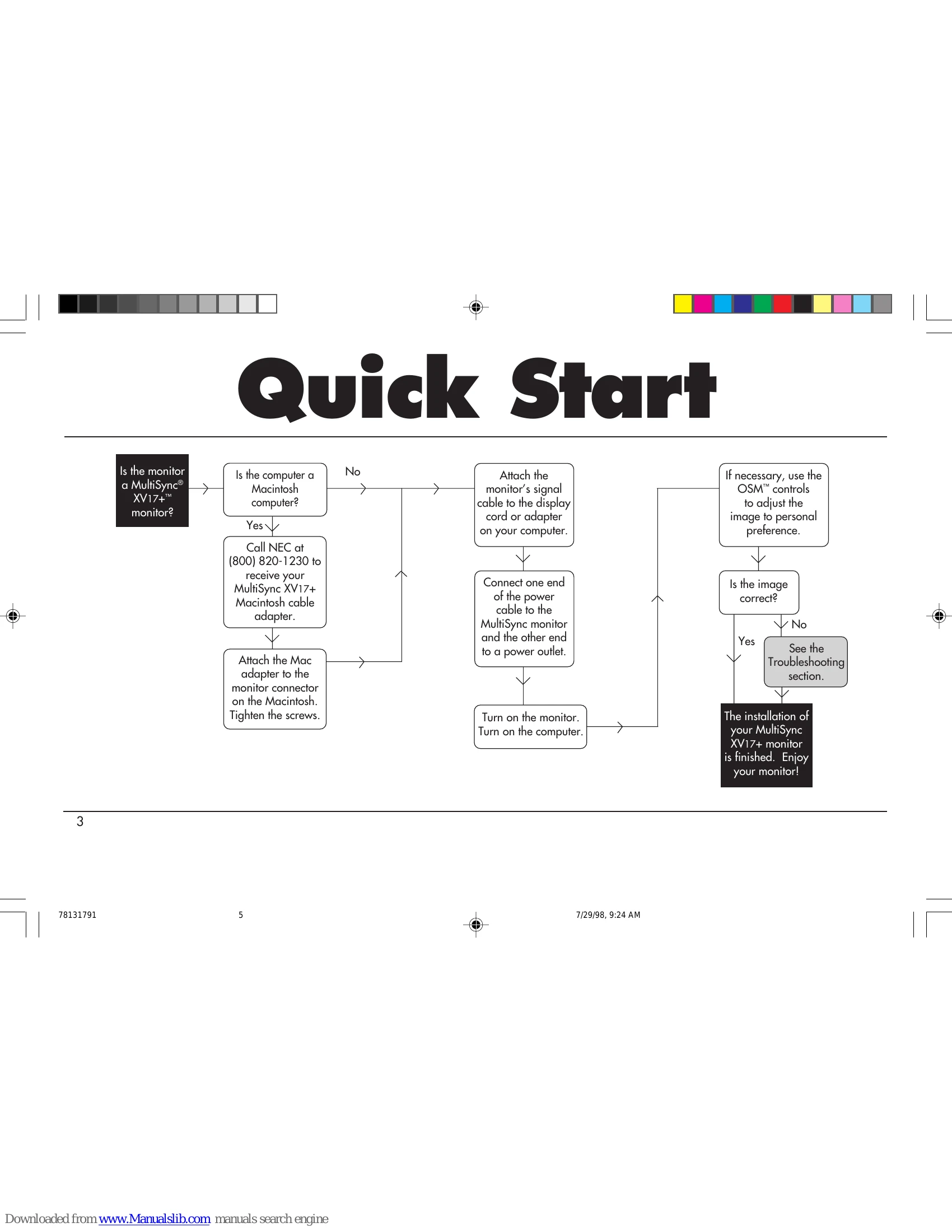
Quick Start

1. Connect the monitor to your computer using the provided cables.

2. Connect the power cord to the monitor and a power outlet.

3. Turn on the monitor, then turn on the computer.

4. If the image is not correct, use the OSM™ controls to adjust it.

Introduction

The MultiSync XV17+ monitor features CROMACLEAR CRT technology for enhanced clarity, Dynamic Beam Focus for consistent image quality, and OptiClear Screen Surface to reduce glare. It also supports Plug and Play for automatic setup with compatible systems.

OSM™ (On-Screen Manager) Controls

OSM controls allow you to adjust settings like Brightness, Contrast, Size, Position, and Geometry using on-screen menus accessible via the front panel buttons.

Troubleshooting and error codes

Problem Check These Items
No picture
  • The display card should be completely seated in its slot.
  • Power Switch and computer power switch should be in the ON position.
  • The signal cable should be completely connected to the display card/computer.
  • Check the connector for bent or pushed-in pins.
Image is scrolling or unstable
  • Signal cable should be completely attached to the computer.
  • Check the pin assignments and signal timings of the monitor and your display card with respect to recommended timings and pin assignments.
  • If the Mac adapter is used, check for proper connection or make sure the display card is Mac compatible and that the card is properly seated in the computer.
LED on the monitor is not lit (no green, orange or yellow color can be seen)
  • Power Switch should be in the ON position and the power cord should be connected.
  • Make certain the computer is not in a Power-Saver mode (touch the keyboard or mouse).
Picture is fuzzy
  • Adjust the Brightness, then Contrast Control.
  • Access the Degauss Control through OSM™ controls. Activate the Degauss Control. (See page 10 for more information.) CAUTION: A minimum interval of 20 minutes should elapse before the Degauss Control is used a second time when not switching between modes.
Picture bounces or a waving pattern is present in the picture
  • Move electrical devices that may be causing electrical interference away from the monitor.
  • See inside cover of this manual for FCC information.
Edges of the display image are not square
  • Use the OSM™ Geometry Controls to straighten the edges.
  • If possible, position the monitor to face east.
Display image is not centered, too small, or too large
  • Use the OSM Size and Position Controls to adjust the image.
Color looks blotchy
  • Access the Degauss Control through OSM controls. Activate the Degauss Control. (See page 10 for more information.)
Privacy Policy