Manual for KeyMission 170

Manual for KeyMission 170

Brand: Nikon

Category: Camera

Document Type: Manual

Language: EN
Uploaded: Aug. 10, 2025, 12:14 a.m.

Warranty Information

None

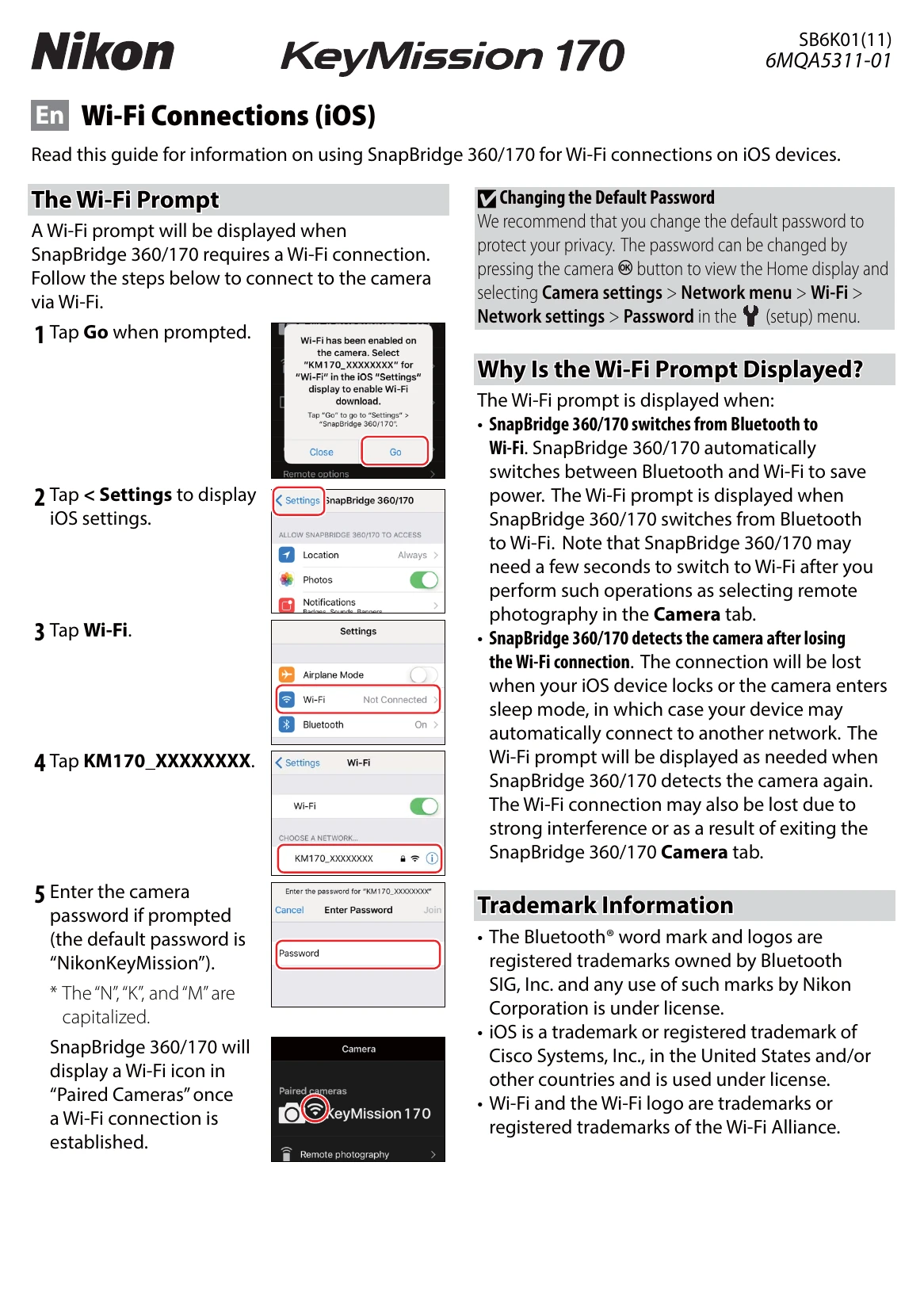
Connecting to Wi-Fi

  1. Tap Go when prompted by SnapBridge 360/170.
  2. Tap < Settings to open iOS settings.
  3. Tap Wi-Fi.
  4. Tap your camera's network name (e.g., KM170_XXXXXXXX).
  5. Enter the camera password if prompted (default: NikonKeyMission).

Re-establishing Pairing

  1. Open SnapBridge 360/170, go to Connect tab, select Connection options, and tap End pairing.
  2. Quit and swipe away SnapBridge 360/170.
  3. Open iOS Settings > Bluetooth.
  4. Tap the info icon next to your camera name and select Forget This Device.
  5. Press the camera button to view the Home display, then navigate to Camera settings > Network menu > Connect to device and follow on-screen instructions.
  6. Start SnapBridge 360/170, tap Connection options, then tap your camera name.
  7. When prompted to select an accessory, wait for the Bluetooth icon to turn gray, then tap your camera name.
  8. Follow on-screen prompts on both the camera and iOS device to complete pairing.

Troubleshooting and error codes

Connection Issues
If you are unable to use remote photography or download selected images even after pairing the camera with the iOS device and establishing a Wi-Fi connection, try:
  • switching tabs in SnapBridge 360/170,
  • quitting and restarting SnapBridge 360/170, or
  • ending pairing, telling your device to “forget" the camera, and then pairing with the camera again
Re-establishing Pairing
  • If you wait too long between pressing the button on the camera and tapping the button in SnapBridge 360/170, pairing will fail and an error will be displayed.
  • iOS device: Quit the SnapBridge 360/170 app completely by double-clicking the Home button and swiping up to dismiss SnapBridge 360/170, then return to Step 1.
  • Camera: Highlight OK and press. After a short pause, a dialog will be displayed; highlight Reconnect and press to return to Step 5.
Privacy Policy