Brand: OLYMPUS
Category: Digital Camera
Document Type:
Language: EN
Brand: OLYMPUS
Category: Digital Camera
Document Type:
Language: EN
Uploaded: Aug. 9, 2025, 11:44 p.m.
For technical support and software updates, please refer to the contact information provided.
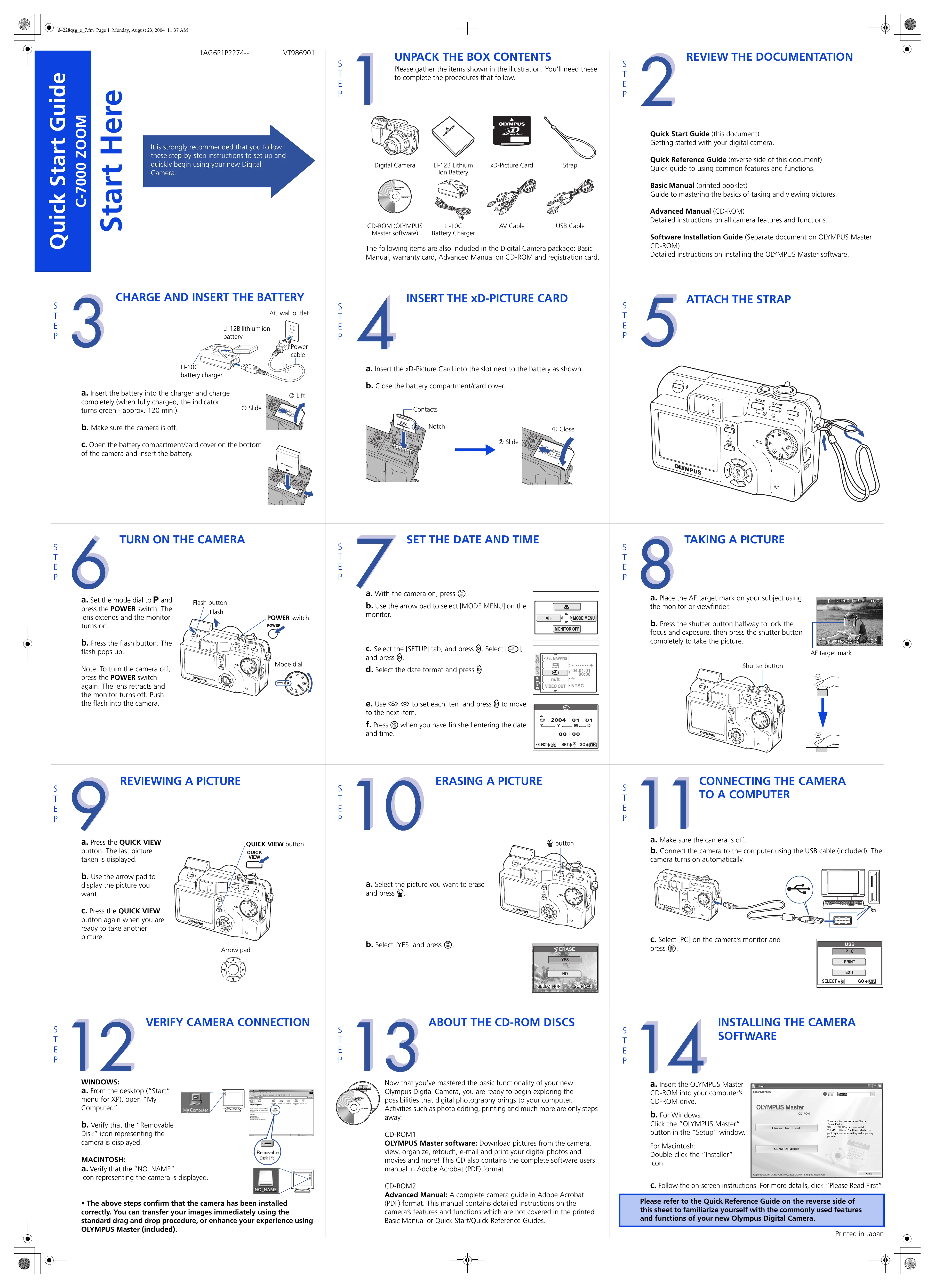
Charging and Inserting Battery: Insert the lithium-ion battery into the charger and charge completely. Ensure the camera is off before inserting the charged battery into the camera.
Inserting xD-Picture Card: Insert the xD-Picture Card into the designated slot and close the cover.
Attaching Strap: Attach the camera strap securely.
Turning on Camera: Set the mode dial to 'P' and press the POWER switch. Press the flash button to raise the flash.
Setting Date and Time: With the camera on, access the MODE MENU, navigate to the SETUP tab, select the date format, and set the date and time using the arrow pad.
Taking a Picture: Frame your subject using the AF target mark, press the shutter button halfway to focus, then press fully to capture the image.
Reviewing a Picture: Press the QUICK VIEW button to see the last taken picture and use the arrow pad to browse through others.
Erasing a Picture: Select the picture to erase, press the erase button, confirm with [YES].
Connecting to Computer: Turn off the camera, connect it to the computer via USB cable, and select [PC] on the camera's monitor.
Installing Software: Insert the OLYMPUS Master CD-ROM and follow the on-screen instructions.
| Problem | Possible Cause | Solution |
|---|---|---|
| Camera does not turn on. | The battery is not charged or not inserted properly. | Charge the battery completely. Insert the battery correctly. |
| Pictures are blurry. | The camera moved during exposure. | Hold the camera steady or use a tripod. Press the shutter button halfway to lock focus before taking the picture. |
| Flash does not fire. | Flash mode is set to OFF or the battery is low. | Select an appropriate flash mode (AUTO, FILL-IN, RED-EYE REDUCTION, SLOW SYNCHRONIZATION). Charge the battery. |
| Cannot connect to computer. | The USB cable is not connected properly or the camera is on. | Ensure the USB cable is securely connected to both the camera and computer. Make sure the camera is turned off before connecting. Restart both devices. |
| "No Card" message displayed. | xD-Picture Card is not inserted or not recognized. | Insert the xD-Picture Card correctly. Try using a different xD-Picture Card. Format the card in the camera if necessary (Note: Formatting erases all data on the card). |