Brand: Panasonic
Category: Digital Camera
Document Type: Manual
Language: EN
Brand: Panasonic
Category: Digital Camera
Document Type: Manual
Language: EN
Uploaded: Nov. 21, 2025, 9:04 p.m.
For details on optional accessories, refer to the "Basic Owner's Manual".
Camera Handling: Keep the camera away from vibration, force, or pressure. Avoid using in dusty, sandy, or wet conditions. Be careful of condensation by allowing the camera to acclimatize.
Test Shot & Copyright: Always take a test shot before important events. Observe copyright laws regarding recordings.
Accessories: Ensure all standard accessories are supplied. Optional accessories are also available.
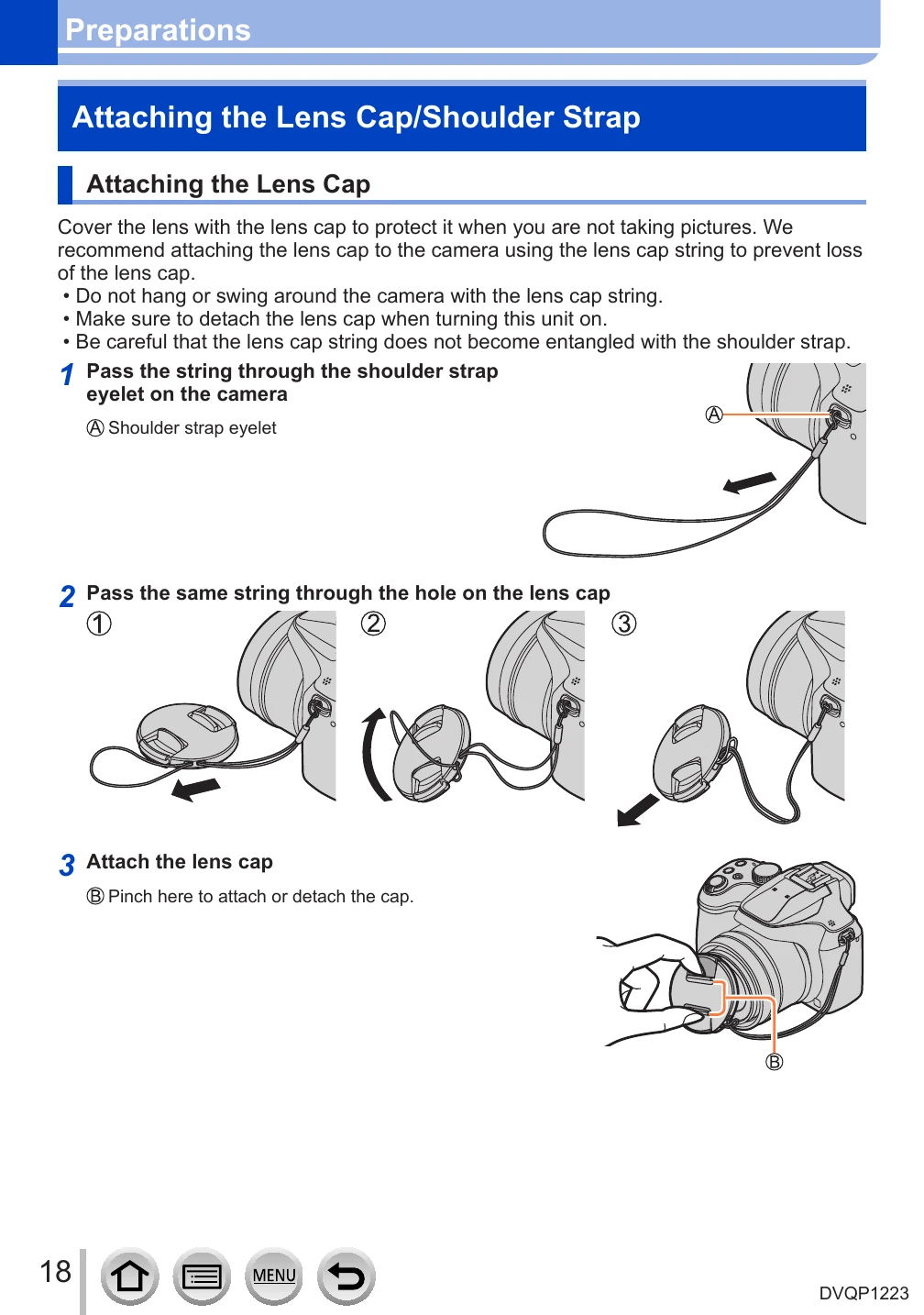
Lens Cap/Strap: Instructions for attaching the lens cap and shoulder strap are provided.
Battery Charging: Always use the dedicated AC adaptor and USB cable. Charge the battery before first use. The battery can be charged via an outlet or PC.
Inserting Battery: Slide the release lever, open the door, insert the battery firmly, and close the door, locking the lever.
Parts Identification: Diagrams show the names and functions of various camera parts.
| Issue | Solution |
|---|---|
| Wi-Fi function: Cannot connect to wireless LAN. Radio waves get disconnected. Wireless access point is not displayed. | • Use within communication range. • Check for interfering devices (microwave ovens, cordless phones). • Battery indicator flashing red may disrupt connection. • Avoid metal surfaces. • Check if wireless access point is operating. • Check radio wave condition; move closer or adjust angle. • Turn wireless access point off and on. • Check if SSID is set not to broadcast; enter SSID if necessary. |
| Wi-Fi function: Camera is not displayed in smartphone Wi-Fi settings. | • Switch Wi-Fi function ON/OFF on the smartphone. |
| Wi-Fi function: Problem connecting to Windows 8 PC. User name/password not recognized. | • For Windows 8, ensure you are using the local account user name and password. |
| Wi-Fi function: Connection is not recognizing PC. Camera cannot connect to Mac/Windows PC. | • By default, workgroup name is "WORKGROUP". Change if necessary in [Wi-Fi Setup]. • Confirm login name and password. • Ensure camera time matches PC/Mac time. |
| Wi-Fi function: Images cannot be transmitted to WEB service. | • Confirm login information is correct. |
| Wi-Fi function: Takes time to transmit to WEB service. Transmission fails midway. Image could not be transmitted. | • Check image size (divide motion pictures with [Video Divide], reduce image size with [Size]). • Transmit closer to wireless access point. • File format may differ by destination. |
| Wi-Fi function: Forgot password. | • Execute [Reset Wi-Fi Settings] in [Setup] menu. (Information in [Wi-Fi Setup] will reset.) |
| TV, computer, printer: No image on TV. Image blurred or not colored. | • Not connected correctly. • TV not switched to auxiliary input. |
| TV, computer, printer: VIERA Link (HDMI) is not working. | • Check if [VIERA Link] setting is [ON]. • Check VIERA Link settings on connected device. • Turn camera off and on. |
| TV, computer, printer: Cannot communicate with the computer. | • Set [USB Mode] to [PC]. • Turn camera off and on. |
| TV, computer, printer: Computer does not recognize card (SDXC Memory Card). | • Check computer compatibility with SDXC. • Do not format the card if prompted. • Turn camera off before disconnecting USB if [Access] indicator is on. |
| TV, computer, printer: Cannot print when connecting to printer. | • Printer not compatible with PictBridge. • Set [USB Mode] to [PictBridge(PTP)]. |
| TV, computer, printer: Edges of pictures are cut off when printing. | • Release trimming/edgeless printing settings on printer. • Check if aspect ratio matches paper size (e.g., 16:9 for shops). |
| Others: Lens makes a clicking noise. | • Normal during lens movement, aperture operation, or brightness adjustment. |
| Others: Zooming stops instantaneously. | • Normal when using Extended optical zoom. |
| Others: Red lamp illuminated when pressing shutter button halfway in dark locations. | • [AF Assist Lamp] is set to [ON]. |
| Others: Camera is hot. | • Camera may become warm during use, but does not affect performance/quality. |
| Others: Clock is incorrect. | • Clock may reset if camera is unused for a long time. Reset the clock. |
| Others: When using zoom, picture becomes slightly warped and edges colored. | • Normal depending on zoom ratio; not a fault. |