Brand: Panasonic
Category: Office Equipment
Document Type: Manual
Language: EN
Brand: Panasonic
Category: Office Equipment
Document Type: Manual
Language: EN
Uploaded: Nov. 21, 2025, 7:29 p.m.
Manual Publish Date: 2006-09-01
Panasonic Digital Document Company disclaims all warranties, expressed or implied, except for dealer's warranty.
| Check | Action |
|---|---|
| Unit Does Not Operate | Check if the Power Switch (Main Power Switch on the Right Side of the machine) is turned ON and if the power cord is plugged into the AC outlet. |
| Does the display light? | Check if the Power Switch (Main Power Switch on the Right Side of the machine) is turned ON and if the power cord is plugged into the AC outlet. |
| Does the Energy Saver key flash (or light) and the display is turned OFF? (See page 48) | Press Energy Saver key on the control panel. |
| Does any of the U## codes and messages appear on the display? (U01, U07, U13, U14....etc.) | Perform actions in accordance with each message. |
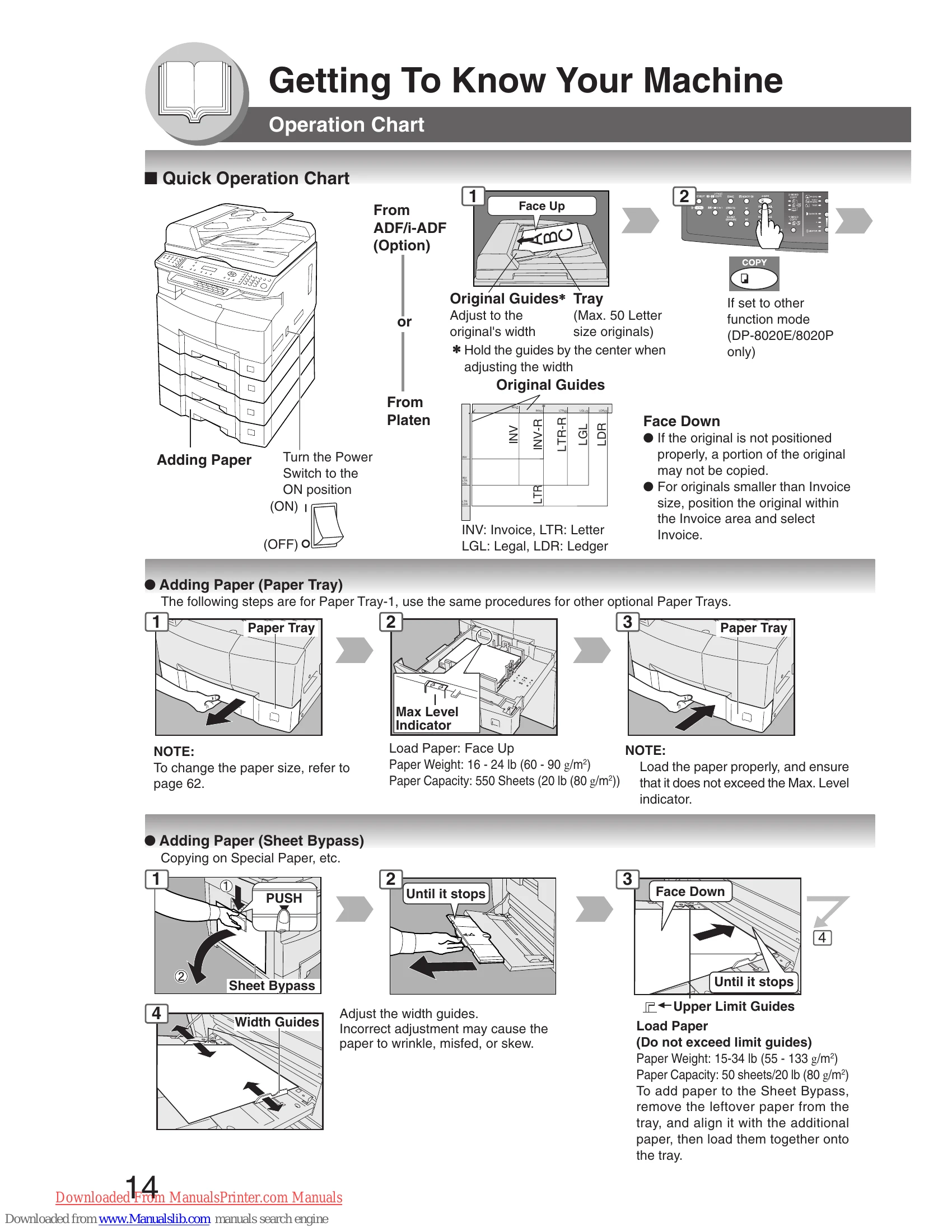
| Does the Add Paper indicator and message appear on the display? | Add paper. (See page 14) |
| Does the Misfed Paper indicator, message and J## codes appear on the display? | Remove the misfed paper. (See pages 16 - 21) |
| Does E#-## codes and messages appear on the display? | Turn the Power Switch on the Right Side of the machine to the OFF and ON position. If the error code does not clear, call your Service provider. |
| The machine would not accept the next job during operation, instructed job would not be accepted for a long time period or job would not be completed. | Turn the Power Switch on the Right Side of the machine to the OFF and ON position. |
| Light Copies | |
| Does the exposure indicator say "LIGHTER"? | Press the "DARKER" button. |
| Does the Add Toner indicator and message appear on the display? | Replace the Toner Bottle. (See pages 16, 17) |