Brand: Panasonic
Category: Television
Document Type: Manual
Language: EN
Brand: Panasonic
Category: Television
Document Type: Manual
Language: EN
Uploaded: April 20, 2026, 7:54 p.m.
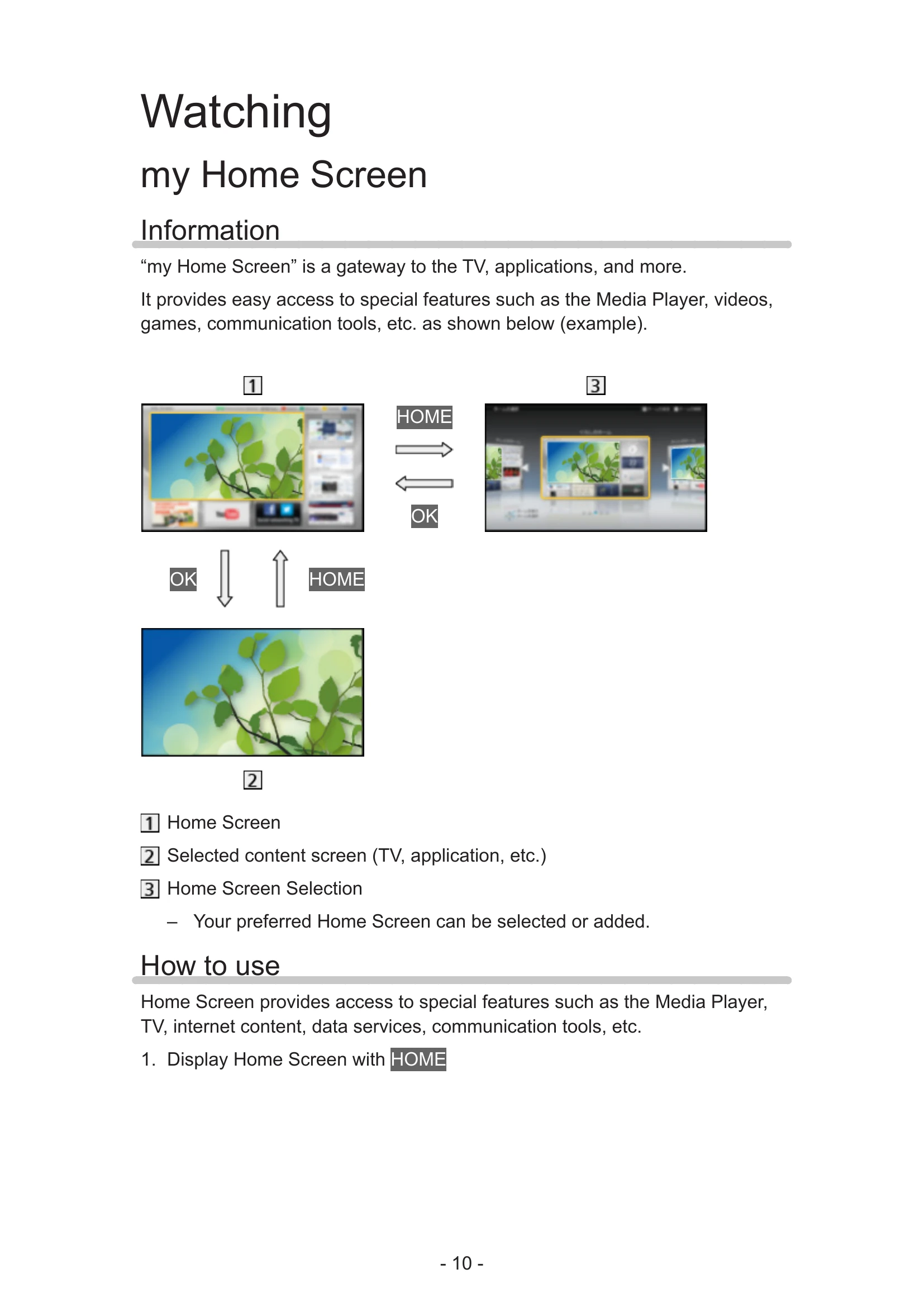
“my Home Screen” is a gateway to the TV, applications, and more. It provides easy access to special features such as the Media Player, videos, games, communication tools, etc.
To use this function fully, you need a broadband network environment. Ensure the network connections and network settings are completed.
How to use
Home Screen provides access to special features such as the Media Player, TV, internet content, data services, communication tools, etc.
Please ensure that the unit is disconnected from the mains socket before attaching or disconnecting any cables.
Aerial
Display information banner with INFO.
Also appears when changing a channel.
| Black and white picture | Check that the output of the external equipment matches the input of the TV. |
|---|---|
| Chaotic image, noisy | Set Noise Reduction and MPEG Noise Reduction in the Picture Menu to remove noise. Check nearby electrical equipment (car, motorcycle, fluorescent lamp). |
| Blurry or distorted image (no sound or low volume) | Reset channels. |
| White spots or shadow images (noise) | Check the position, direction, and connection of the aerial. |
| Shop appears on screen at switch on | Shop was selected in Auto Tuning when the TV is turned on for the first time. Reset settings in Shipping Condition, then select Home in Auto Tuning. |
|---|---|
| Unable to receive signals with a high-performance aerial | Install an aerial individually for the TV and VCR (or use a splitter). |
| Interference or frozen / disappearing image in Digital TV | Check Signal Condition. If Signal Quality is displayed in red, check aerial. If the problem persists, consult your local Panasonic dealer. Turn the TV off with Mains power On / Off switch, then turn it on again. |
| No sound is produced | Is “Sound mute” active? Press MUTE to switch sound mute on or off. Is the volume set to the minimum? |
|---|