Manual for TX-68P200A

Manual for TX-68P200A

Brand: Panasonic

Category: Television

Document Type: Manual

Language: EN
Uploaded: Nov. 21, 2025, 8:57 p.m.

Warranty Information

None

Getting Started

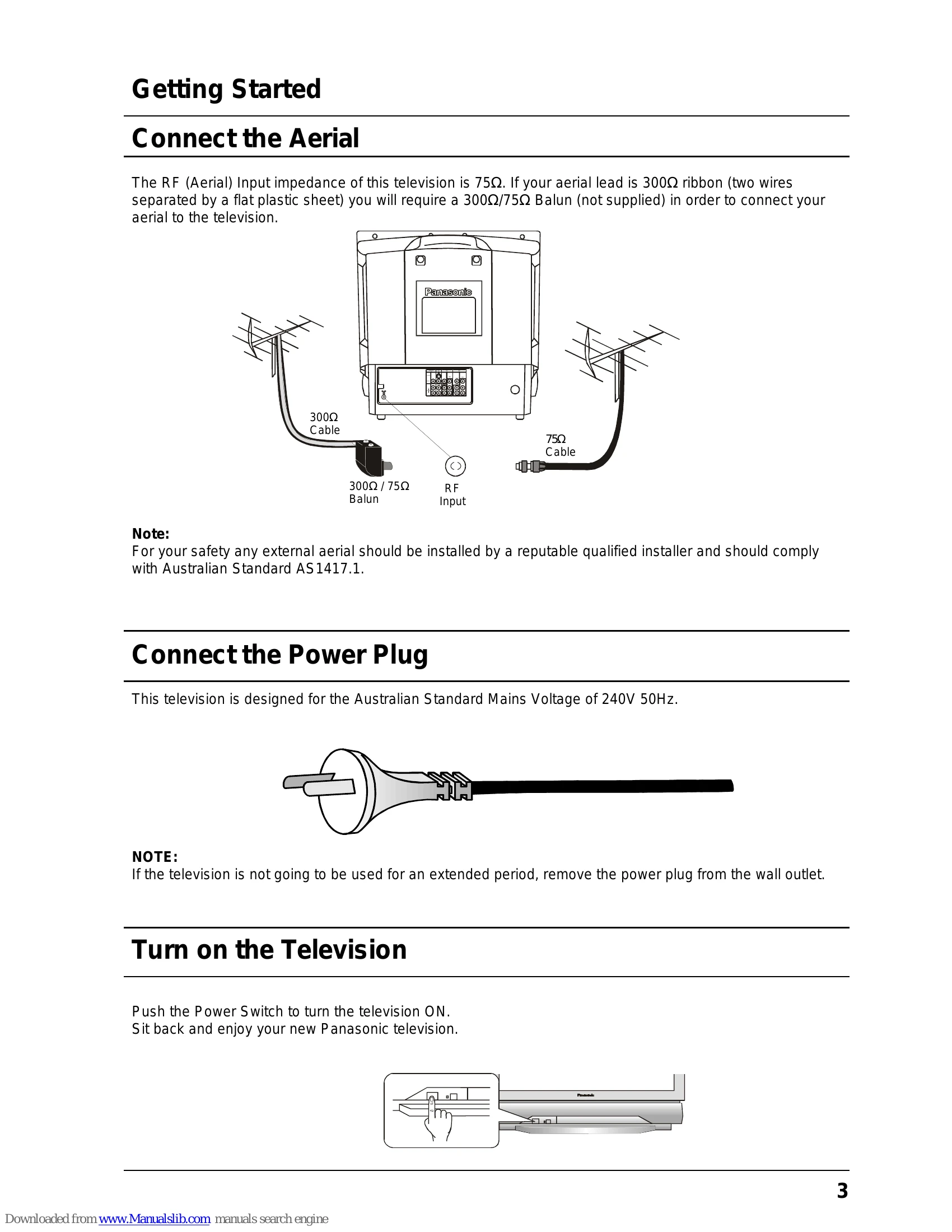
  • Connect the Aerial: Connect the aerial lead to the RF Input. A 300Ω/75Ω Balun may be required if your aerial lead is 300Ω ribbon.
  • Connect the Power Plug: Plug the television into a 240V 50Hz mains socket.
  • Turn on the Television: Push the Power Switch to turn the television ON.

Important Information

  • Programme Location Numbers: The television is factory tuned to major stations. Adjustments can be made if necessary.
  • Picture Quality: Magnetic interference can cause coloured patches. The television has a demagnetising function activated by turning the TV OFF for 30 minutes.

Remote Control Television Buttons

  • Stand By: Turns the TV on/off.
  • Picture/Sound/Set Up: Accesses respective menu options.
  • Stereo/Mono/Bilingual: Selects audio mode.
  • 100Hz/Progre: Adjusts picture refresh rate.
  • Surround: Toggles surround sound.
  • Aspect: Adjusts picture aspect ratio.
  • Recall: Displays current active functions.
  • Normalisation: Resets settings to factory defaults.
  • STR (Store): Stores settings.
  • Help: Displays on-screen instructions.
  • Sound Mute: Mutes audio.
  • Programme Number Up/Down: Navigates channels.
  • Volume Up/Down: Adjusts volume.
  • TV/AV: Switches between TV and AV inputs.
  • Coloured Buttons: Used for various functions, including Teletext and AV input selection.
  • Still: Freezes the picture.
  • Direct/Two Digit Programme Numbers: Selects channels directly.

Using the On Screen Displays

  • Access features via the On Screen Display menu system using the remote control.
  • Use navigation keys to select and adjust features.
  • An on-screen help box indicates remote control keys for menu navigation.

Picture Menu Operation

  • Push PICTURE button to access menu.
  • Use navigation keys to select and adjust CONTRAST, BRIGHTNESS, COLOUR, SHARPNESS, NTSC-TINT, C. TEMP, P-NR, AI, and SCAN MODE.
  • Options include DYNAMIC, STANDARD, SOFT for picture settings and AUTO, 100Hz MODE, PROGRESSIVE for SCAN MODE.

Sound Menu Operation

  • Push SOUND button to access menu.
  • Adjust VOLUME, BASS, TREBLE, BALANCE, HEADPHONE VOL, SUBWOOFER, and SURROUND MENU.
  • Sound settings include DYNAMIC, STANDARD, and SOFT.

Set Up Menu Operation

  • Push SET UP button to access menu.
  • Adjust TELETEXT, OFF TIMER, FLICKER REDUCTION, STROBE, CH COLOUR SET, VCR/GAME, TEXT SELECT, CHILD LOCK, COLOUR SYSTEM, TUNING MENU, GEOMAGNETIC, and LANGUAGE.

Aspect Controls

  • Push ASPECT button to select AUTO, 4:3, 16:9, and S-ZOOM options.
  • S-ZOOM allows magnification of specific picture areas using coloured buttons for positioning.

Teletext Operation

  • Teletext is available on certain channels.
  • TOP (Table Of Pages) MODE and LIST MODE are available.
  • Buttons control page navigation, index, hold, favourite page, and reveal functions.
  • F/T/B (Full/Top/Bottom) adjusts display layout.
  • DISPLAY CANCEL allows viewing TV picture while waiting for teletext.
  • TIME TEXT function for news flashes.

Tuning Menu

  • Access via FRONT PANEL CONTROLS or REMOTE CONTROL.
  • Options include SYS SELECT, AUTO TUNE, MANUAL TUNE, FINE TUNE, and SKIP.
  • STR button stores settings.

Connecting Equipment to the TV

  • Front Panel Connections: AV3, S-VIDEO VIDEO, RGB (D-SUB 15P).
  • RGB Input: For connecting PCs. Ensure correct resolution and colour settings.
  • Adjusting RGB Picture: Use SET UP menu options (H-SIZE, V-SIZE, H-POS, V-POS, PARABOLA).
  • AV Equipment: Connect VCRs, DVD players, etc. to AV inputs.
  • Headphones: Connect to headphone socket.
  • Rear Panel Connections: MONITOR OUT, AV1, AV2, AV4 inputs.
  • Monitor Out: Reproduces screen signals for connecting to other TVs or for editing.
  • Connecting Standard VCR: Use RCA connectors to AV1 IN.
  • Connecting S-Video Equipment: Use 4-pin Mini Din for video, RCA for audio.
  • Connecting DVD Equipment: Use RCA connectors to AV4 IN.

Customer Information

  • Warnings: General electrical safety precautions.
  • Cautions: Cleaning, locating, and caring for the television and remote control.
  • Troubleshooting: Table listing picture and sound issues with possible causes and solutions.
  • Specifications: Technical details of the television.
  • Customer's Record: Space to record model, serial number, purchase date, etc.

Troubleshooting and error codes

Picture Sound Check
Snowy Picture Noisy Sound Aerial Location, Direction or Connections.
If you are watching a tape playback check the state of the Video heads - they may need to be cleaned or replaced.
The tape may be old. Check the tracking.
Multiple Image Normal Sound Aerial Location, Direction or Connections.
Interference Noisy Sound Electrical Appliances, Motorcycles, Cars or Fluorescent Lamps.
Normal Picture No Sound Volume (Check the Mute function)
Check the COLOUR SYS. (Refer to page 17).
No Picture No Sound Not plugged in, switched OFF or Set to Stand By. Check volume, brightness, and contrast levels.
Various internal safety devices may have been triggered.
Switch the TV off for a few minutes and try again.
No Colour Normal Sound Colour Control.
If the picture is from a tape playback, try adjusting the tracking.
Check the COLOUR SYS. (Refer to page 17).
Scrambled Normal or Weak Sound Retune the Television. (Refer to page 25).
Check the COLOUR SYS. (Refer to page 17).
Colour Patches Normal Sound Magnetic Interference from unshielded equipment or the television may have been moved while it was switched ON.
(Switch the television OFF with the main power switch and leave it OFF for about 30 minutes. Refer to page 27.
Rolling Picture Noisy Sound Picture Menu (Refer to page 12).
Sound Menu (Refer to page 14).
Check the COLOUR SYS. (Refer to page 17).
Privacy Policy