Brand: PHILIPS
Category: Audio
Document Type: Manual
Language: EN
Brand: PHILIPS
Category: Audio
Document Type: Manual
Language: EN
Uploaded: Nov. 21, 2025, 9:11 p.m.
Manual Publish Date: 2008-02-22
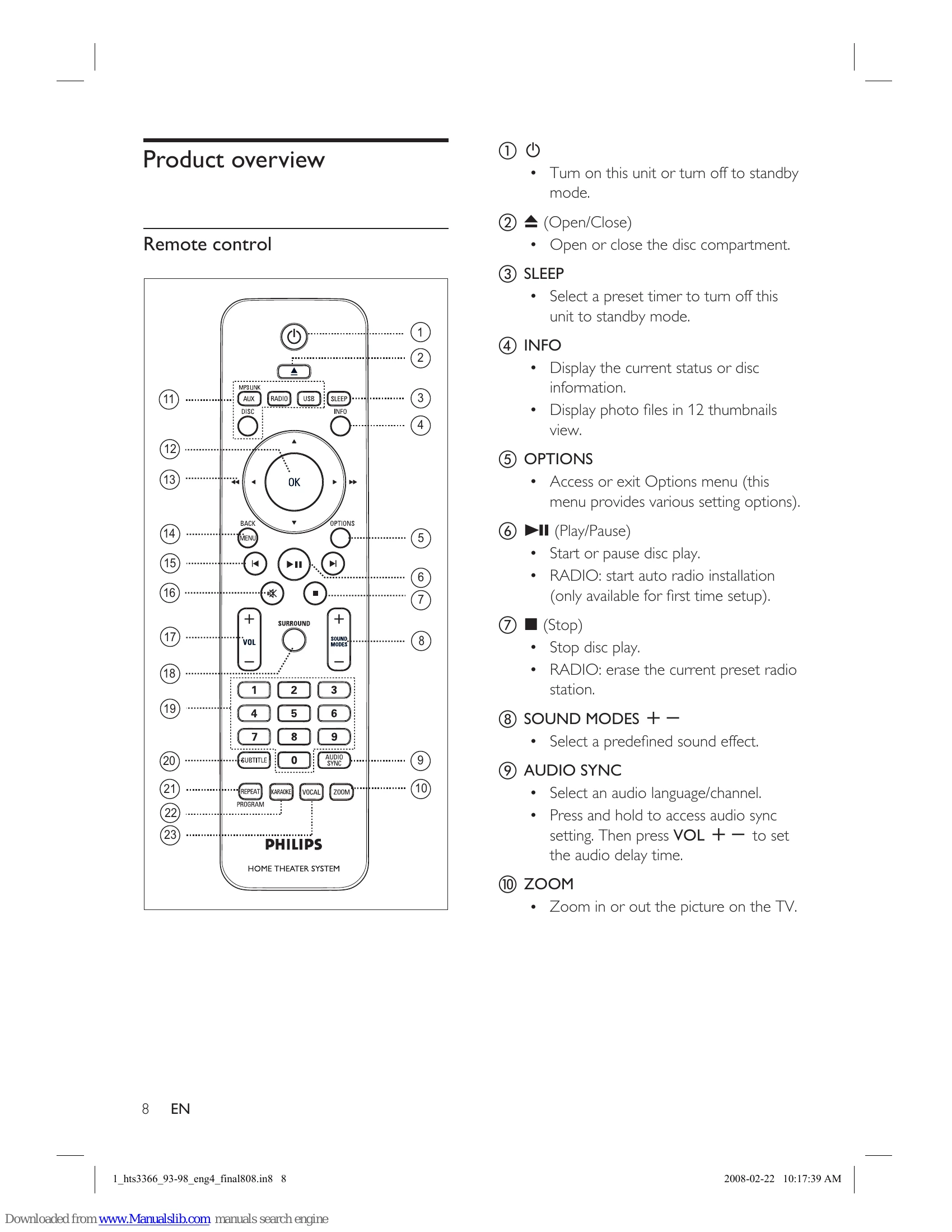
Prepare the remote control: Insert batteries and close the cover.
Control a play source: Select DISC, USB, RADIO, or AUX/MP3 LINK.
Navigate through the menu: Point the remote at the unit and use the navigation buttons.
Place the unit: Near an AC outlet, in an enclosed cabinet.
Connect video cables: Choose the best option for your TV (HDMI, Component, S-Video, CVBS).
Connect speaker cables: Match colors to speakers or stands.
Connect speakers and subwoofer: Match colored plugs and sockets.
Connect radio antenna: Stand up the AM/MW loop antenna or connect the FM antenna.
Connect other devices: Route sound from TV, cable box, recorder, game console, or portable media player.
Connect USB device: Connect to the USB socket.
Connect to power outlet: Connect the power cord.
Play from disc, USB, portable media player, or radio.
| Problem | Solution |
|---|---|
| Main unit The buttons on this unit do not work. |
Disconnect this unit from the power outlet for a few minutes, then connect again. |
| Picture No picture. |
Refer to your TV's manual for correct video input channel selection. Change the TV channel until you see the DVD screen. Press DISC. If this happens when you turn on progressive scan or change TV type, switch to default mode: 1. Press < symbol> to open the disc compartment. 2. Press < symbol>. 3. Press AUDIO SYNC (for progressive scan) or SUBTITLE (for TV Type). |
| No picture on HDMI connection. | Check if the HDMI cable is faulty. Replace a new HDMI cable. If this happens when you change the HDMI video resolution, switch to default mode: 1. Press < symbol> to open the disc compartment. 2. Press < symbol>. 3. Press ZOOM. |
| Sound No sound. |
Ensure that the audio cables are connected and press the correct input source (e.g., AUX/MP3 LINK, USB) to select the device you want to play. |
| No sound on HDMI connection. | You may not hear any sound from the HDMI output if the connected device is non-HDCP compliant or only DVI-compatible. |
| No sound from TV programme. | Connect an audio cable from the AUDIO input on this unit to the AUDIO output on your TV. Then press AUX/MP3 LINK repeatedly to select the corresponding audio input source. |
| Play DivX video files cannot be played. |
Ensure that the DivX file is encoded according to the 'Home Theatre Profile' with the DivX encoder. Ensure that the DivX video file is complete. |
| The aspect ratio of the screen is not aligned with the TV display setting. | The aspect ratio is fixed on the DVD. |
| DivX subtitle are not displayed correctly. | Ensure that the subtitle file name is the same as the movie file name. Select the correct character set: 1. Press OPTIONS. 2. Press < symbol>, then select [DivX Subtitle] in the menu. 3. Select the character set that supports the subtitle. |
| The contents of the USB flash drive cannot be read. | The USB flash drive format is not compatible with this unit. Drive is formatted with different file system which is not supported by this unit (e.g. NTFS). |