Brand: PHILIPS
Category: Audio
Document Type: Manual
Language: EN
Brand: PHILIPS
Category: Audio
Document Type: Manual
Language: EN
Uploaded: Nov. 21, 2025, 7 p.m.
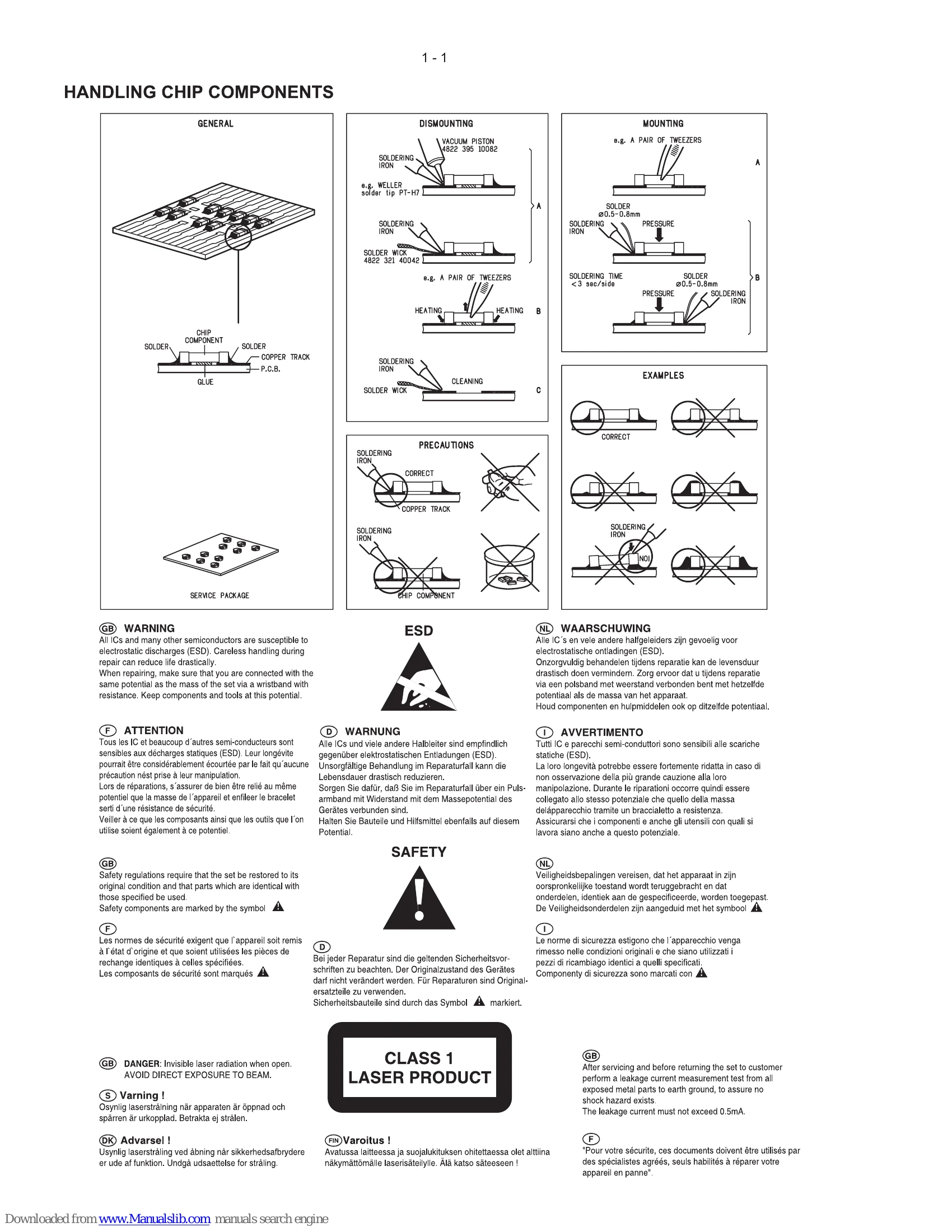
Safety regulations require that after a repair, the set must be returned in its original condition. Pay in particular attention to the following points:
If a fault occurs, first check the points listed below before taking the system for repair.
| Problem | Solution |
|---|---|
| No power. |
✔ Check if the AC power cord is properly connected. ✓ Press STANDBY-ON on the top of the DVD micro system or on the remote to turn on the power. |
| No picture. |
✔ Check if the TV is switched on. ✔ Check the video connection. ✔ Press SOURCE on the top of the DVD player repeatedly to select "DVD" or press DISC on the remote. ✓ Set your TV to the correct Video In channel. This channel is usually near channel 00. Or, you may have a button on the TV remote control that selects Auxiliary or A/V IN channel. See your TV owner's manual for details. Or, change channels at the TV until you see DVD screen on the TV. ✔ If the progressive scan feature is activated but the connected TV does not support progressive signals or the cables are not connected accordingly, see "Getting started-Setting up Progressive Scan feature" for proper progressive scan setup or deactivate the progressive scan feature as below: 1) Turn off your TV progressive scan mode or turn on to interlaced mode. 2) Press SYSTEM on the remote to exit the system menu and then DISC and "1" to exit progressive scan. |
| Distorted or poor picture. |
✔ Sometimes a small amount of picture distortion may appear. This is not a malfunction. ✓ Clean the disc. |
| Completely distorted picture or black/white picture. | ✔ TV has a colour system standard. If the disc's or DVD system's colour system is different than your TV's colour system, the picture may be distorted or colourless. |
| The aspect ratio of the screen cannot be changed even though you have set the TV shape. | ✔ The aspect ratio is fixed on the DVD disc. Depending on the TV, it may not be possible to change the aspect ratio. |
| No sound or distorted sound. |
✔ Adjust the volume. ✔ Check that the speakers are connected correctly. ✔ Replace the speaker cables. ✔ Disconnect the headphones. ✔ The system is in pause, slow motion or fast forward/reverse mode, press PRESET/ ► II (or on the remote) to resume normal play mode. |
| The micro DVD player does not start playback. |
✔ Insert a readable disc with the playback side facing down. ✔ Check the disc type, colour system and regional code. Check for any scratches or smudges on the disc. |
| The DVD micro system does not respond when the buttons are pressed. |
✔ Press SYSTEM MENU to turn off the setup menu screen. ✔ Cancel the parental control rating function or change the rating level. ✔ Moisture has condensed inside the system. Remove the disc and leave the system turned on for about an hour. ✔ Disconnect the power plug from the outlet and insert again. |
| Cannot activate some features, such as Angles, Subtitles, or multi-language Audio. |
✔ Multi-language sound or subtitle is not recorded on the DVD. ✔ Changing the language for the sound or subtitle is prohibited on the DVD. ✔ The features may not be available on the disc. |
| Considerable noise in radio broadcasts. |
✔ Tune in to the correct frequency. ✓ Connect the antennas. ✔ Fully extend the FM wire antenna. Position for best reception and secure to a wall. ✓ Connect an outdoor FM or MW antenna. ✔ Adjust the direction and position for best reception. ✔ Place the antenna farther away from any equipment that may be causing the noise. ✔ Increase the distance between the system and your TV or other equipment. |