Manual for TAT1109

Manual for TAT1109

Brand: PHILIPS

Category: Audio

Document Type: Manual

Language: EN
Uploaded: Nov. 21, 2025, 8:14 p.m.

Warranty Information

Specifications are subject to change without notice.

Getting Started

  • Charge the battery: Before first use, charge the earpieces and charging box for 2 hours.
  • How to wear: Select the best-fitting silicone sleeves for comfort and sound quality.
  • Pairing: Take earpieces out of the box. They will enter pairing mode. On your Bluetooth device, select "Philips TAT1109".
  • Connecting: Earpieces automatically reconnect to the last connected device.

Using Your Earpieces

  • Power On/Off: Earpieces power on when removed from the charging box and power off when placed back.
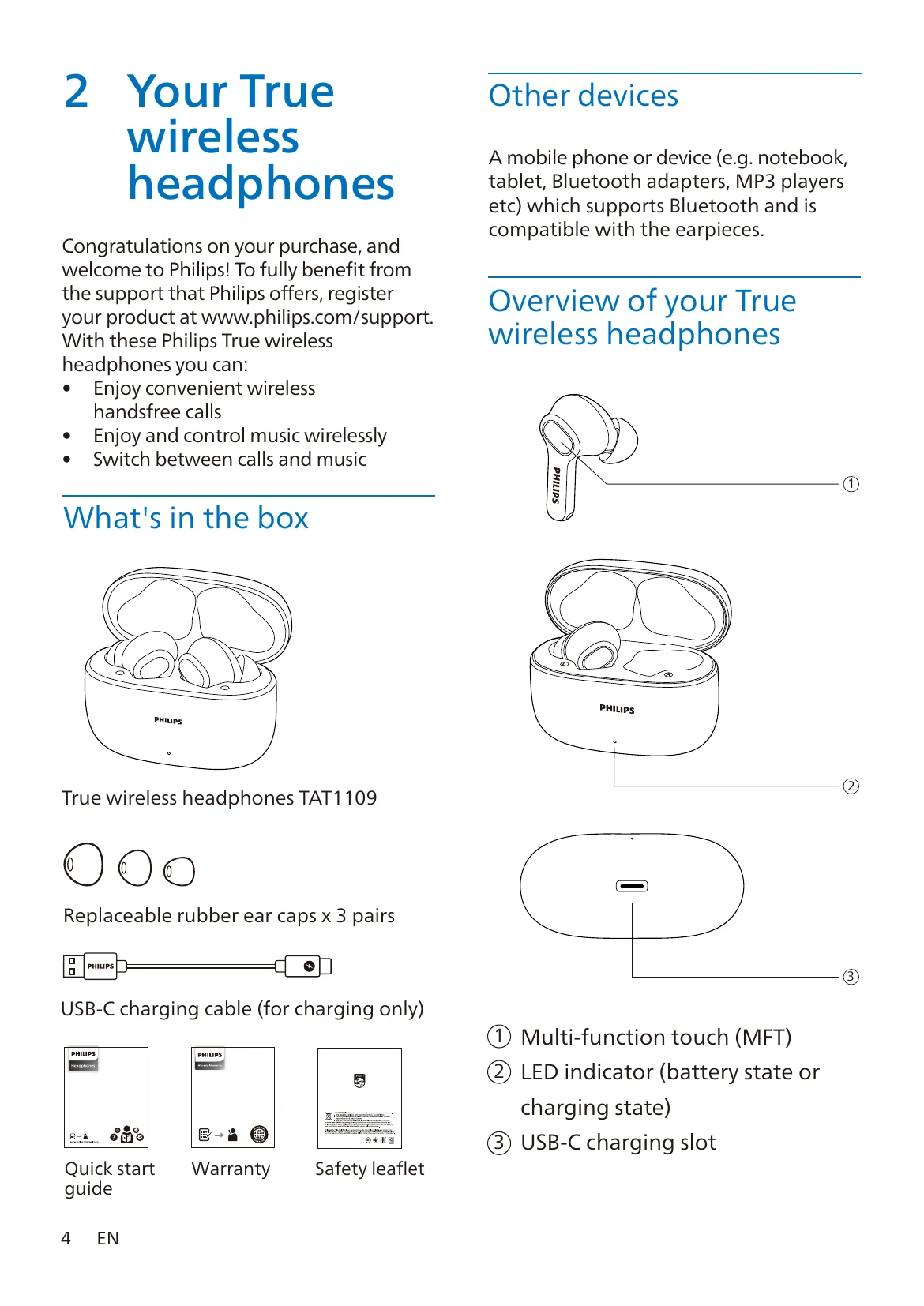
  • Music Control: Use the multi-function touch (MFT) on the earpieces to play/pause, skip tracks, and adjust volume.
  • Call Control: Single tap to pick up/hang up, double tap to hang up/reject calls.
  • Voice Assistant: Long press the right earpiece to activate Siri/Google Assistant.
  • Gaming Mode: Double tap the left earpiece to enable low latency mode.

Charging Box LED Indicators
  • When charging: Amber for low battery, White for adequate battery.
  • Earpieces back: Amber LED slowly breathes for low battery, White LED lights up for adequate battery.

Troubleshooting and error codes

Problem Solution
My Bluetooth earpieces do not turn on. The battery level is low. Charge the earpieces.
I cannot pair my Bluetooth earpieces with my Bluetooth device. The Bluetooth is disabled. Enable the Bluetooth feature on your Bluetooth device and turn on the Bluetooth device before you turn on the earpieces.
Pairing does not work.
  • Put both earpieces into charging box.
  • Make sure you have disabled the Bluetooth function of any previously connected Bluetooth devices.
  • On your Bluetooth device, delete "Philips TAT1109" from the Bluetooth list.
  • Pair your earpieces (see ‘Pair the earpieces with your Bluetooth device for the first time' on page 6).
The Bluetooth device cannot find the earpieces.
  • The earpieces may be connected to a previously paired device. Turn off the connected device or move it out of range.
  • Pairing may have been reset or the earpieces have been previously paired with another device. Pair the earpieces with the Bluetooth device again as described in the user manual. (see 'Pair the earpieces with your Bluetooth device for the first time' on page 6).
My Bluetooth earpieces are connected to a Bluetooth stereo-enabled mobile phone, but music only plays on the mobile phone speaker. Refer to the user manual of your mobile phone. Select to listen to music through the earpieces.
The audio quality is poor and a crackling noise can be heard.
  • The Bluetooth device is out of range. Reduce the distance between your earpieces and Bluetooth device, or remove obstacles between them.
  • Charge your earpieces.
The audio quality is poor when streaming from a mobile phone is very slow or streaming does not work at all. Make sure your mobile phone not only supports (mono) HFP but also supports A2DP and is BT4.0x (or higher) compatible (see 'Technical data' on page 10).
Privacy Policy