Brand: PHILIPS
Category: Electronics
Document Type: Manual
Language: EN
Brand: PHILIPS
Category: Electronics
Document Type: Manual
Language: EN
Uploaded: Nov. 21, 2025, 7:37 p.m.
Manual Publish Date: 2007-09-18
No components are user-serviceable. Repairs may only be done by Philips Service Centres.
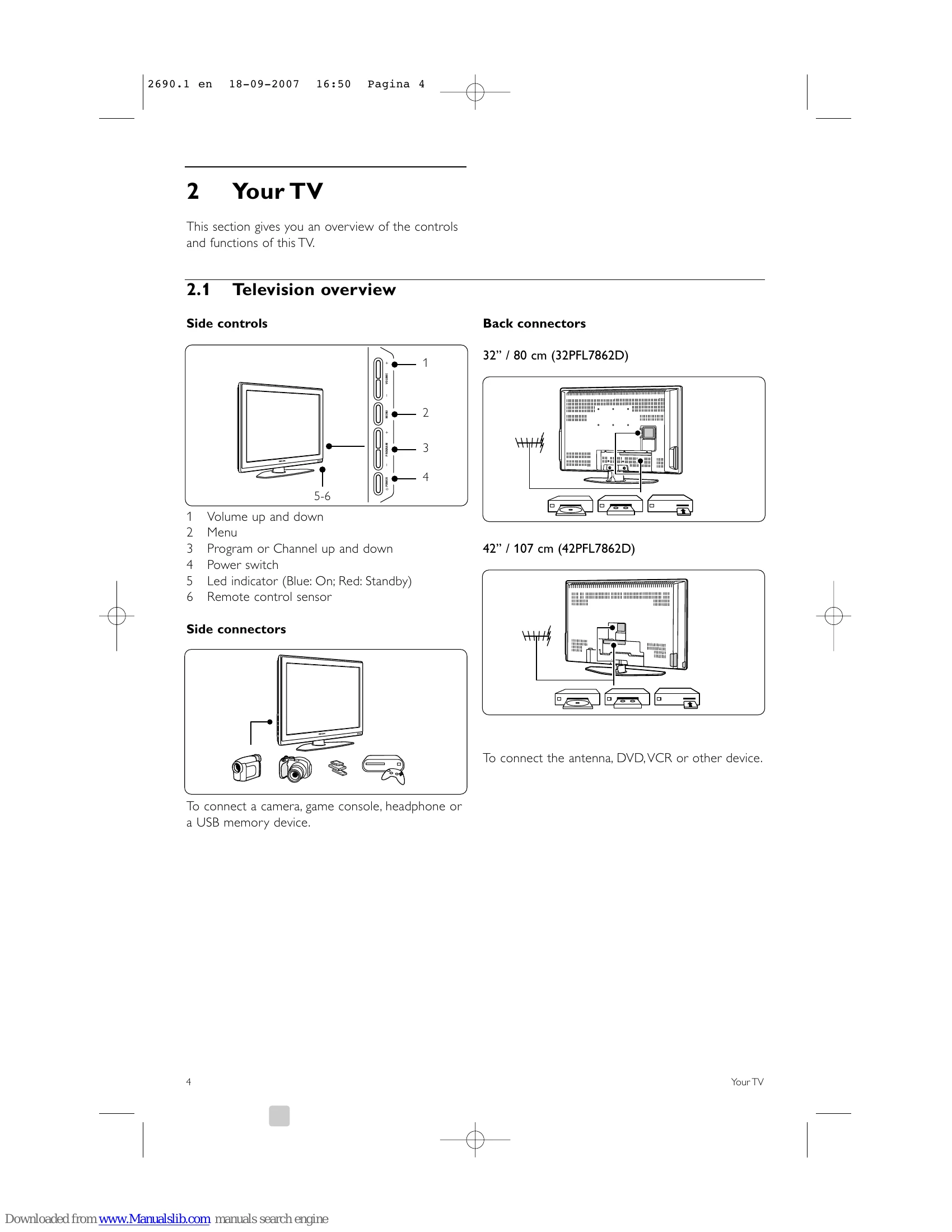
To switch on: Press Power on the TV side or on the remote control. To switch off (standby): Press on the remote control.
To switch channels: Press the number keys (1-999) or P+/P- on the remote, or use the Program/Channel +/- on the TV side. To adjust volume: Use Volume +/- on the remote or TV side. To mute: Press .
Use appropriate cables (HDMI, Scart, YPbPr, etc.) to connect devices like DVD players, game consoles, or PCs to the TV. Refer to the "Connections" section for specific cable types and back panel connections.
Press Menu to access settings for Picture, Sound, Installation, and more. Use the navigation keys (up, down, left, right) and OK to select and adjust options.
| Problem | Possible Cause & Solution |
|---|---|
| The TV does not switch on | Verify mains cord connection. Check remote control batteries. Unplug and replug the mains cord after one minute. |
| The TV does not react on the remote control | Verify remote control batteries and orientation. Clean remote control and TV sensor lens. Use side control keys for basic adjustments. |
| The red light on the TV blinks | Unplug for half a minute, then plug in again. Ensure adequate ventilation. Wait for TV to cool down. Contact Customer Support if the issue persists. |
| Wrong language in the TV menu | Press Menu, navigate to the language setting, and select the correct language. |
| Some TV channels are gone | Verify the correct channel list is chosen. Check if a channel was uninstalled in the Rearrange menu. |
| No digital channels found during installation | Verify if the TV supports DVB-T in your country. |
| The blue light is on, but there is no picture | Check antenna connection. Ensure the correct device is selected. |
| The sound is on, but there is no picture | Verify contrast and brightness settings. Check antenna connection. |
| The TV picture is poor | Check antenna connection. Check speaker setup. Adjust contrast/brightness. Verify correct TV system (Manual Installation). Fine-tune channels if necessary. Loudspeakers, neon lights, etc. can influence picture quality. |
| The picture has poor colour | Check colour settings. Try 'Reset to standard' settings. Verify connections and cables. |
| The TV did not remember my settings | Verify if the TV is set to 'Home' in the Location menu. |
| The picture does not fit the screen | Select a more fitting picture format. Name connected devices for better signal handling. |
| The picture position on screen is not correct | Adjust with navigation keys. Check device signal output. |
| There is a picture but no sound | Verify volume is not 0. Check if muted. Verify cable connections. If no signal, TV automatically switches off sound. |
| The sound is poor | Verify Stereo setting. Check Equalizer settings. Try 'Reset to standard'. |
| The sound comes from one speaker only | Check Balance setting. |
| Trouble with devices connected with HDMI | Wait for HDCP procedure. Try switching devices. Check device output settings. Connect additional audio cable if needed. Use HDMI-to-DVI adaptor with audio cable if applicable. |
| USB connection: TV does not show USB content | Set device to 'Mass Storage Class' compliant. Check if specific drivers are needed (not downloadable to TV). |
| Cannot see files in Multimedia menu | Ensure file format is supported (see Technical Data). |
| Audio/picture files do not playback smoothly | USB device transfer performance limits rate. |
| PC display unstable or not synchronised | Verify correct resolution mode selected on PC. |