Brand: PIONEER
Category: Home Entertainment System
Document Type: Manual
Language: EN
Brand: PIONEER
Category: Home Entertainment System
Document Type: Manual
Language: EN
Uploaded: Nov. 21, 2025, 8:18 p.m.
Refer to the Software License Notice for details on software usage rights and warranty.
Before You Start: Check the box contents, install the receiver on a stable surface away from heat, moisture, or direct sunlight. Follow the Flow of Settings on the receiver guide.
Connecting Equipment: Connect speakers, then connect audio/video components like TVs, Blu-ray players, and game consoles using appropriate cables (HDMI, analog, digital). Connect antennas and USB devices.
Basic Playback: Switch on components, select the correct TV input, then the receiver's input function. Select audio input signal and press AUTO/DIRECT for surround sound. Adjust volume.
Listening to Radio: Tune FM/AM stations using automatic or manual tuning. Save favorite stations as presets and name them for easy recall.
USB Playback: Connect a USB device to the front panel, switch receiver to standby, then connect. Play music files from the USB device.
Bluetooth: Pair a Bluetooth-capable device by pressing BT, then follow on-screen instructions. Play music wirelessly.
Home Menu Settings: Access Manual Speaker Setup, Input Assign, Auto Power Down, and HDMI Setup for detailed configuration.
| Symptom | Possible Cause and Solution |
|---|---|
| The power does not turn on. | Disconnect and reconnect the power plug. |
| The receiver suddenly switches off. | Check Auto Power Down settings. Ensure speaker wires are not touching the rear panel. |
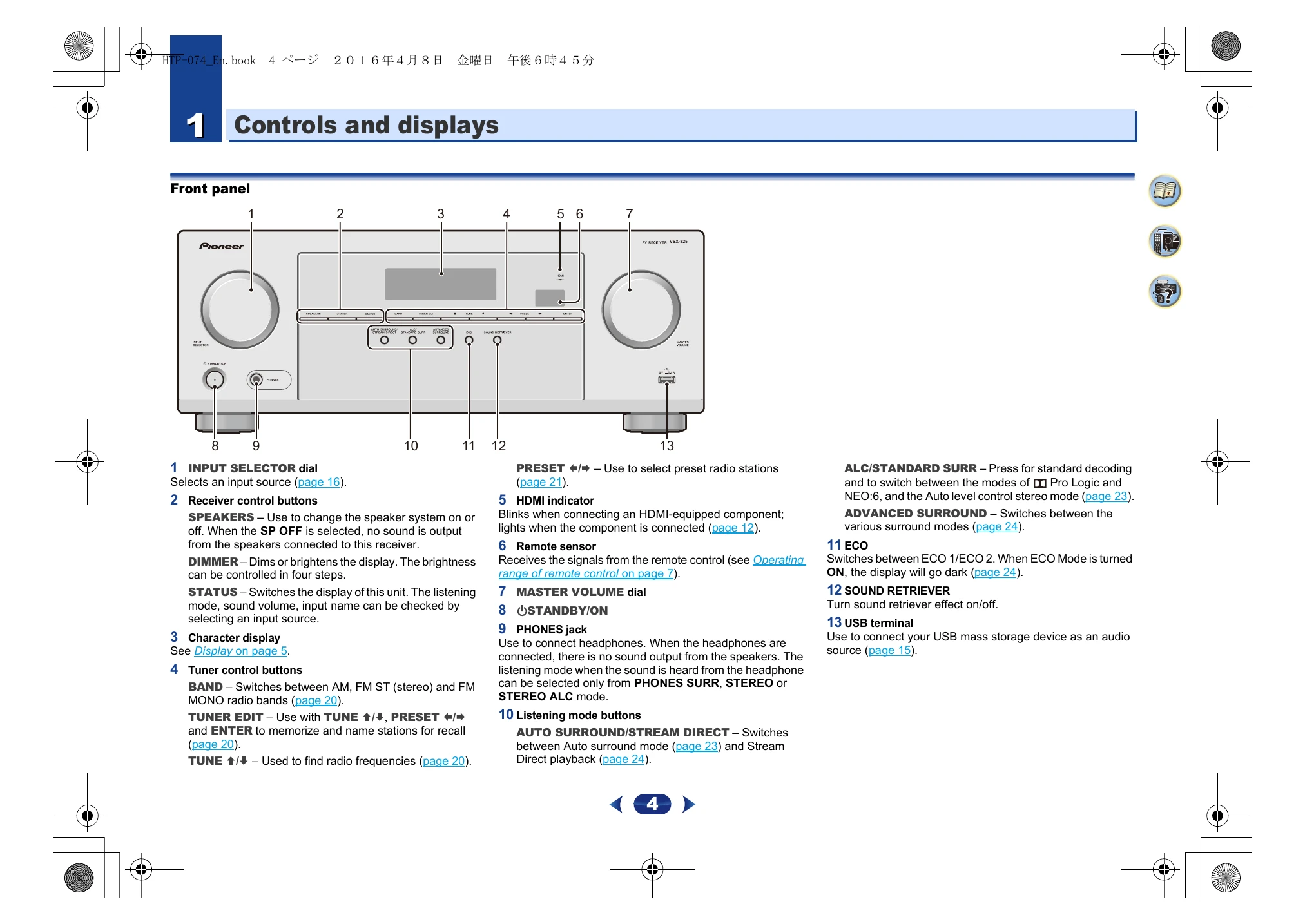
| The HDMI indicator blinks and the power does not turn on. | The receiver may have a serious problem. Contact a service company. |
| Input switches from one to another (ARC ON). | Turn off HDMI CONTROL on the connected player. If necessary, turn OFF the ARC function. |
| OVERHEAT or TEMP shows, power turns off or volume drops. | Improve ventilation. Lower volume level. |
| No sound is output when an input function is selected. | Turn up volume. Turn off MUTE. Select correct AUDIO SEL (H, C1/01, or A). Check component connections and settings. |
| No image is output when an input function is selected. | Check component connections. Use the same cable type for input/output. Ensure TV input is correct. |
| No picture or sound from HDMI. | Consult component/monitor manual. Try connecting component directly to display. |
| No picture from HDMI. | Ensure consistent cable type between input/output. Check component output settings or use composite jacks. Ensure HDCP compatibility. |
| OSD screen is not displayed. | Use HDMI connections when setting up; OSD does not appear with composite output. |
| No sound, or sound suddenly ceases (HDMI). | Check HDMI setting is AMP. If DVI device, use separate audio connection. HDMI digital audio may require longer recognition time. |
| USB Error 4 (I/U ERR4). | USB device power requirements too high. Switch receiver off and reconnect USB. |