Brand: Prestigio
Category: Car Video Recorder
Document Type: Quick Start Guide
Language: EN
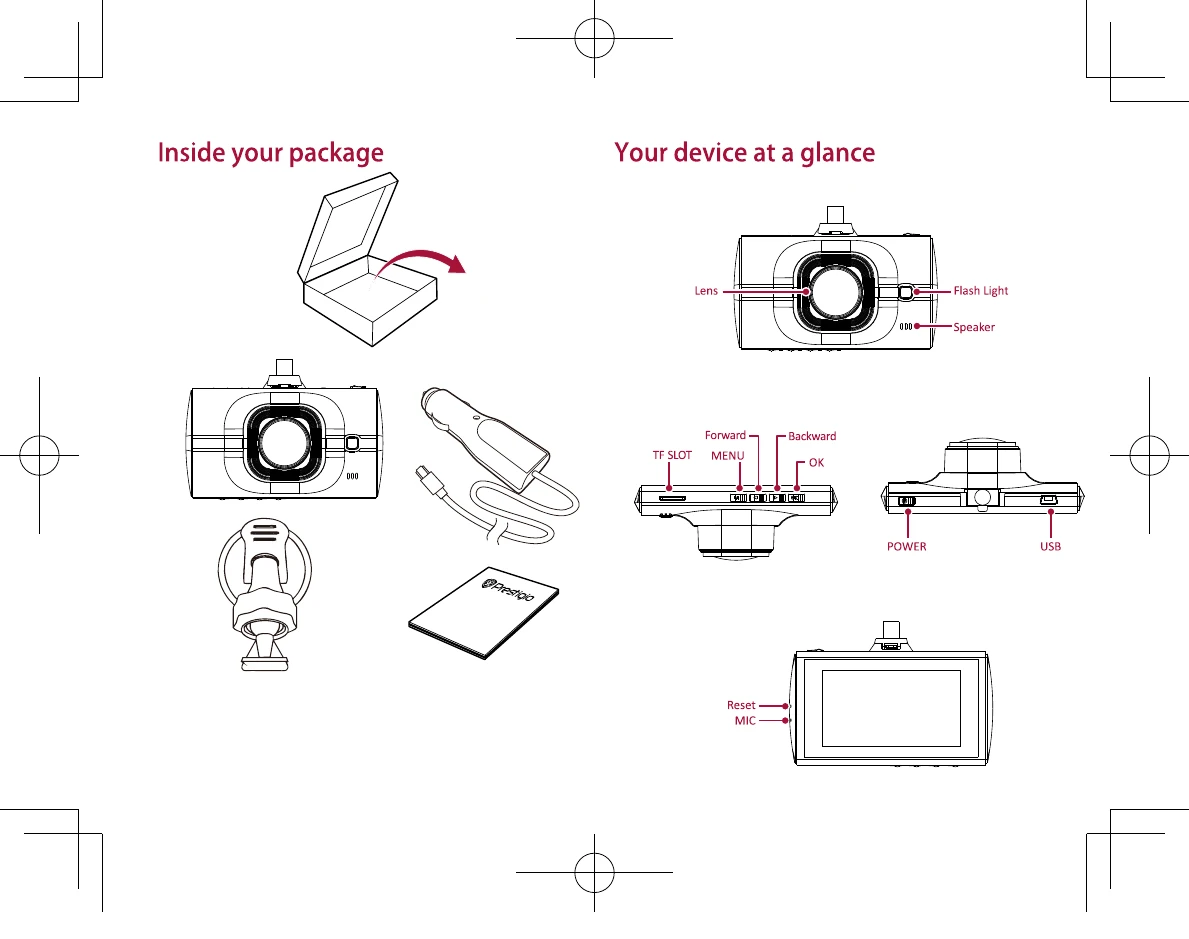
Brand: Prestigio
Category: Car Video Recorder
Document Type: Quick Start Guide
Language: EN
Uploaded: Aug. 10, 2025, 12:47 a.m.
The manufacturer's warranty period is 1 year from the date of sale.
| Issue | The device does not turn on. | Ensure the device is properly connected to the power source and the power adapter is functioning correctly. Try using a different power outlet or car charger. |
|---|---|---|
| Issue | Videos are blurry or unclear. | Clean the lens with a soft, dry cloth. Ensure the lens is not obstructed. Check if the resolution settings are appropriate for the lighting conditions. |
| Issue | The device is not recording. | Ensure a micro SD card is inserted and has sufficient free space. Check the recording settings and ensure the device is powered on. |
| Issue | The recorded video is jerky or frozen. | Ensure you are using a high-speed micro SD card. Close other applications running on your phone or computer that might be consuming resources. Avoid extreme temperatures, as they can affect device performance. |
| Issue | The device overheats. | Avoid using the device in direct sunlight or in a hot environment. Ensure proper ventilation. If the device continues to overheat, discontinue use and contact customer support. |