Brand: Prestigio
Category: Car Video Recorder
Document Type: Quick Start Guide
Language: EN
Brand: Prestigio
Category: Car Video Recorder
Document Type: Quick Start Guide
Language: EN
Uploaded: Aug. 10, 2025, 12:48 a.m.
Please refer to the product packaging or manufacturer's website for warranty information.
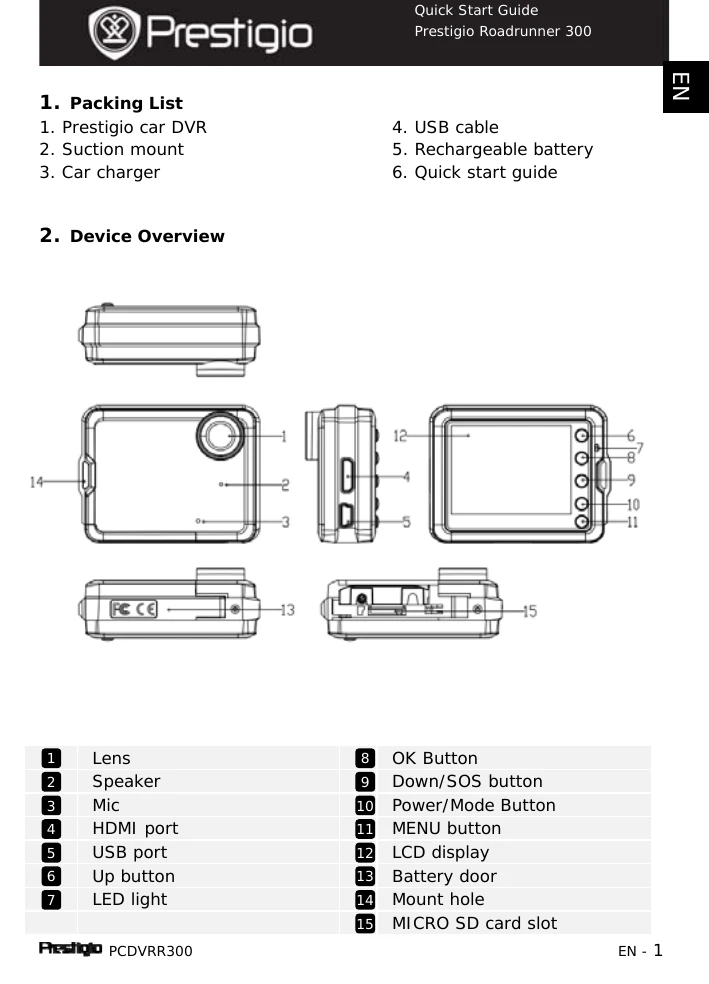
3. Power on/Power off: Position the device using the suction mount and press the Power button to turn on. Press again to turn off. The device can also turn on/off automatically with the car engine when connected to the car charger.
4. Charging: Connect to a computer/laptop via USB cable or use the car charger. A full charge takes 2-3 hours. It is recommended to fully charge the battery before first use.
5. Inserting the Micro SD card: Insert a Micro SD card into the slot before recording. To extract, push it slightly inside and remove.
6. Recording: When connected to the car charger and the car engine is on, the device starts loop video recording. It saves the last file and turns off 15 seconds after the engine stops. Pressing OK saves the current file and enters standby mode. Full card automatically deletes the oldest unlocked video file.
7. Taking pictures: Press the Mode button to select photo mode. Press OK to take photos. Use the Menu button to set resolution and time.
8. Main menu: Navigate between Video recording, Picture mode, Sound recording, and Storage card.
9. Video Menu settings: Adjust Resolution, Time Stamp, Motion Detect, Video time (loop recording duration), and Microphone settings.
10. Picture Menu settings: Adjust Size, Time Stamp, and Shutter Sound.
11. General settings: Format SD card, set Language, Auto off, LCD Auto Off, Sys Reset, Light Freq, Date Input, TV Output, Date Format, Key Tone, and check Firmware Ver.
12. Playback mode: Enter playback mode to view recorded files. Use up/down to navigate, OK to play, and up/down for fast forward/backward. Menu button accesses playback options like Delete, Lock/Unlock, Thumbnail, and Volume.
13. USB connection: Connect to PC/notebook via USB to download files. Select 'Disk Driver' to access files in the DCIM folder.
14. PC Camera Mode: Connect to computer via USB and select 'PC CAM' mode to use as a webcam.
15. Playback on TV: Connect to TV via HDMI cable for playback.